An AI agent that edits your project for you, masks for anything you need to hide
on screen, a new video effects section, perspective transitions, subtitles you
can place anywhere on the canvas, and full control over your export resolution.
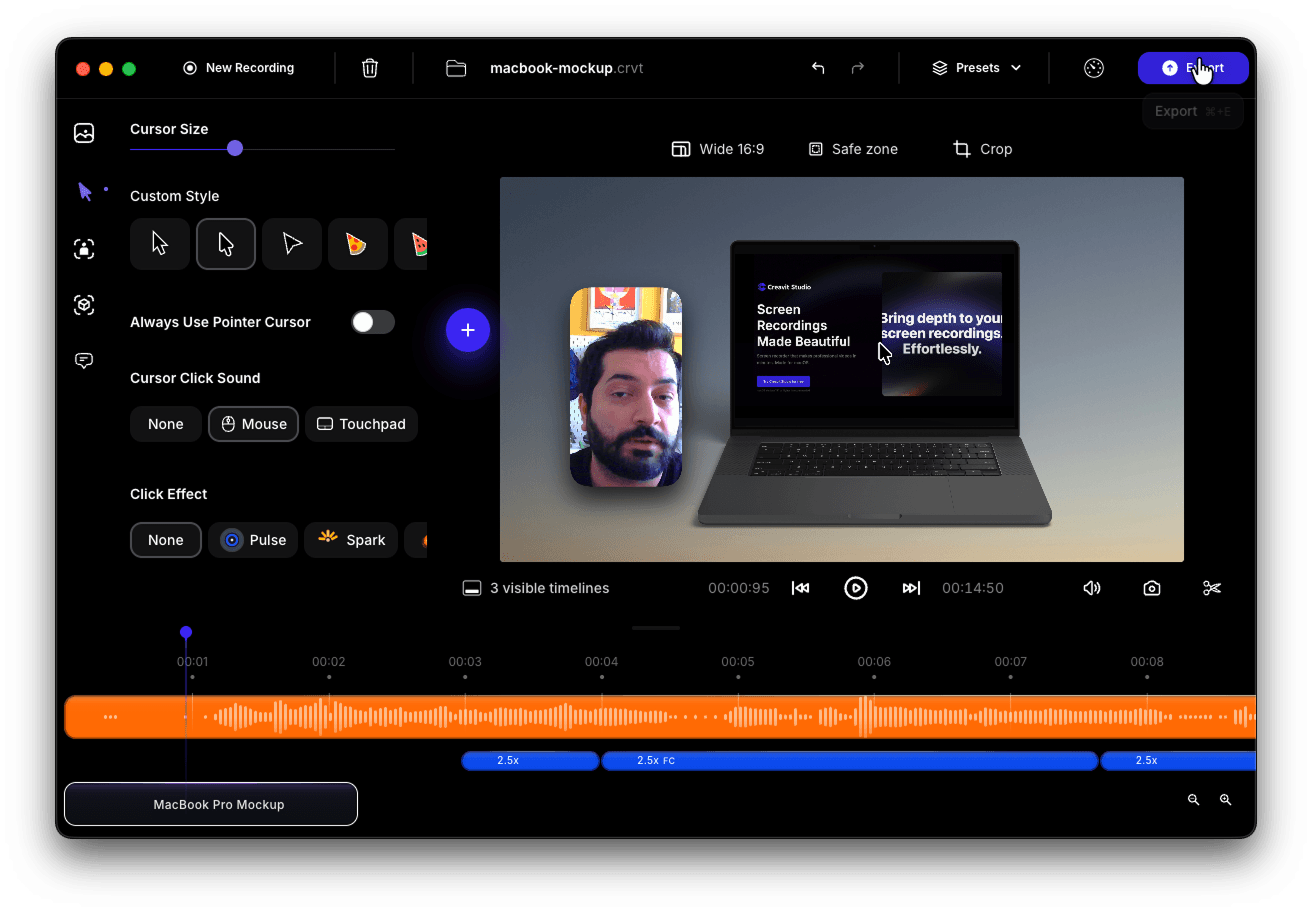
- Let an agent do the editing — a new Agent panel (⌘I) sits next to your
timeline. Ask for what you want in plain language and it does the work in the
open project.
- Works with the CLI you already use — pick Claude Code or Codex,
choose the model and how hard it should think, all from the panel. The agent
runs locally on your Mac under your own CLI account — your video files stay on
your machine, and only what the agent sends goes to whichever model provider
that CLI is already signed in to.
- Nothing to install or configure — the agent connection ships inside the
app and runs on the app's own runtime, so you don't need a separate Node.js
setup. A setup hint walks you through it if a CLI is missing.
- Prompt ideas when you're stuck — every chat opens with its own set of
suggestions drawn from a pool of 50, so you can see what the agent can do.
- Chats are remembered — conversations are kept per project, in tabs.
- Put the panel on either side — the agent panel can live on the right or
the left; ⌘⇧D moves it across and your choice is remembered. The same
panel opens in Motion Studio.
- See what the agent is doing — while the agent works on your project, a
live overlay appears over the editor and clears itself when the work is done.
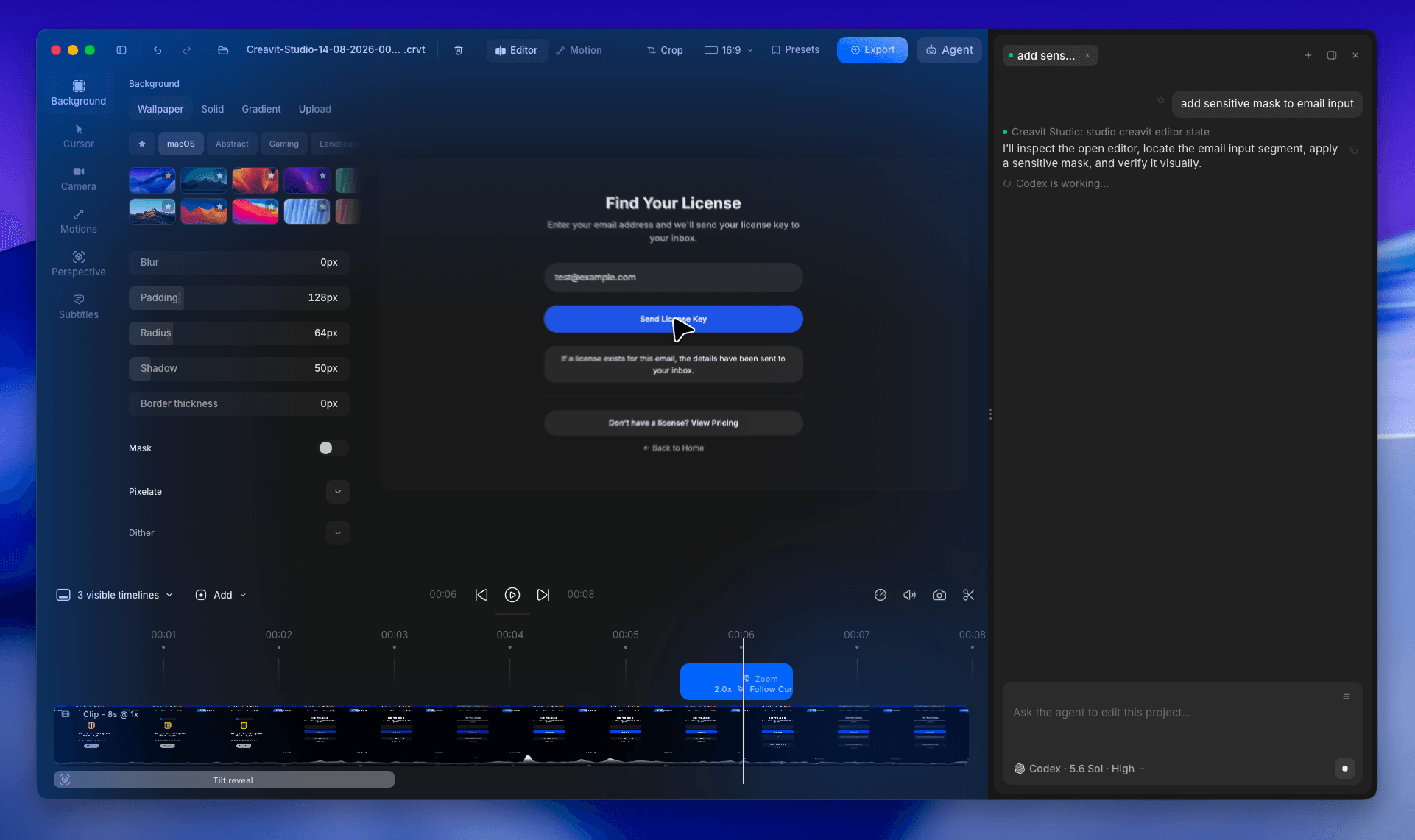
Under the hood the panel talks to Creavit Studio through MCP (Model Context
Protocol), and the app exposes nearly a hundred typed actions over it. That
means the agent isn't limited to a few canned tricks — it can genuinely operate
the app. The same connection works from any MCP-capable tool on your Mac, not
just the built-in panel.
Record for me
- "Record this website" — give it a URL and it opens the page in a clean,
frameless capture window at the aspect ratio you want (16:9, 9:16, 1:1 …),
waits for the page to actually finish loading, then records a walkthrough:
scrolling, clicking, hovering, typing, pausing on the parts that matter. It
moves the real macOS mouse, so you get Creavit's native cursor data — smooth
cursor motion and automatic click zooms, exactly as if you had done it by
hand. It can then save the project, export it and open the finished video,
all from one request.
- "Record this window" or "record my screen" — the agent can list your
displays, windows and capture devices, check macOS permissions, pick the
source, decide whether the camera, microphone and system audio are on, and
start and stop the recording. Area recordings take exact coordinates.
- "Record me clicking through this app" — a walkthrough recording runs the
whole interaction in a single step, so the video is exactly as long as the
steps take, with no dead time from the agent thinking between clicks.
Edit for me
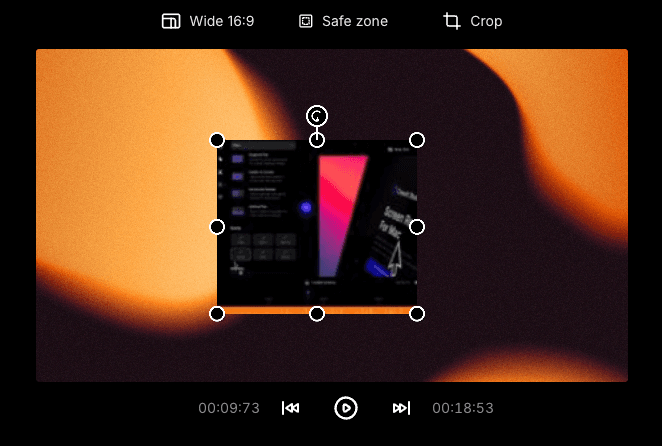
- Zooms, perspective and masks — add, update, list or remove zoom segments,
3D perspective moves and sensitive-content masks anywhere on the timeline.
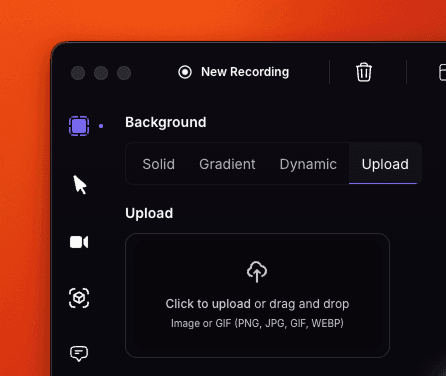
- Look and feel — set the background, pick a wallpaper from the library,
change camera settings (including turning camera background removal on and
off — the same switch as the settings panel), adjust audio, or read and write
any player setting.
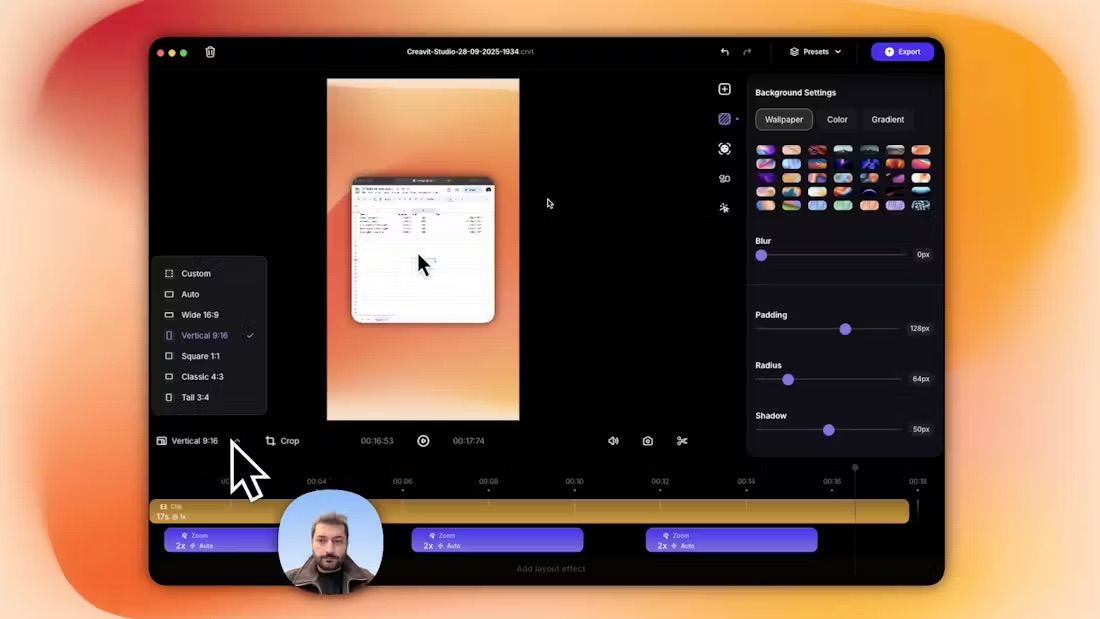
- Reframe it — ask to "make it vertical" or "get it ready for mobile" and
one call changes the aspect ratio, refits padding and radius so the content
stays as large as possible, enlarges the camera and anchors it bottom-center
so it reads on a narrow frame, and scales the cursor. Your existing zooms are
left untouched.
- Ready-made perspective poses — the agent no longer guesses raw angles; it
picks a balanced pose (`desk`, `hero`, `iso-left`, `float-right` …), sets how
strong it should be, and points at the spot on the canvas it should focus on.
- Timeline and playback — inspect or replace segments, seek, play and pause,
grab a screenshot or a single video frame to check the result, and undo or
redo.
- Projects — list, open, save, summarize and reveal your projects.
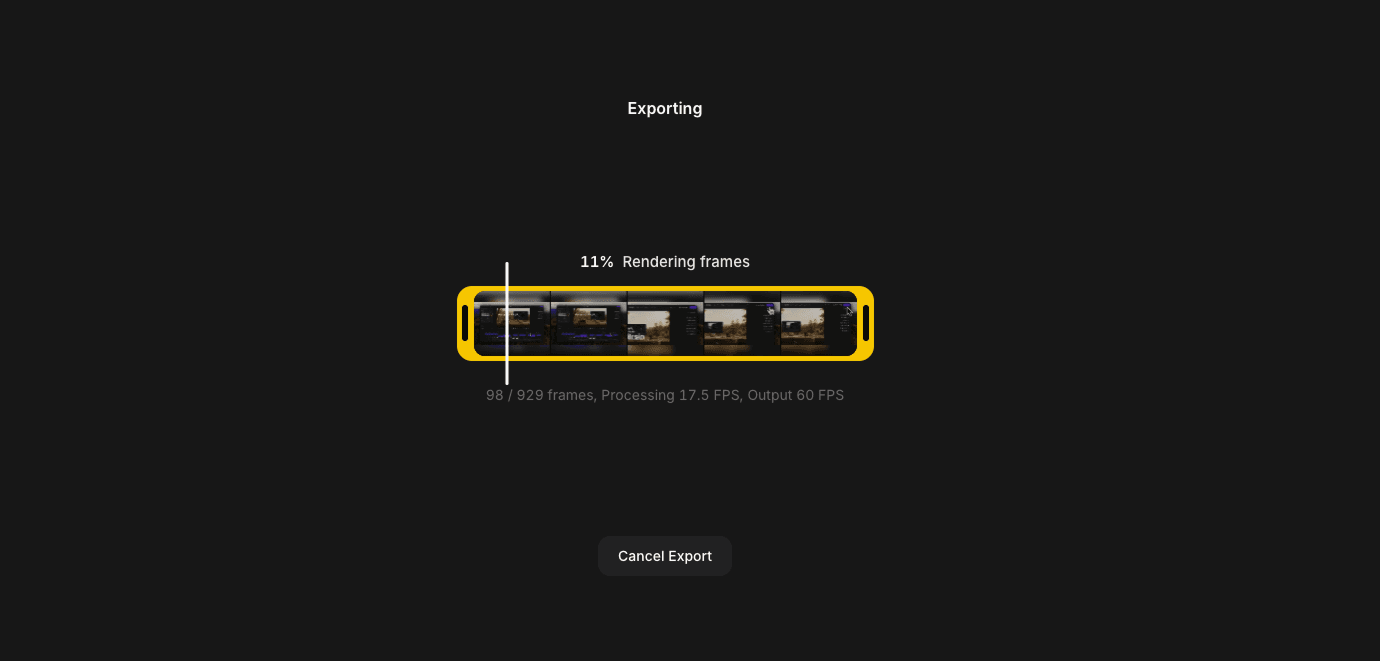
- Export — start an export with the resolution, frame rate and quality you
asked for, in the background, and get told when it's done.
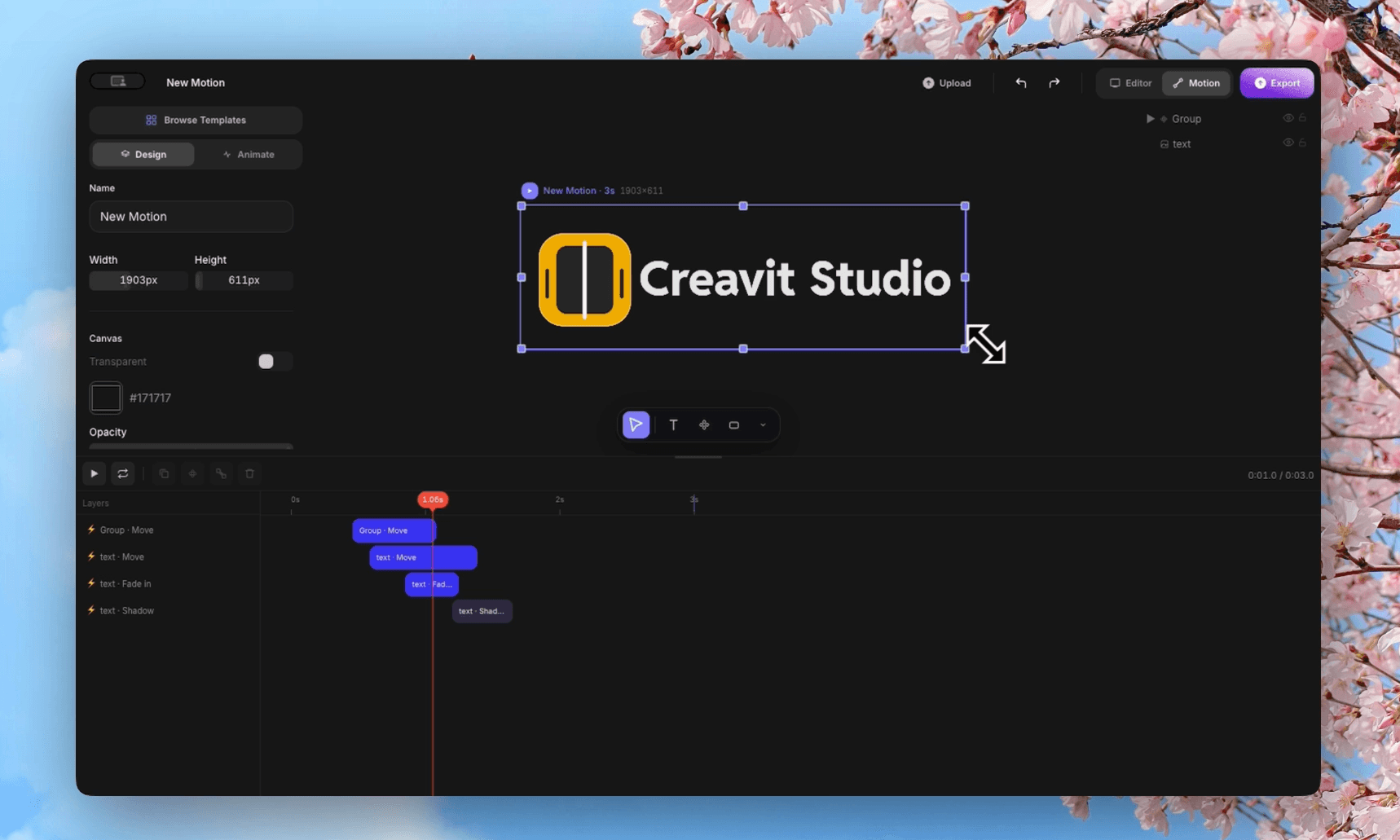
- Motion Studio too — open scenes, add and arrange elements, build and edit
animations, use templates and presets, and export the result.
Nothing is off limits — if a request needs something the typed actions don't
cover, the agent can ask the app for its full command list and call it directly,
so the panel keeps up with the app instead of lagging behind it.
- Hide anything you don't want on screen — draw a region over a password, an
email address or a customer name and mask it with Blur, Pixel or a
Solid color.
- The mask stays put — regions are anchored to the video itself, so they
follow along through zooms and 3D perspective moves instead of drifting.
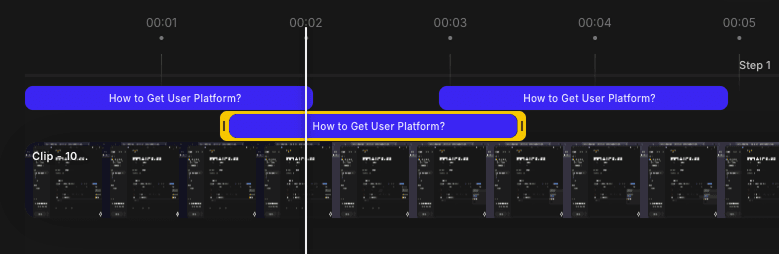
- Timeline control — each mask gets its own timeline row you can move, trim
or delete, so you can reveal something later in the recording.
- Tune the look — intensity, corner radius and solid color are all
adjustable.
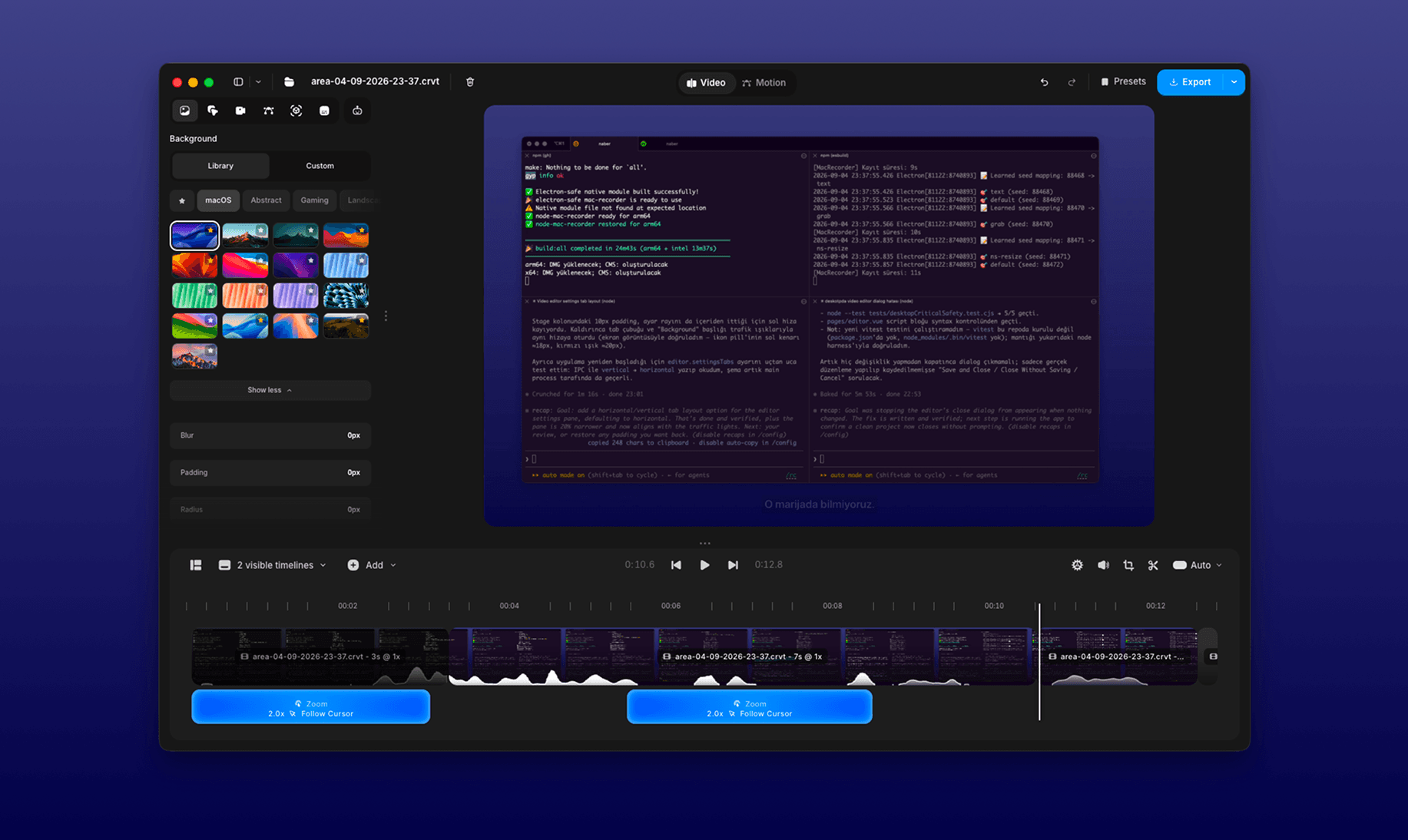
- Effects section — Blur, Pixelate and Dither now live together at the
bottom of the video settings.
- Pixelate — choose Pixel for clean blocks or CRT for the retro tube
look, with Density, Intensity and Sharpness dials. Pixels are anchored to the
content, so they grow and shrink with your zooms.
- Dither — a new retro/print-style effect with Intensity, Color levels and
Pattern size.
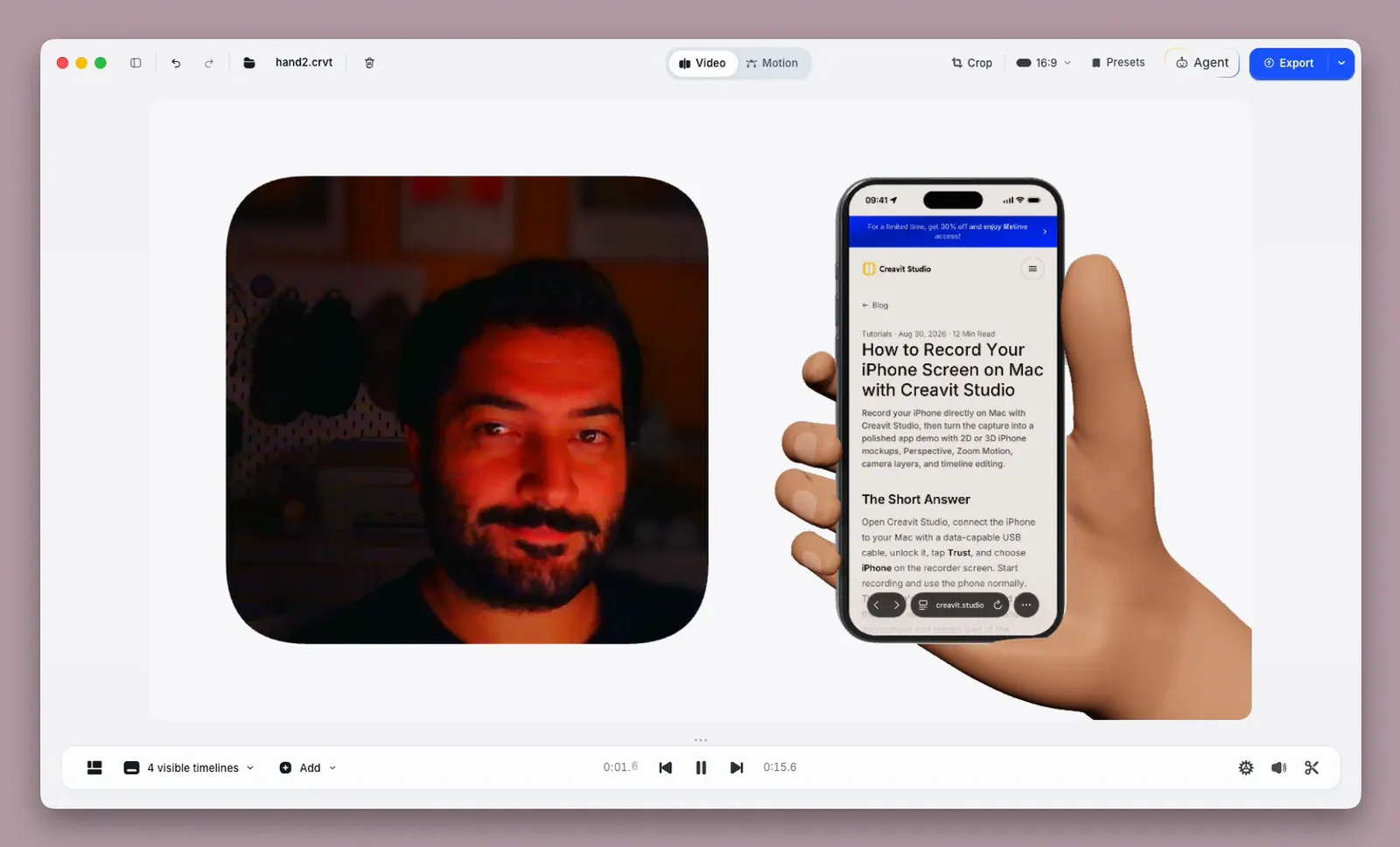
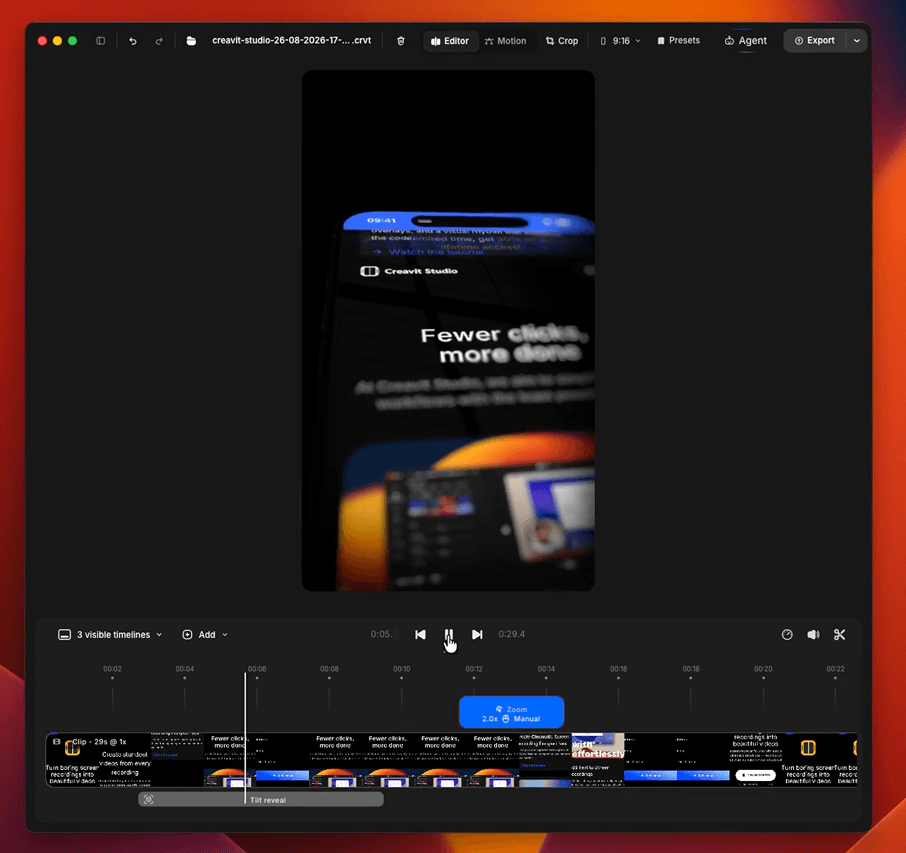
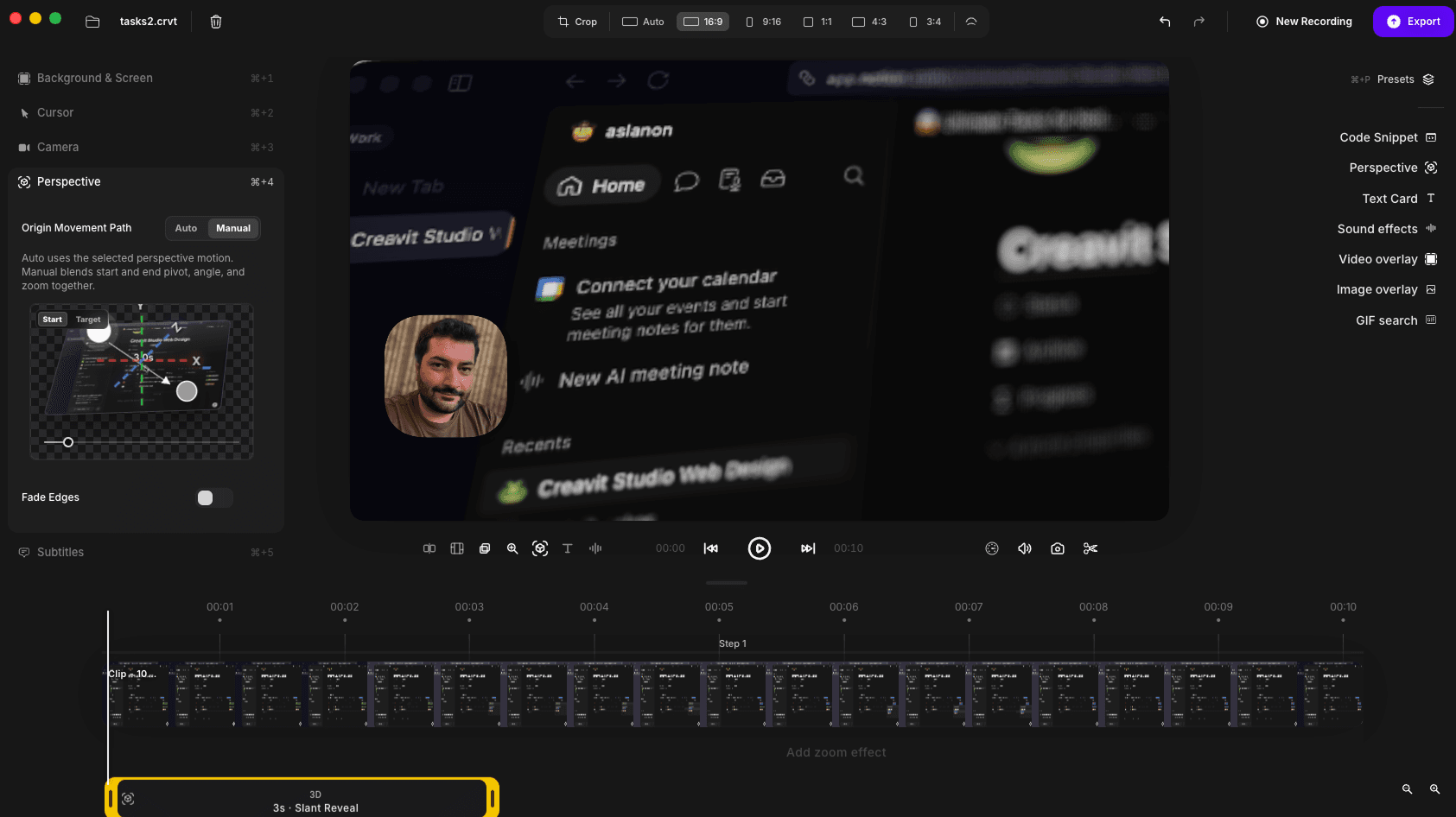
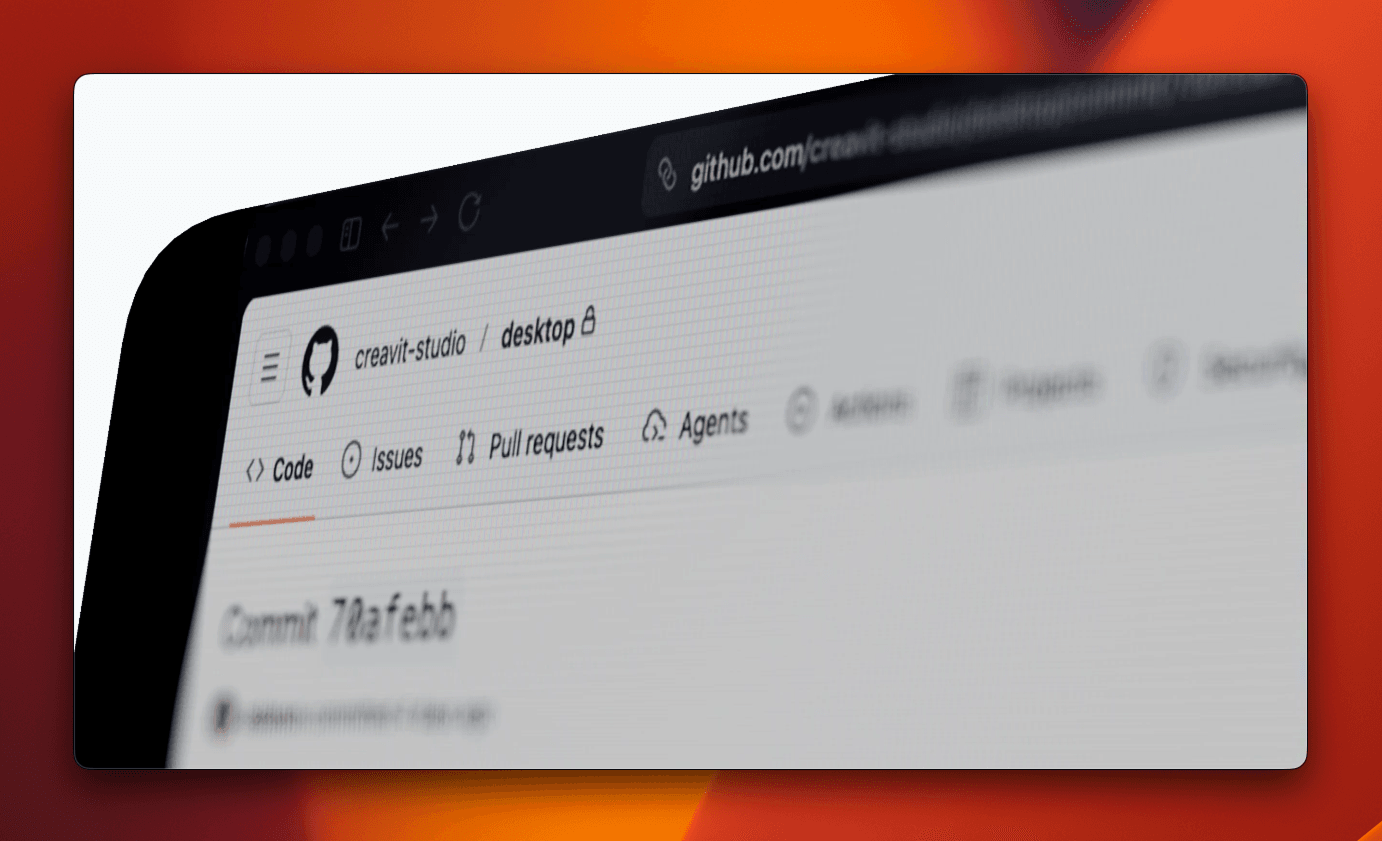
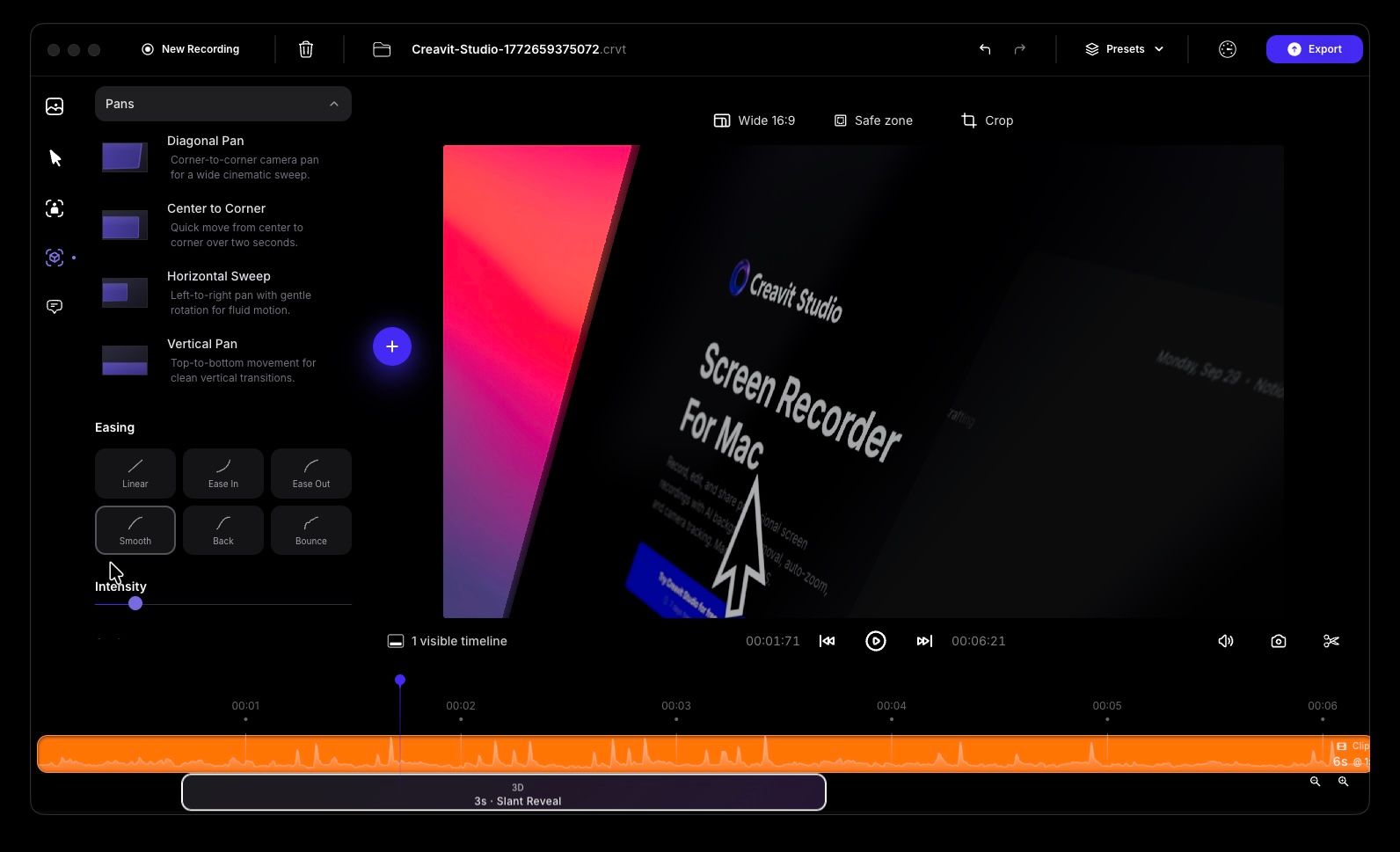
- Angle to angle, smoothly — perspective (3D) segments now blend into each
other and back to flat instead of snapping, with easing options and depth
settings you control.
- Pick the start and target point while you can see it — the preview for the
origin points now jumps to the moment the transition has finished, so you set
the pivot on the tilted image instead of on a flat canvas.
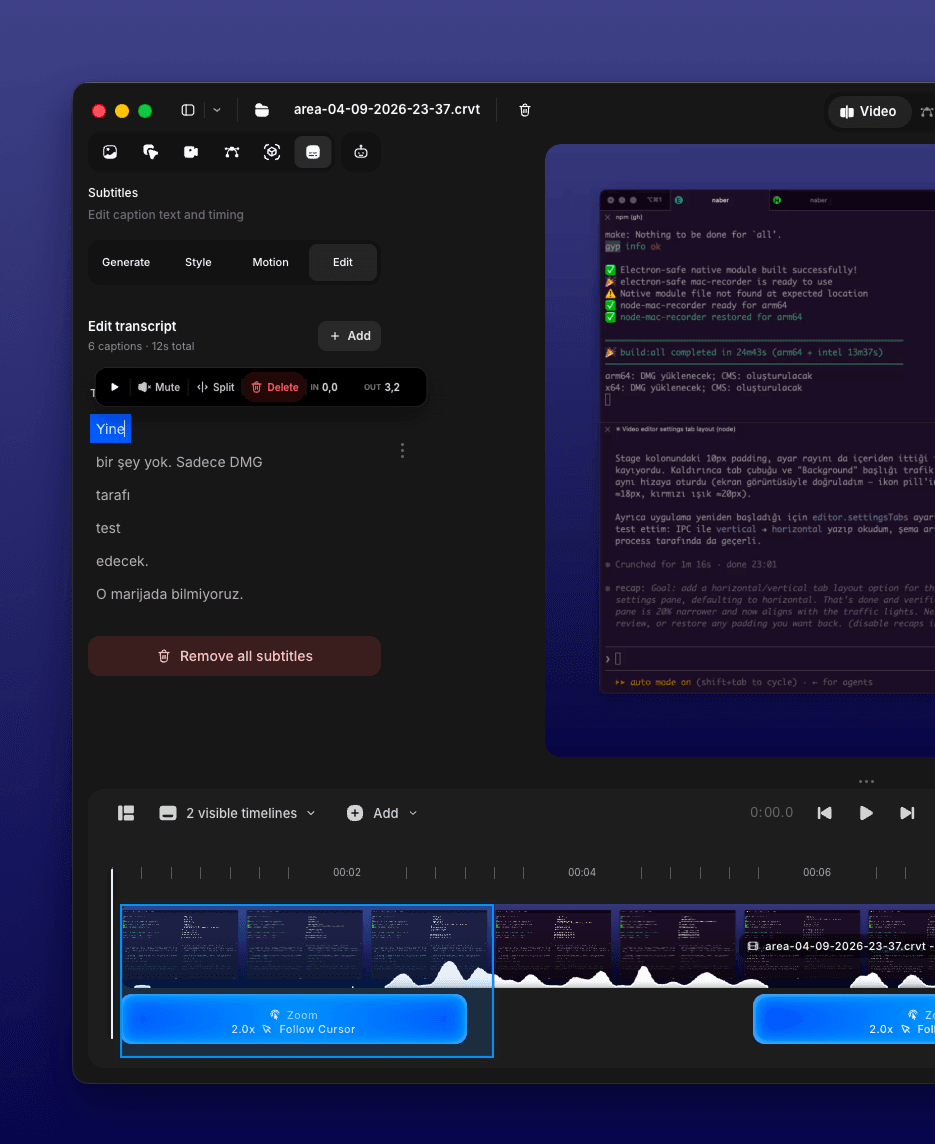
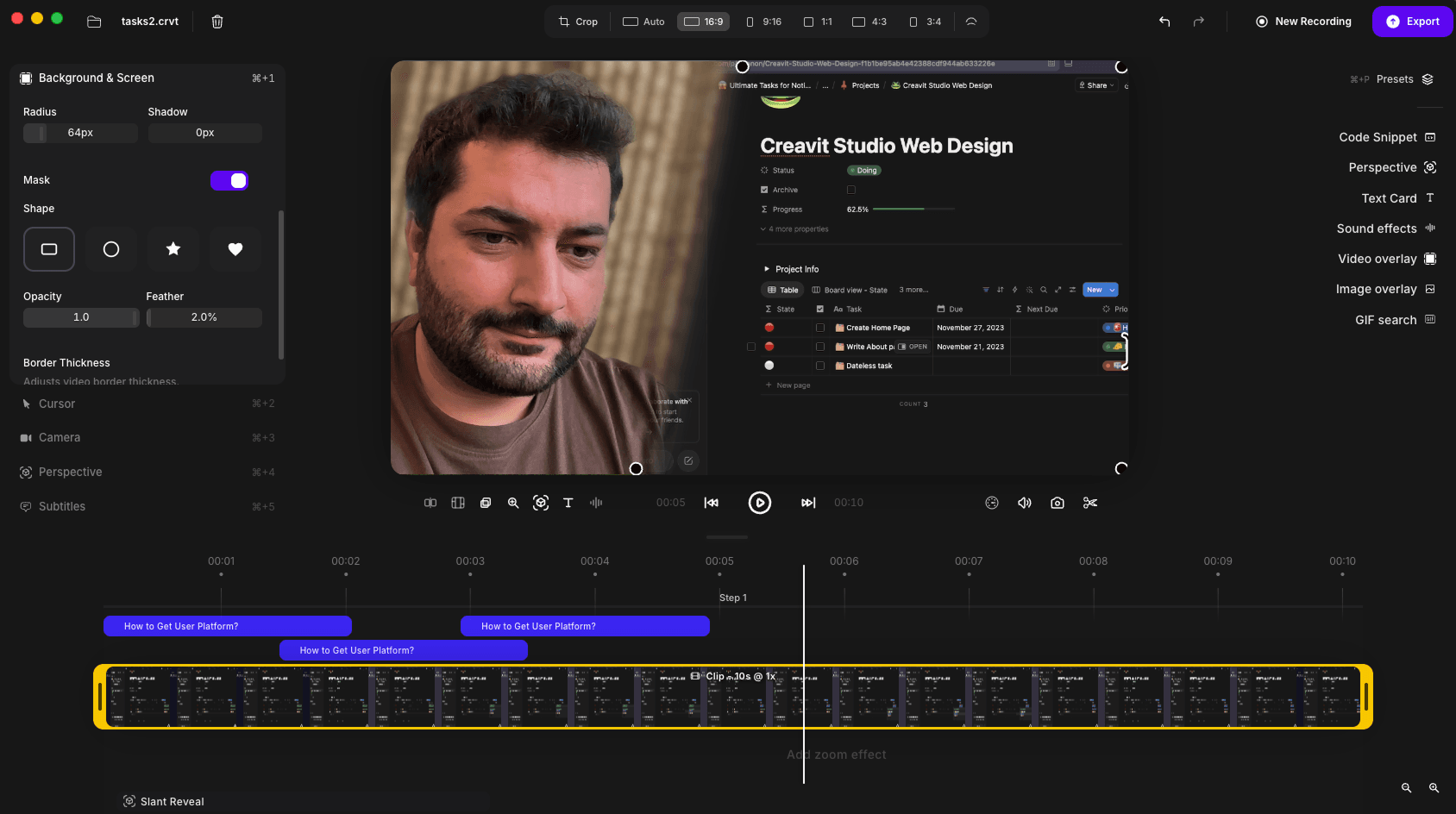
- Place them anywhere — subtitles render on the top layer and can be dragged
straight on the canvas; click one to jump to its style settings.
- Tied to your steps — subtitles follow the step they belong to, and their
position is saved with the project.
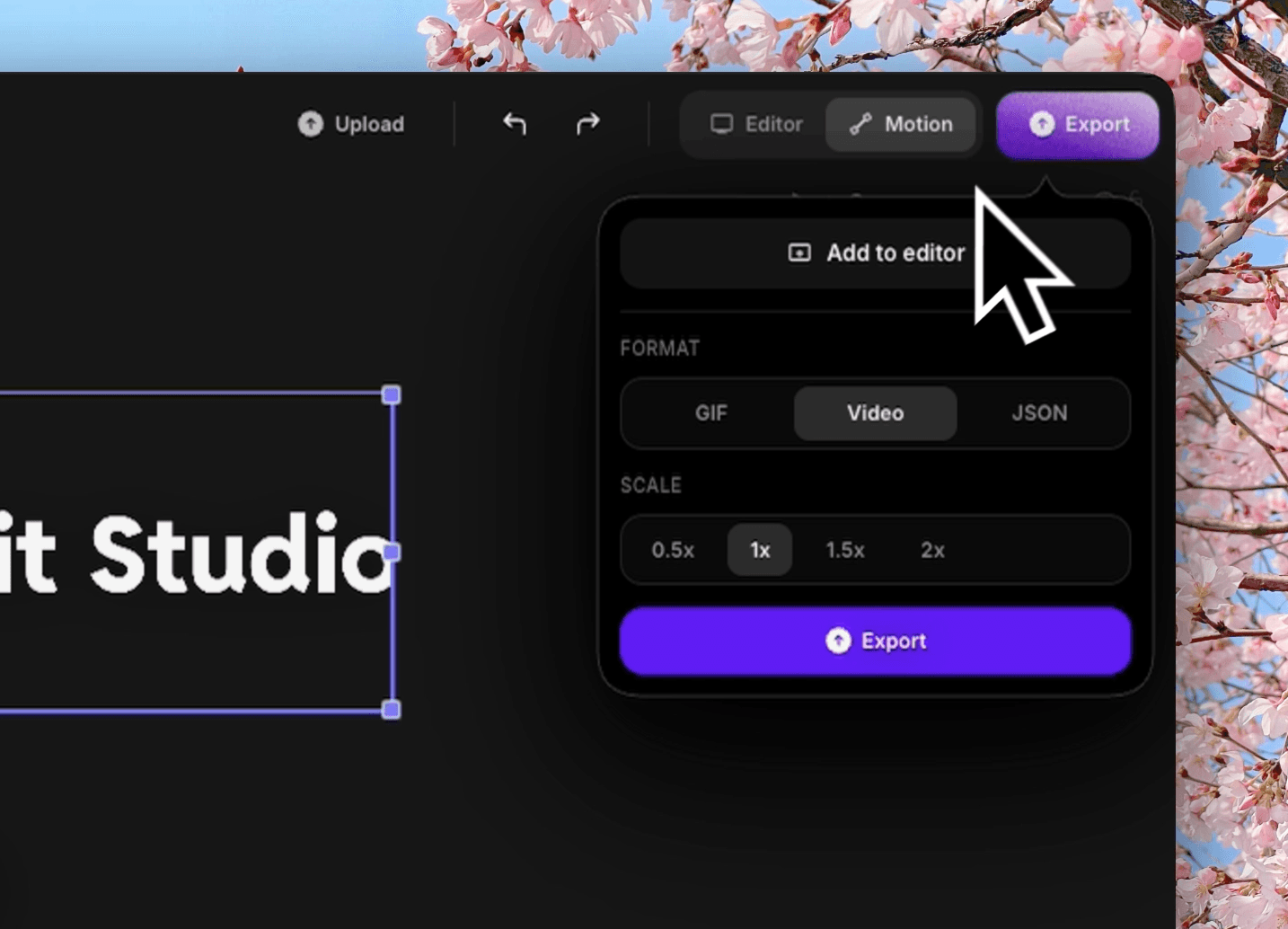
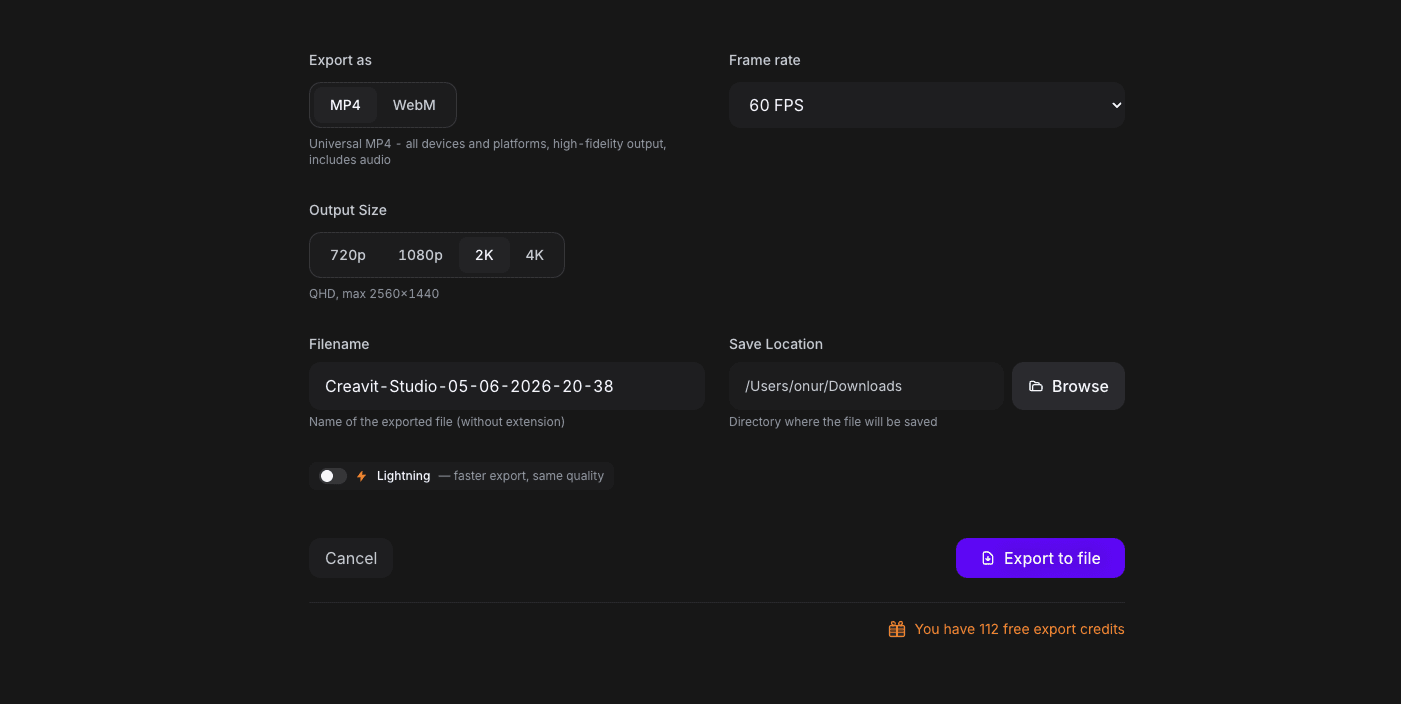
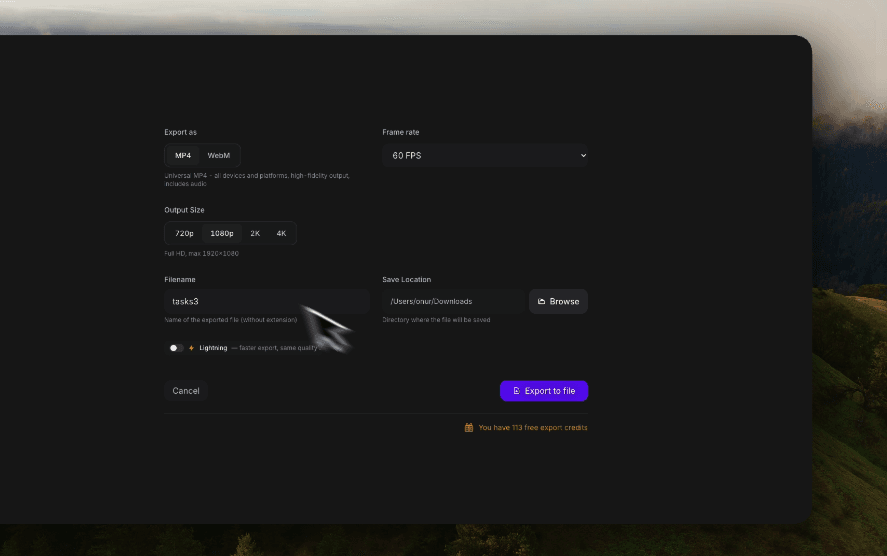
- Pick your output resolution — export at 720p, 1080p, 2K or 4K. The size
shown in the export window is exactly what gets written to the file.
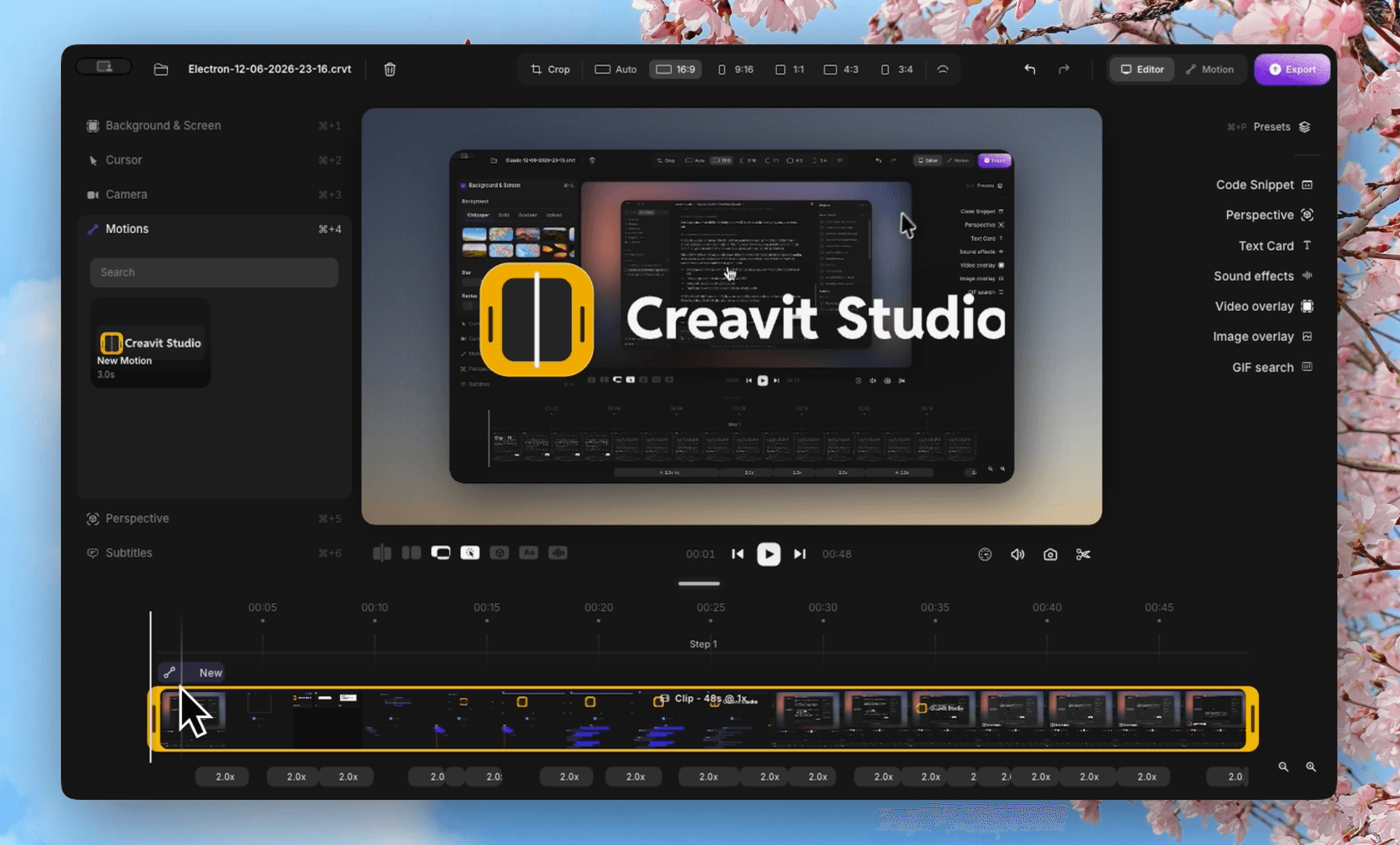
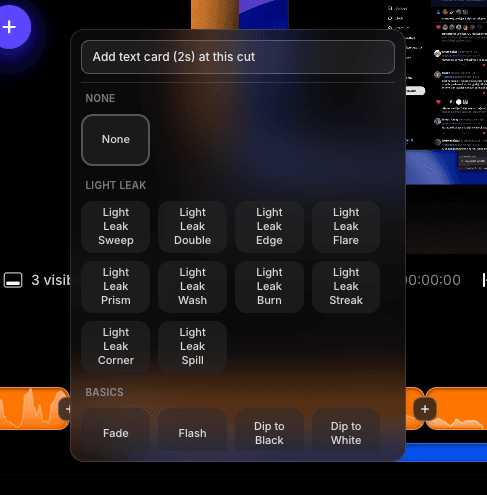
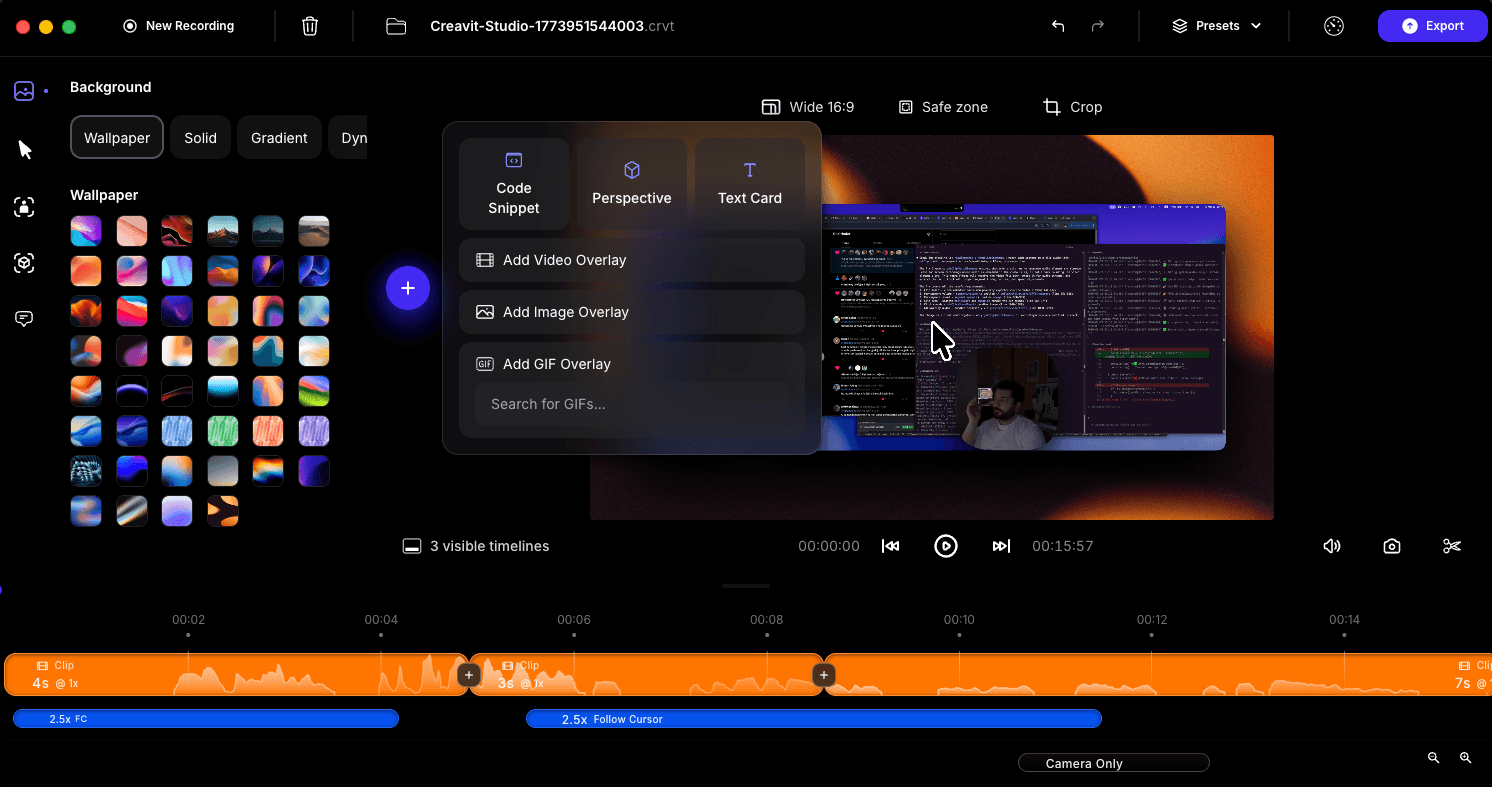
- New Add menu — one place to add zooms, perspective moves, masks and more
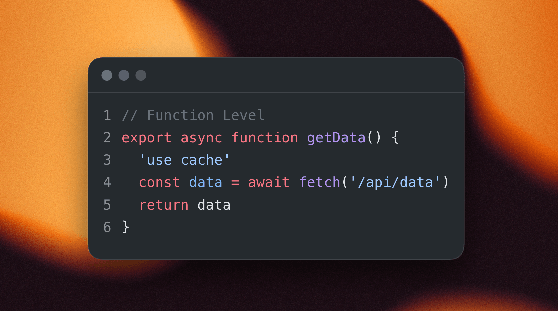
to your timeline. Perspective, sensitive content and code snippets are now
added with a single click instead of opening a submenu.
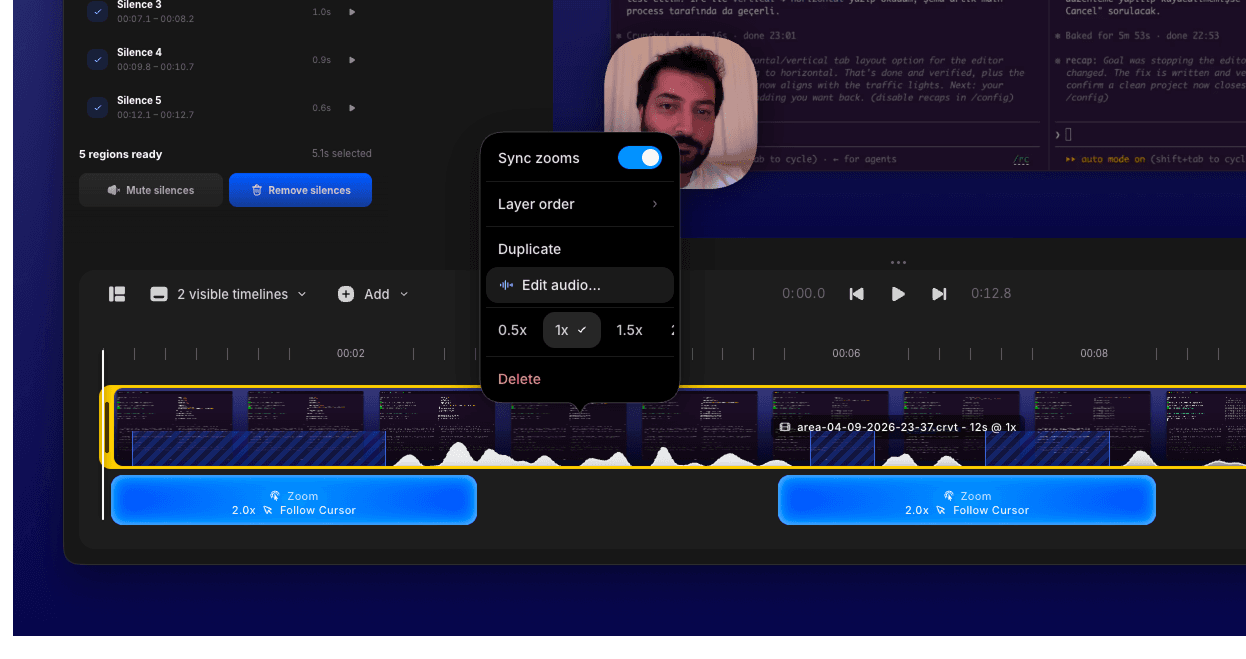
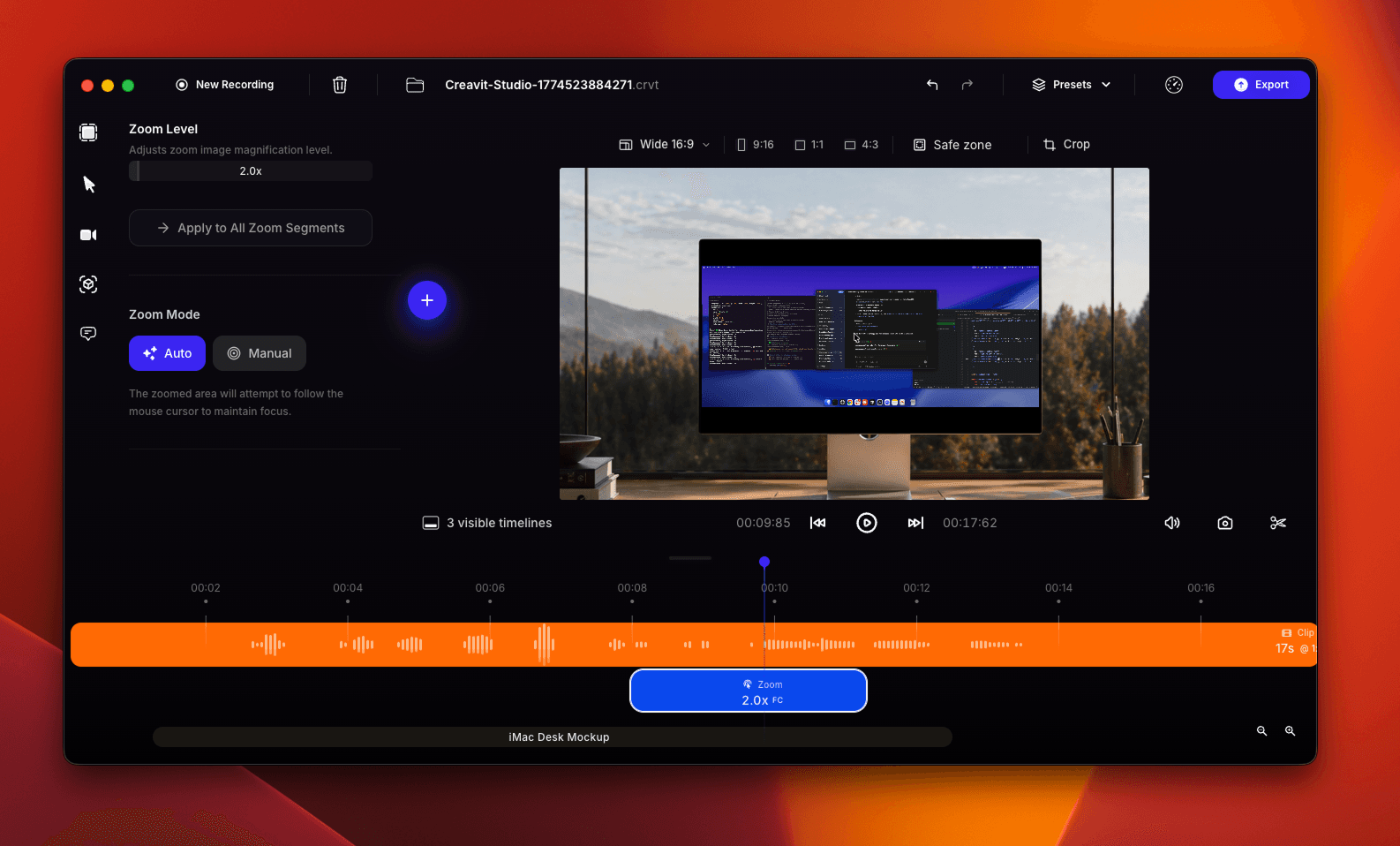
- Sync zooms with a clip — a Sync zooms switch in the clip popover keeps
zooms locked to their clip when you move or trim it.
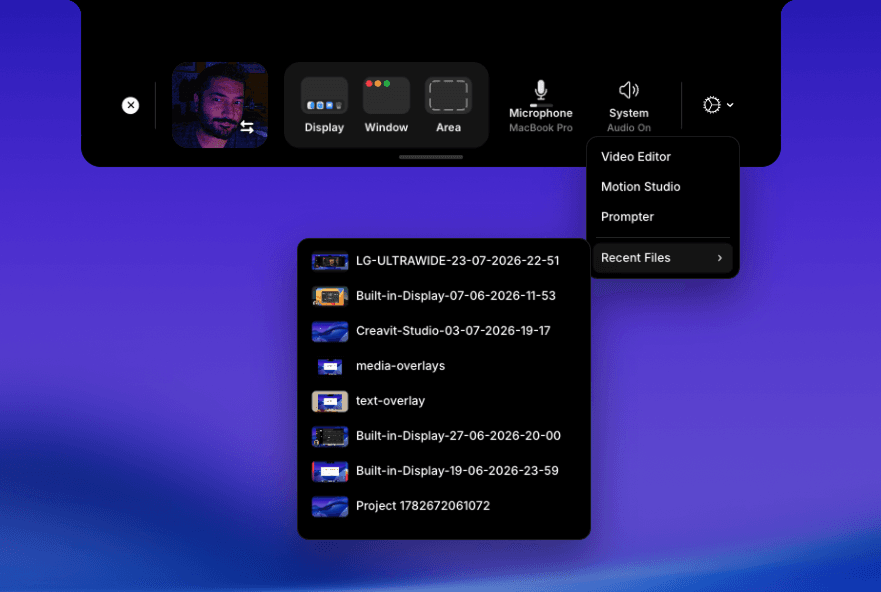
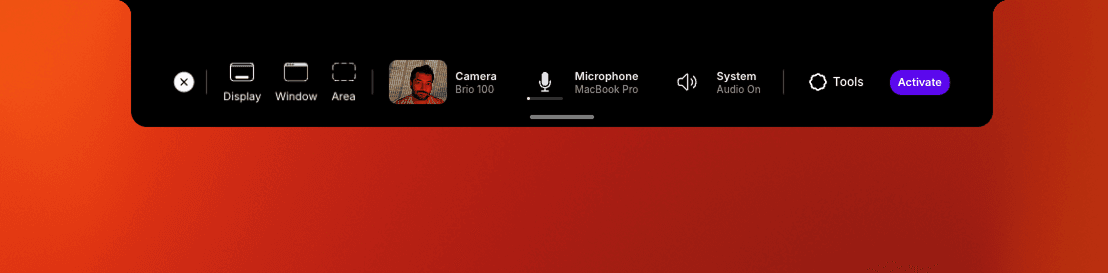
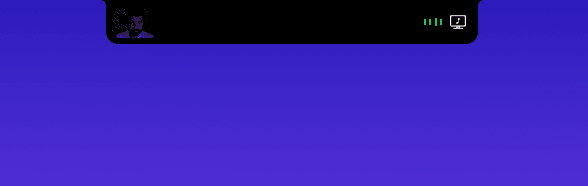
- Clearer start — the recording island now shows a proper starting state and
countdown, plus a live timer while you record.
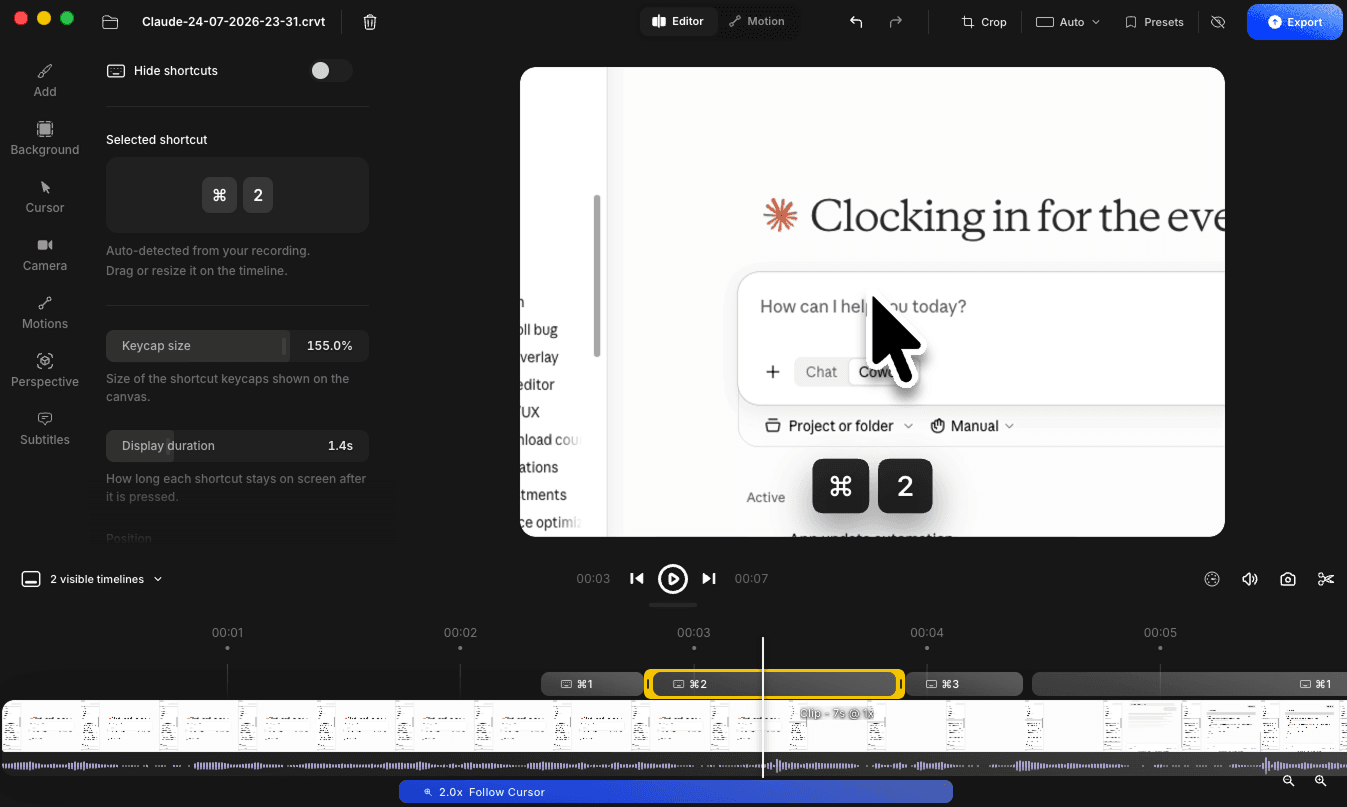
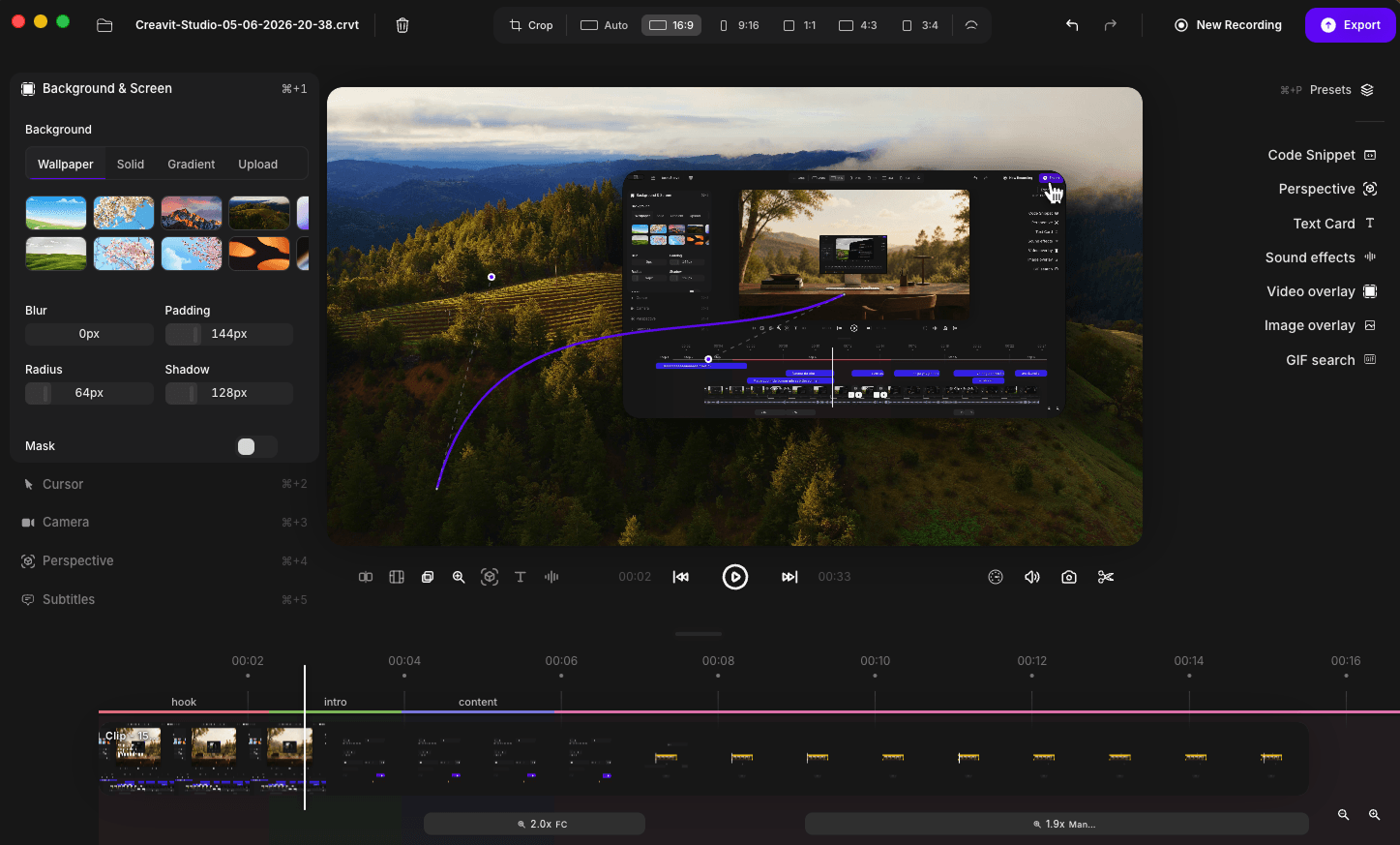
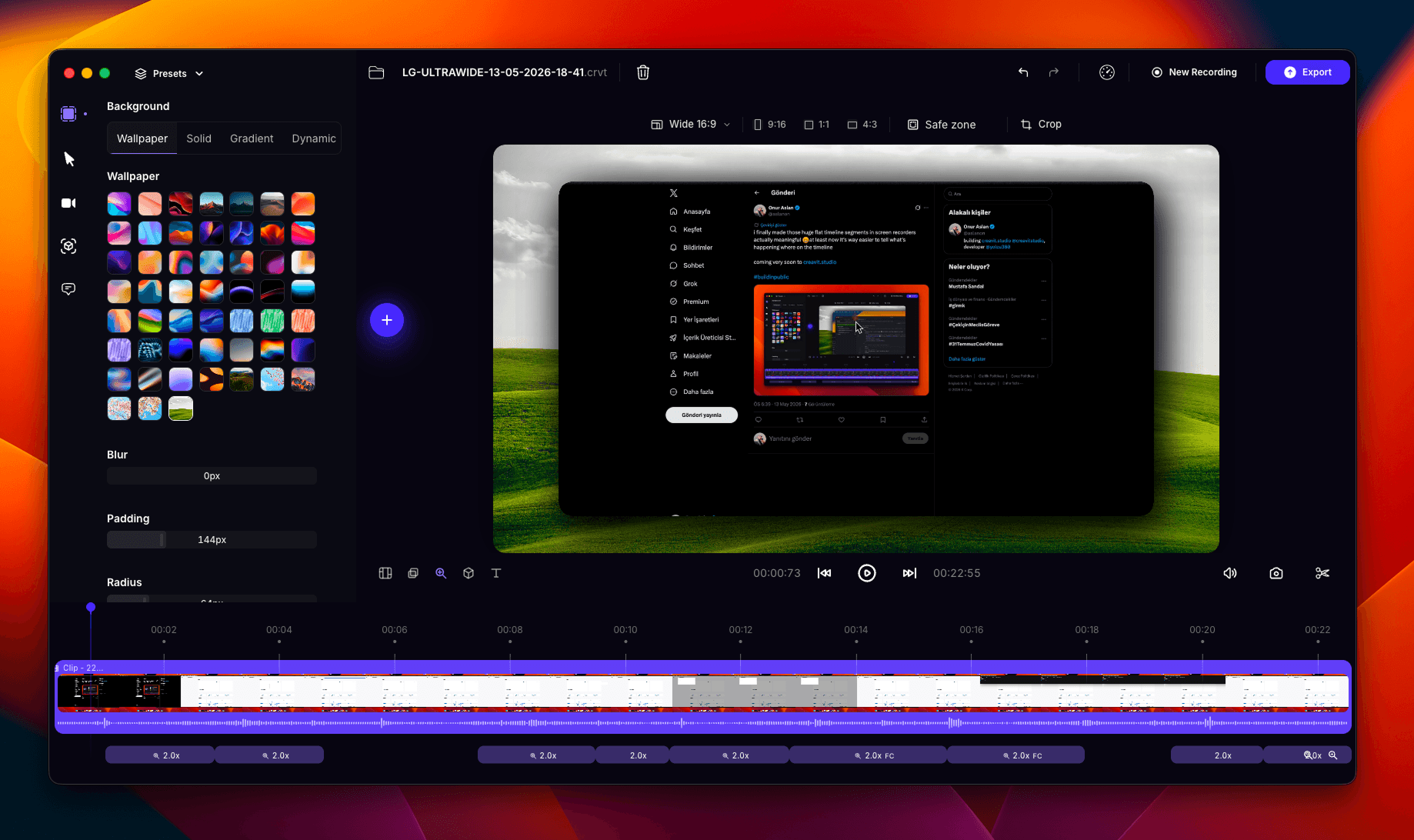
- Settings moved to the left — the settings panel is now on the left side of
the editor, keeping your canvas and timeline together on the right.
- One-handed shortcuts — ⌘B switches between Video Editor and Motion
Studio, ⌘I opens the agent panel and ⌘⇧D flips it to the other side.
- Better tooltips — tooltips open exactly where they belong instead of
sliding into place, and they show the keyboard shortcut for the button.
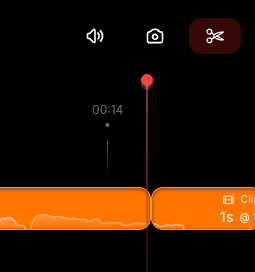
- Clearer clip segments — waveforms are more visible in the media strip, and
zoom, clip and other segments were reworked for easier editing.
- Smoother timeline thumbnails — clip thumbnails are cached as a filmstrip,
so scrolling and trimming stay responsive on long recordings.
- Smoother preview — preview rendering was reworked, reducing hitches while
you scrub and play.
- Timeline fit and click-outside handling for popovers were fixed.
- A more readable settings panel — headings and labels in the settings panel
are set at a larger size.
- Refreshed iconography and accent color across the app.
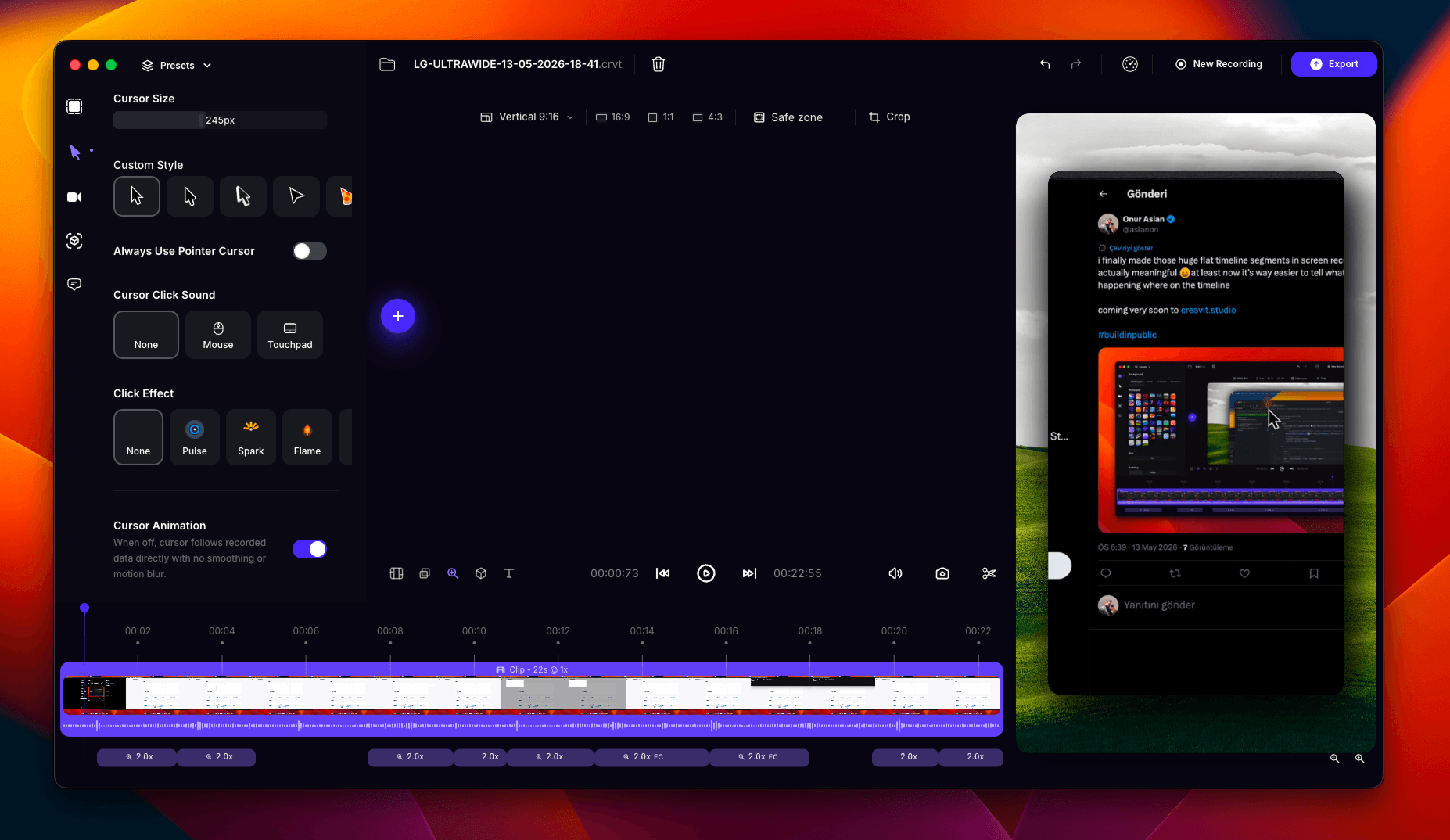
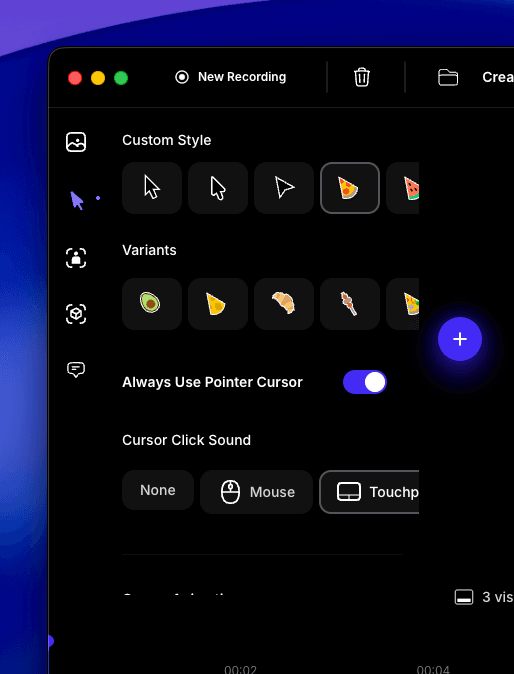
- Cursor lands on the right frame — the cursor is now sampled from real
video frames, so it matches the picture exactly instead of running a fraction
of a frame ahead or behind. Retina coordinate handling was fixed as well.
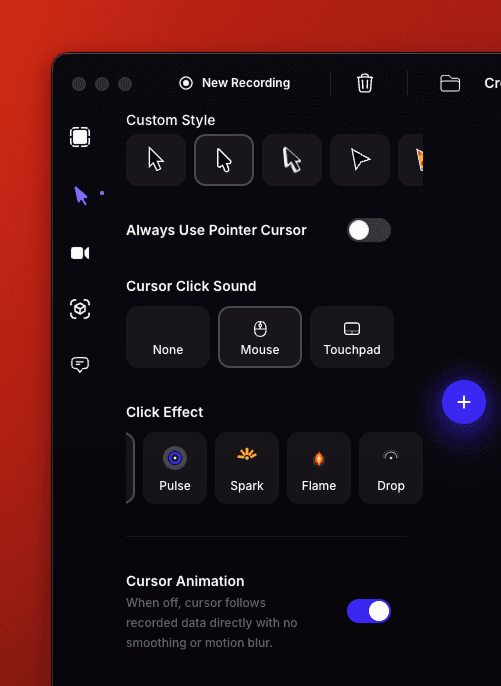
- Cursor motion blur strength is now adjustable.
- A new cursor style joins the cursor library, and the modern cursor set now
ships in white, blue, purple, pink and orange.
- Cursor resting angle — hold the cursor at the angle you want; motion
rotation, tilt, blur and click effects all ride on top of it, and the setting
is saved with the project.
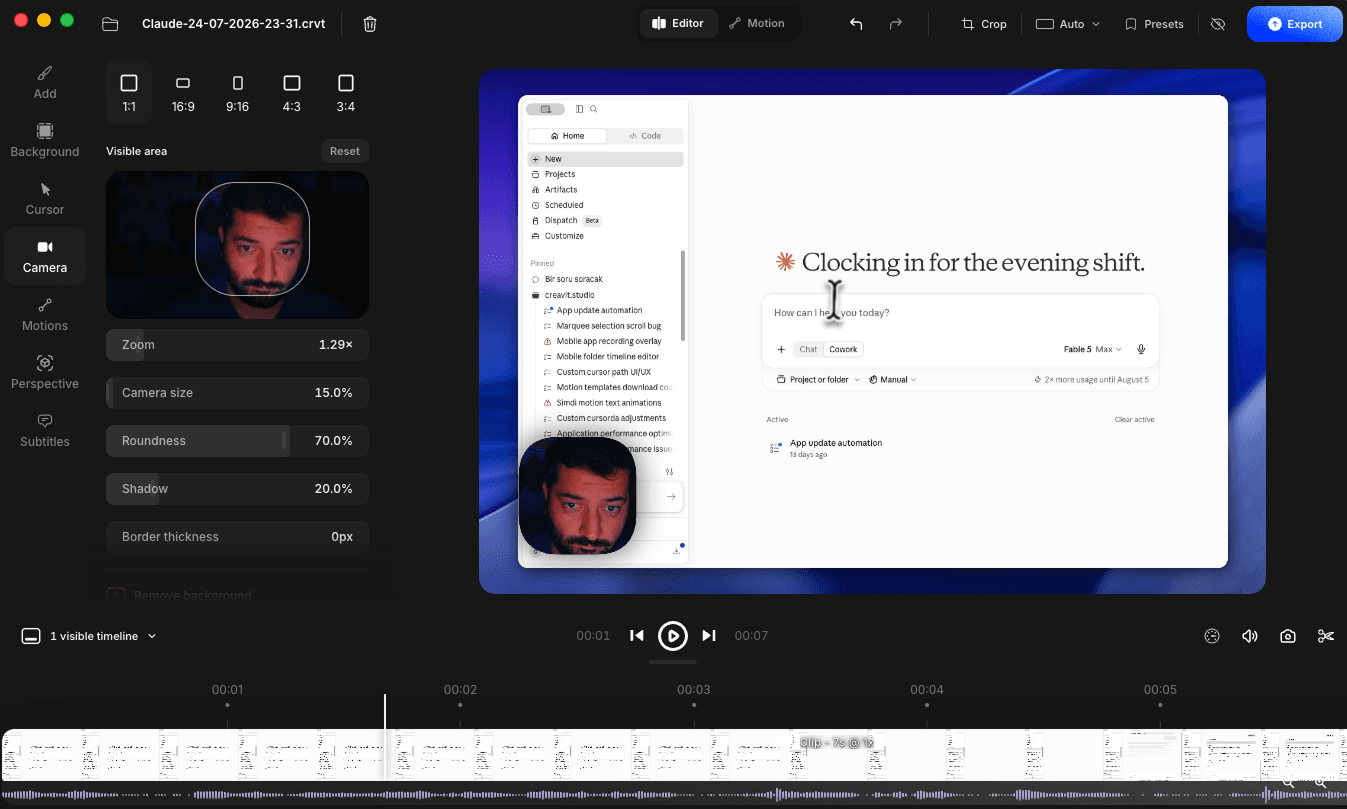
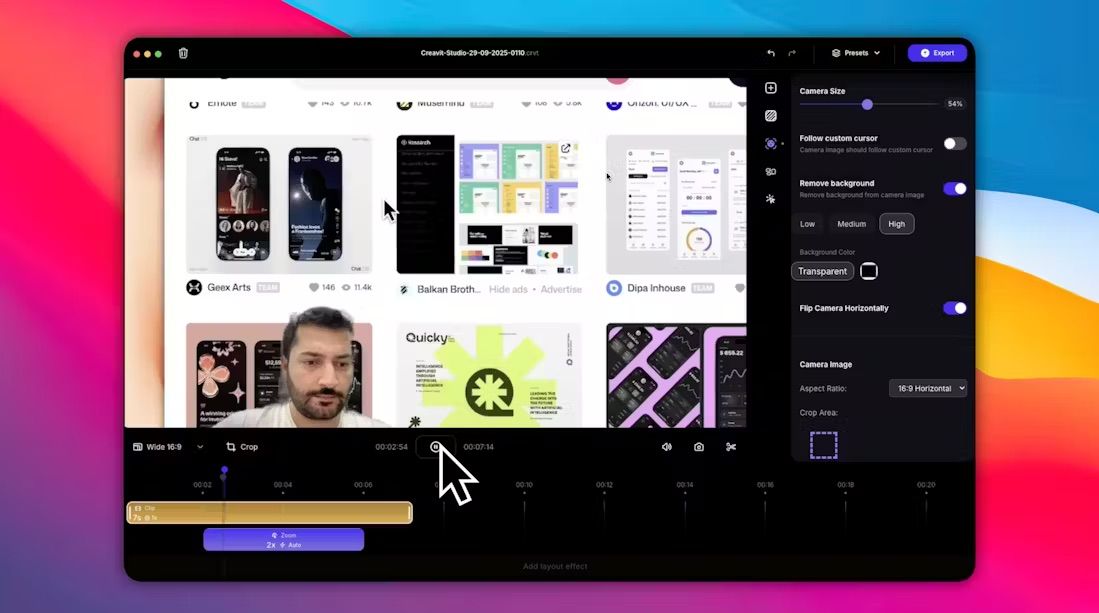
- Camera size behaves predictably — the camera size slider is linear, so the
same drag gives the same change everywhere on the scale.
- Recording starts faster — screen capture is warmed up in advance.
- Fixed stuttering at the start and end of zoom transitions.
- Zoom motion blur now fades out smoothly before the move ends, instead of being
cut off abruptly at the end of a zoom out.
- Fixed agent exports opening the license screen even when free credits were
available, and overwriting the file name and folder the agent had set.
- Fixed a background-removal bug on the camera layer.
- Fixed the wrong cursor being shown in clamshell (lid-closed) setups.
- Fixed zoom syncing problems when clips were moved.
- Fixed the playhead height and the Add popover position in the timeline.
- Motion Studio performance fixes.
- Export quality fixes, and a cleaner installer that no longer leaves stray
mounted volumes behind.