Webcam Screen Recording for Mac

Screen Recorder with Webcam for Mac

Record your Mac screen with a webcam overlay that includes AI background removal, camera cursor tracking, and dynamic layouts. No green screen needed.
Why Record Your Screen with a Webcam Overlay?

Build Viewer Trust

Showing your face creates a personal connection with your audience. Viewers are more likely to trust and engage with content where they can see the presenter.

Boost Engagement

Videos with a facecam overlay get higher watch times and retention rates. A webcam adds personality and keeps viewers watching longer.

Better Tutorials

Explain complex steps while showing your face and reactions. Webcam overlays make tutorials clearer and easier to follow for learners.

Webcam Features That Set Creavit Studio Apart

AI-Powered Camera Overlay

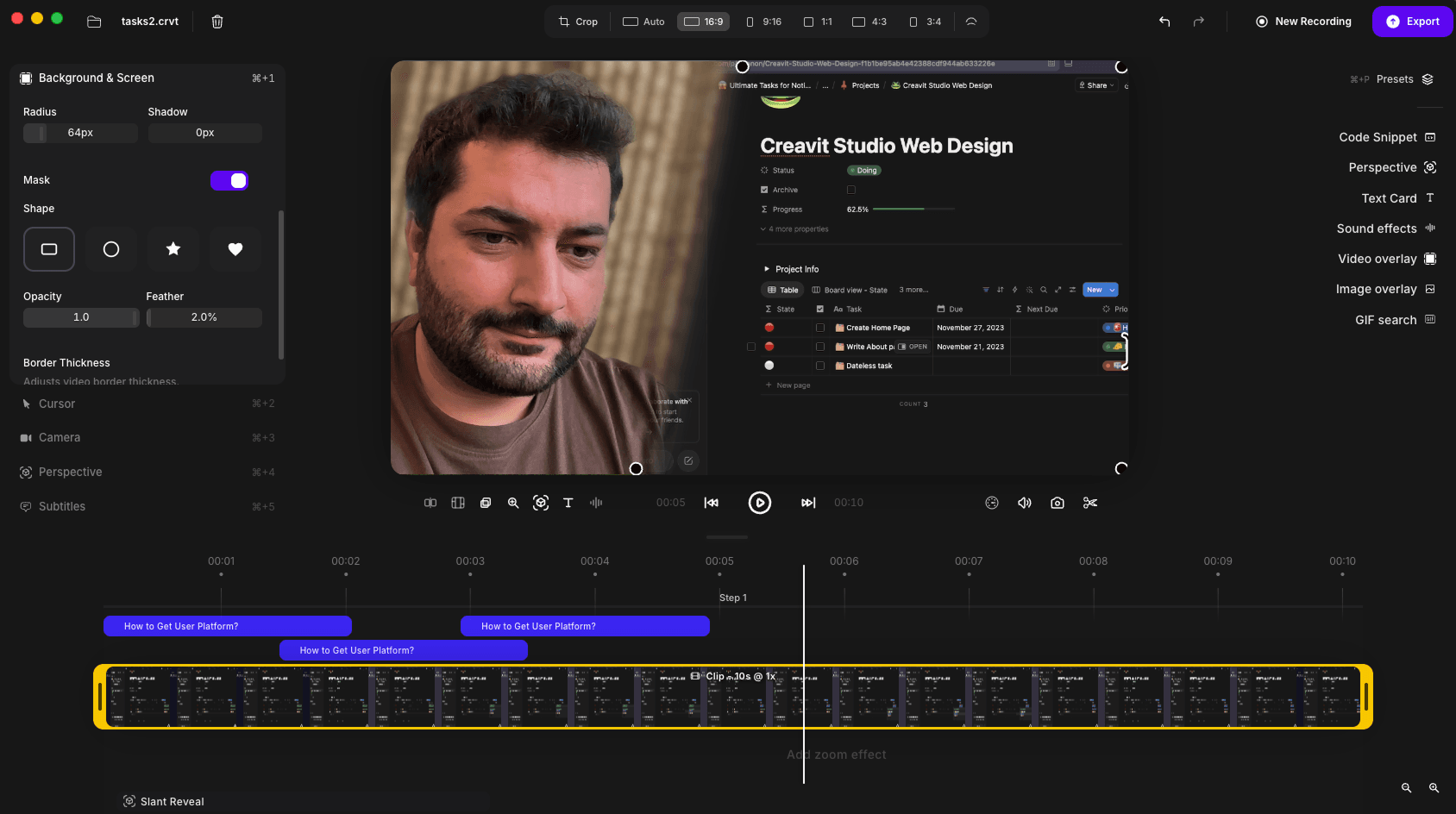
Creavit Studio goes beyond a simple webcam bubble. Our AI-powered camera features give you professional-grade webcam recording without expensive equipment or green screens.

  • AI background removal with no green screen needed
  • Camera cursor tracking follows your mouse movements
  • Multiple camera shapes: circle, rectangle, rounded
  • Flexible camera positioning and resizing

Advanced Webcam Recording Features

AI Background Removal

Remove your webcam background in real-time using MODNet AI. No green screen, no special lighting, no studio needed. Just press record.

Camera Cursor Tracking

Your webcam overlay automatically follows your cursor as it moves across the screen. This creates dynamic, engaging presentations without manual adjustments.

Dynamic Camera Layouts

Switch between multiple layout presets during editing. Go from a small corner overlay to a side-by-side view or full-screen camera with a single click.

Camera Shapes & Styles

Choose from circle, rounded rectangle, square, or custom shapes for your webcam overlay. Add borders, shadows, and styling to match your brand.

Position & Size Control

Drag and resize your webcam overlay to any position on the screen. Place it in the corner, center, or wherever works best for your content.

Screen + Camera Recording

Record your screen, webcam, system audio, and microphone all at once. Everything is captured in a single session and synced perfectly.

Creavit Studio vs Other Webcam Recorders

How webcam recording features compare across popular Mac tools

Feature Creavit Studio Loom QuickTime
Webcam Overlay Recording
AI Background Removal
Camera Cursor Tracking
Dynamic Camera Layouts
Camera Shape Customization
Camera Position & SizingLimited
System Audio + Webcam
4K RecordingPaid only
Offline Recording
Timeline EditingBasic trimBasic trim
GIF & Media Overlays
Custom System Cursor
No WatermarkPaid only
PricingFrom $9.90/moFrom $12.50/moFree (limited)

Perfect Use Cases for Webcam Screen Recording

Product Demos & Walkthroughs

Show potential customers how your product works while your face builds trust and credibility. Webcam overlays make demos feel personal and help close more deals.

SaaSProduct ToursSalesMarketing

Tutorials & Online Courses

Teach complex topics with your screen and face visible at the same time. Students learn better when they can see the instructor, and camera tracking keeps the focus on the action.

EducationE-LearningYouTubeUdemy

Presentations & Pitch Decks

Record presentations with your webcam overlay so your audience sees both your slides and your reactions. Perfect for async pitches, investor updates, and team meetings.

BusinessStartupsRemote WorkPitches

Social Media & Content Creation

Create reaction videos, commentary content, and engaging social media clips with screen and facecam recording. Background removal keeps the focus on you, not your room.

YouTubeTikTokInstagramTwitter

Frequently Asked Questions

How do I record my screen with webcam on Mac?

Download Creavit Studio, open the app, and select your screen or window to record. Toggle the webcam overlay on, choose your camera shape and position, and hit record. Your screen, webcam, and audio are all captured simultaneously in a single recording.

Does Creavit Studio remove webcam backgrounds automatically?

Yes. Creavit Studio uses MODNet AI to remove your webcam background in real-time. You do not need a green screen or any special lighting. The AI works in any environment and produces clean, professional results with smooth edge detection.

Can I change the webcam overlay shape and position?

Absolutely. Creavit Studio lets you choose from circle, rounded rectangle, square, and other shapes for your webcam overlay. You can drag it to any position on the screen and resize it freely. You can also switch between different camera layouts during editing.

What is camera cursor tracking?

Camera cursor tracking is a unique Creavit Studio feature where your webcam overlay automatically follows your mouse cursor as it moves across the screen. This creates a dynamic, engaging presentation style that keeps viewers focused on what you are demonstrating.

Is Creavit Studio free to use for webcam recording?

Creavit Studio offers a free trial so you can test all webcam recording features including background removal, camera tracking, and dynamic layouts. Paid plans start at $9.90 per month, or you can purchase a one-time lifetime license with no recurring fees.

Record Your Screen with Webcam Today

Get professional webcam recordings with AI background removal and camera tracking. No green screen, no complex setup. Just download and start recording.