Websites that feel connected
Place a product clip over your page background with WebM alpha. Build an opaque fallback for players that do not preserve transparency, and test the result in the browsers your audience uses.
Transparent background export
Turn a screen recording into a reusable visual. Export with an alpha channel on Mac, ready to sit over your website, brand colors, or next video edit.
5 free exports · Apple Silicon & Intel
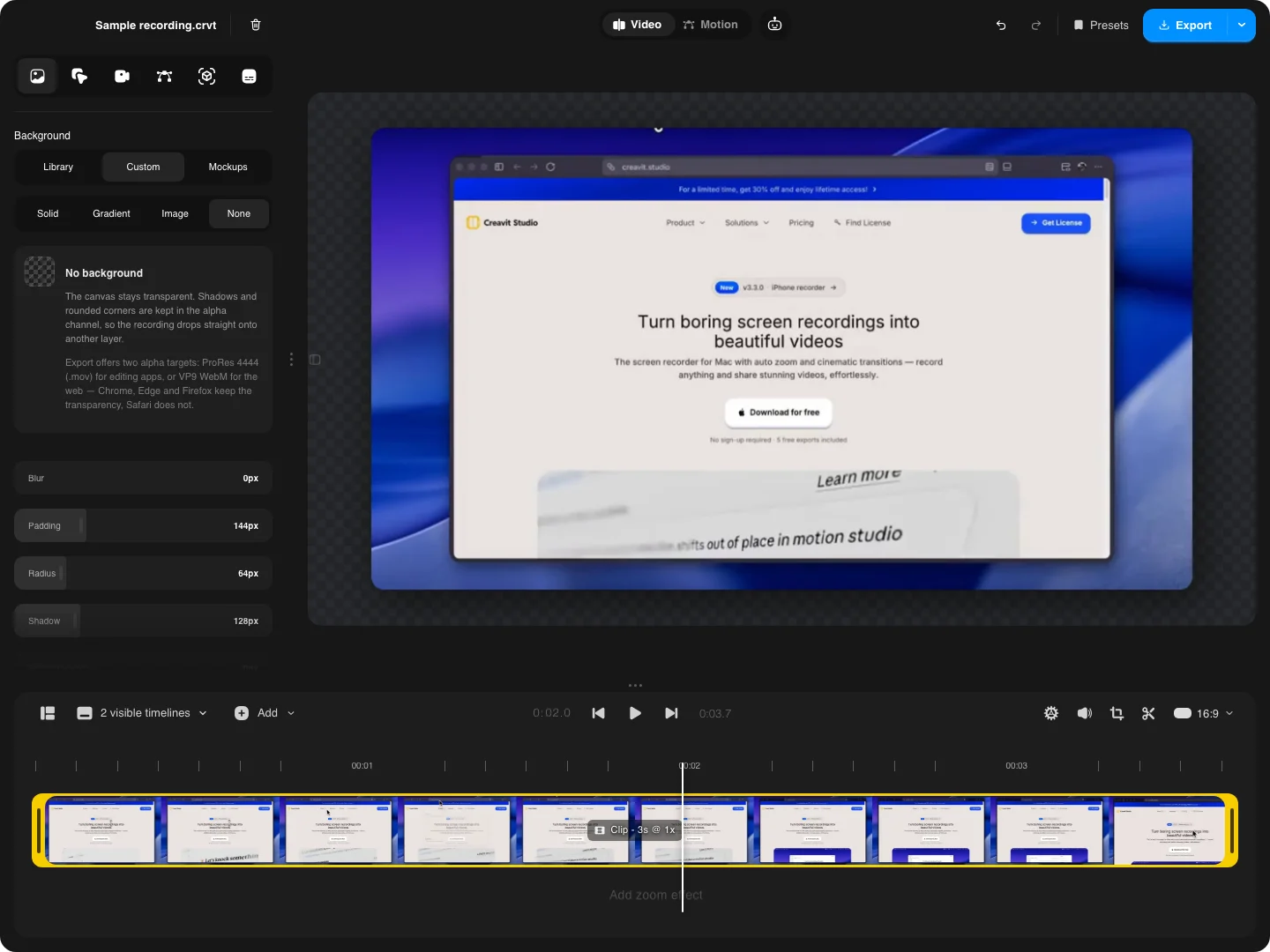
A transparent video stores an alpha channel alongside its colors. Empty canvas areas stay empty, so you can place your screen recording over a website, a branded background, or another video. Creavit Studio keeps that transparency through export instead of baking in a solid canvas.
Place a product clip over your page background with WebM alpha. Build an opaque fallback for players that do not preserve transparency, and test the result in the browsers your audience uses.
Export ProRes 4444 MOV for compositing in an editor such as Final Cut Pro, Premiere Pro, or After Effects. Rounded screen corners and soft shadows can blend into the next composition.
Make a transparent GIF for a short UI demonstration. GIF transparency has hard edges, so choose MOV or WebM when the composition depends on soft shadows or a feathered camera cutout.
Record your screen or import an existing clip. Set the crop, padding, corners, camera layout, and any overlays while everything is still editable.
The checkerboard marks the empty canvas. It is an editor preview and will not appear in the exported file.
Open Export and select MOV for editing, WebM for compatible web players, or GIF for a simple loop. Creavit Studio selects a transparency-capable encoding path.
Preview the exported file in its destination over both light and dark colors. This makes clipped shadows, hard edges, and unsupported playback easy to spot.
Choose the format for the place your video will go. A file extension alone is not enough: the codec and the receiving app both need to preserve the alpha channel.
| Format | Best use | What to know |
|---|---|---|
| MOV · ProRes 4444 | Editing and compositing | Preserves soft transparency. Expect larger files; use a compatible video editor rather than a browser player. |
| WebM · VP9 alpha | Web overlays and product clips | Preserves soft transparency in compatible players. Chrome supports WebM alpha; do not assume every browser or upload service preserves it. |
| GIF | Short, simple loops | One-bit transparency: pixels are fully visible or fully transparent. Soft edges and shadows lose their partial transparency. |
| MP4 · H.264 | A finished video with a background | Creavit Studio's MP4 output does not retain alpha. Keep a background for ordinary social and video-hosting uploads. |
For format details, see Apple's ProRes guide and Chrome's WebM alpha documentation.
Choosing None removes the editor's canvas background. It does not erase a white webpage or desktop wallpaper already recorded inside your screen clip. To isolate a presenter, use camera background removal as well. Then export the combined composition with alpha.
If an exported clip looks black in a player, check it in a compatible compositor before assuming the transparency is missing. The player may simply be displaying empty pixels over black. If the final destination flattens video, export a version with the intended background already in place.
Record, edit, and export transparent video in Creavit Studio for Mac.
Start with a free downloadPractical answers about alpha channels, formats, and transparent backgrounds.
In Creavit Studio, open Background → Custom → None, then export as MOV, WebM, or GIF. MOV uses ProRes 4444 for editing; WebM uses VP9 alpha for compatible web players. GIF supports only fully opaque or fully transparent pixels.
Creavit Studio's H.264 MP4 export does not preserve transparency. Select MOV with ProRes 4444 or WebM with VP9 alpha for soft transparent edges, or GIF for a simple transparent loop.
No. None removes the canvas background around your composition. It does not remove pixels already captured inside a screen recording. Camera background removal is a separate tool for isolating a presenter.
No. The checkerboard is only an editor preview of empty pixels. The exported file stores transparency when you choose a supported alpha format.
A player may show transparent pixels over black or may not support the file's alpha channel. Test the clip over a colored layer in a compatible editor or web player. Also check whether an upload service has converted it to an opaque format.