Text that sets the scene
Build opening titles, feature announcements, and closing messages. Adjust typography, color, placement, and timing so each line arrives when your viewer needs it.
Free Motion Editor for Mac
Create motion graphics with animated text, shapes, and images. Design on a canvas, fine-tune the timeline, and export your animation — all in Creavit Studio's free Motion Editor.
Free motion creation & export · Apple Silicon & Intel Macs
Make an animated title, a product announcement, a moving logo, or a short social clip. Creavit Studio's free Motion Editor gives you a dedicated canvas, editable layers, animation controls, and a timeline in one Mac app. Start with a blank scene or a template, then make the design your own.
Build opening titles, feature announcements, and closing messages. Adjust typography, color, placement, and timing so each line arrives when your viewer needs it.
Compose with rectangles, circles, lines, icons, and your own images. Arrange and group layers to create a logo reveal, an animated card, or a clear visual explanation.
Add animation actions to a layer, then adjust their timing and duration. Preview the sequence, move actions on the timeline, and refine the rhythm without rebuilding the scene.
Download Creavit Studio for your Mac and open Motion Studio from the app's home screen. You can also switch from Editor to Motion while working on a recording.
Set the canvas size and scene duration. Add a short text layer, a shape, and an image or logo. Use the layer list to organize the design and the canvas controls to adjust it.
Select a layer, open Animate, and add an animation. Set when it starts and how long it lasts. Stagger a title and its supporting line instead of making everything arrive at once.
Play the timeline and leave enough time to read the message. Export the motion on its own, or save it to the editor to use it in a product demo or tutorial.
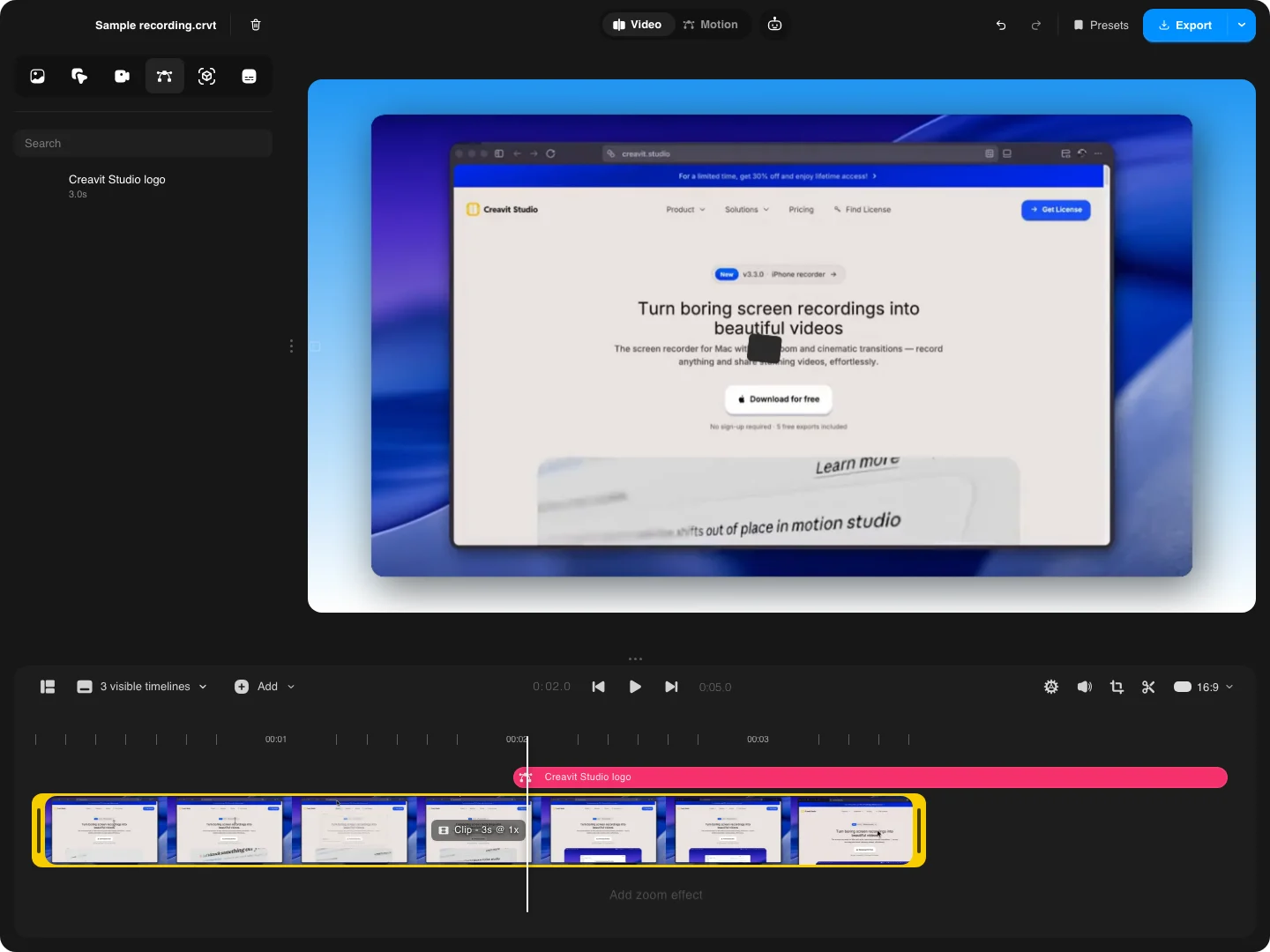
Try a simple feature reveal: a background shape enters, the feature name follows, and a short supporting line explains the benefit. Keep one clear message on screen. These example timings are a starting point you can adjust in the timeline.
| Time | Layer | What to do |
|---|---|---|
| 0–1 second | Background and shape | Introduce the visual frame with a short entrance. |
| 0.5–2 seconds | Feature name | Bring the title into position and let it settle. |
| 1.5–4 seconds | Supporting text | Explain one benefit and give the viewer time to read. |
| 4–5 seconds | Closing action | Finish the message or animate the layers out for the next scene. |
Use the finished animation by itself, or pair it with a product launch video. For an explanation over recorded footage, you can also add text directly to a screen recording.
Motion Editor includes GIF, video, JSON, Lottie, and HTML export options. Choose the output for where the animation will live. Keep an editable scene as well, so changing the message later does not mean starting again.
Share a rendered animation in a presentation, a product update, or a social post. Video suits finished clips; GIF is useful for short loops where audio is unnecessary.
Prepare an animation for a compatible app or web workflow. Check the exported result in your destination player: supported effects and embedded media differ between formats.
Export the motion scene data for reuse in Creavit Studio. JSON preserves an editable workflow; it is different from a rendered video and from Lottie JSON.
If you like designing with layers and animation timelines in tools such as Jitter, Creavit Studio offers that kind of visual motion workflow in a Mac app. Create animated text, shapes, and branded assets, then use them alongside your screen recordings.
Jitter is a browser-based motion design product with its own collaboration and design workflows. Creavit Studio is a desktop app that combines motion design with recording and video editing. Choose Creavit when you want a free motion editor on your Mac and a direct path from an animation to a product video.
The Motion Editor is free to use, including creating and exporting your own motion scenes. The screen recording and video editor's export plans are separate; see Creavit Studio pricing when you need those workflows.
Download Creavit Studio and open Motion Studio. Create, animate, and export your own motion graphics for free.
Start with a free downloadGetting started with free motion design on your Mac.
Yes. You can create and export your own motion scenes in the free Motion Editor. The screen recording and video editor's export plans are separate from standalone motion creation.
Create animated titles, logo reveals, product announcements, social clips, and visual explanations. Compose with text, shapes, icons, and images, then adjust animation actions on the timeline.
Motion Editor is part of the Creavit Studio desktop app for macOS, available for Apple Silicon and Intel Macs. Download the app and open Motion Studio from its home screen.
Yes, for a visual motion design workflow on Mac: editable layers, animated text and shapes, timeline controls, and multiple export formats. Jitter runs in the browser and has its own collaboration features; Creavit combines desktop motion design with screen recording and editing.
Motion Editor offers GIF, video, editable scene JSON, Lottie, and HTML. Test Lottie and HTML in your destination player because supported effects and media vary by format.
Yes. Save a motion scene to the editor and use it with your recording. You can return to Motion to edit the scene. Exporting the finished screen recording follows the video editor's export plan.