Launch a SaaS product
Capture the browser window, follow the important clicks with automatic zoom, and cut the waiting time. Keep the interface readable while showing the result a new customer cares about.
For founders, makers, and product teams
Make a product launch video from the app you built. Record the real flow, shape the story, and add zoom, motion, and captions in one Mac workspace.
5 free exports · Apple Silicon & Intel
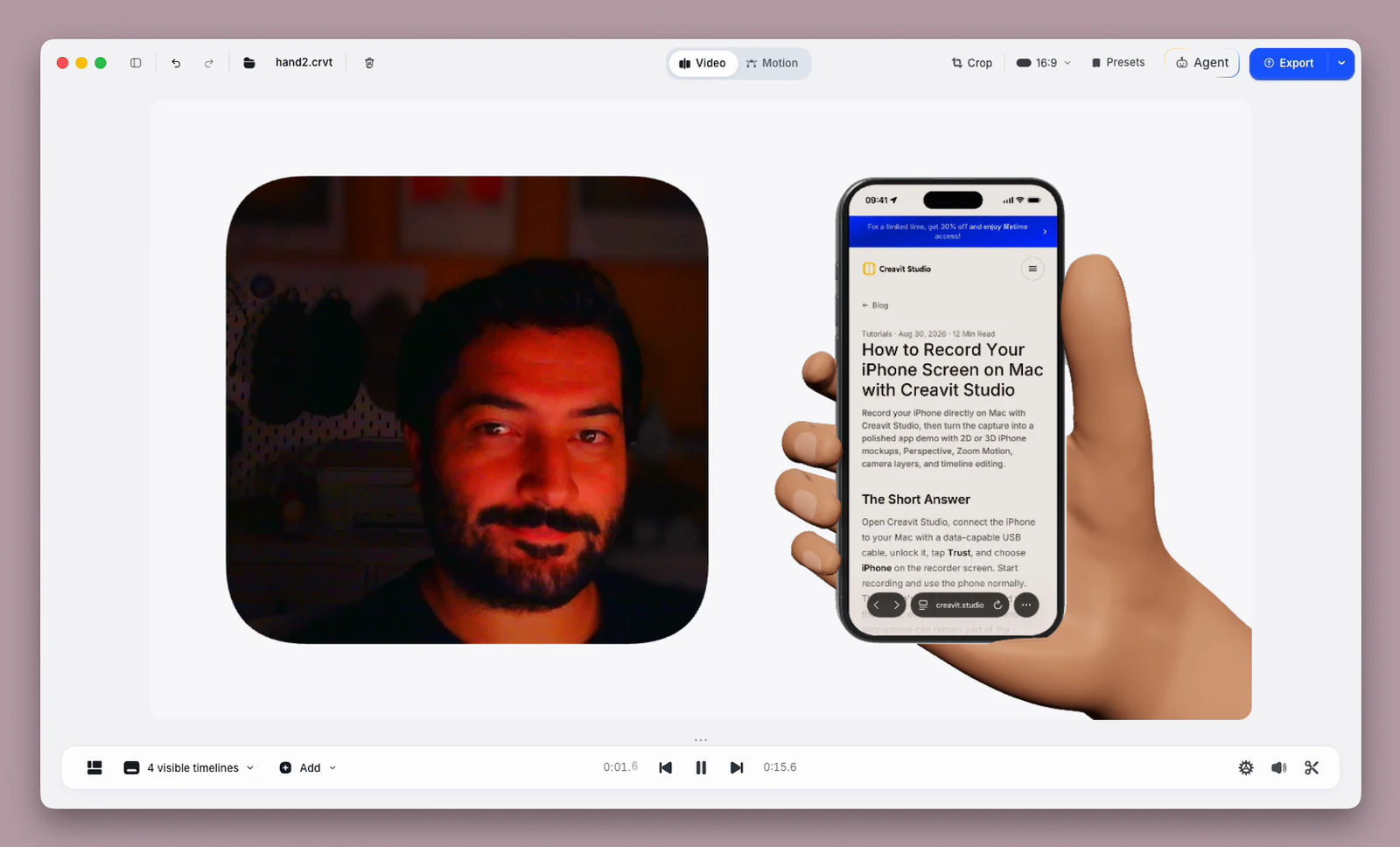
A product launch video gives someone a reason to try what you built. Start with the result, show the interaction that creates it, and end with one next step. Creavit Studio brings screen recording, editing, motion graphics, and export into one Mac app so you can build that story from the real product.
Capture the browser window, follow the important clicks with automatic zoom, and cut the waiting time. Keep the interface readable while showing the result a new customer cares about.
Record your iPhone over USB, then frame it in a 2D or 3D device mockup. Add an animated hand with authored taps and swipes to give the interaction a physical context.
Record one focused flow instead of the whole app. Use a short motion title to name the update, demonstrate the change, and export a clip for your release page or social post.
Choose a display, window, area, or USB iPhone, then press Record. Add your microphone, system audio, or camera when the story needs them. Pause while you prepare the next step.
Trim the start and end, remove repeated lines through the transcript, and review detected silences before cutting them. Ripple deletion closes the timeline gaps.
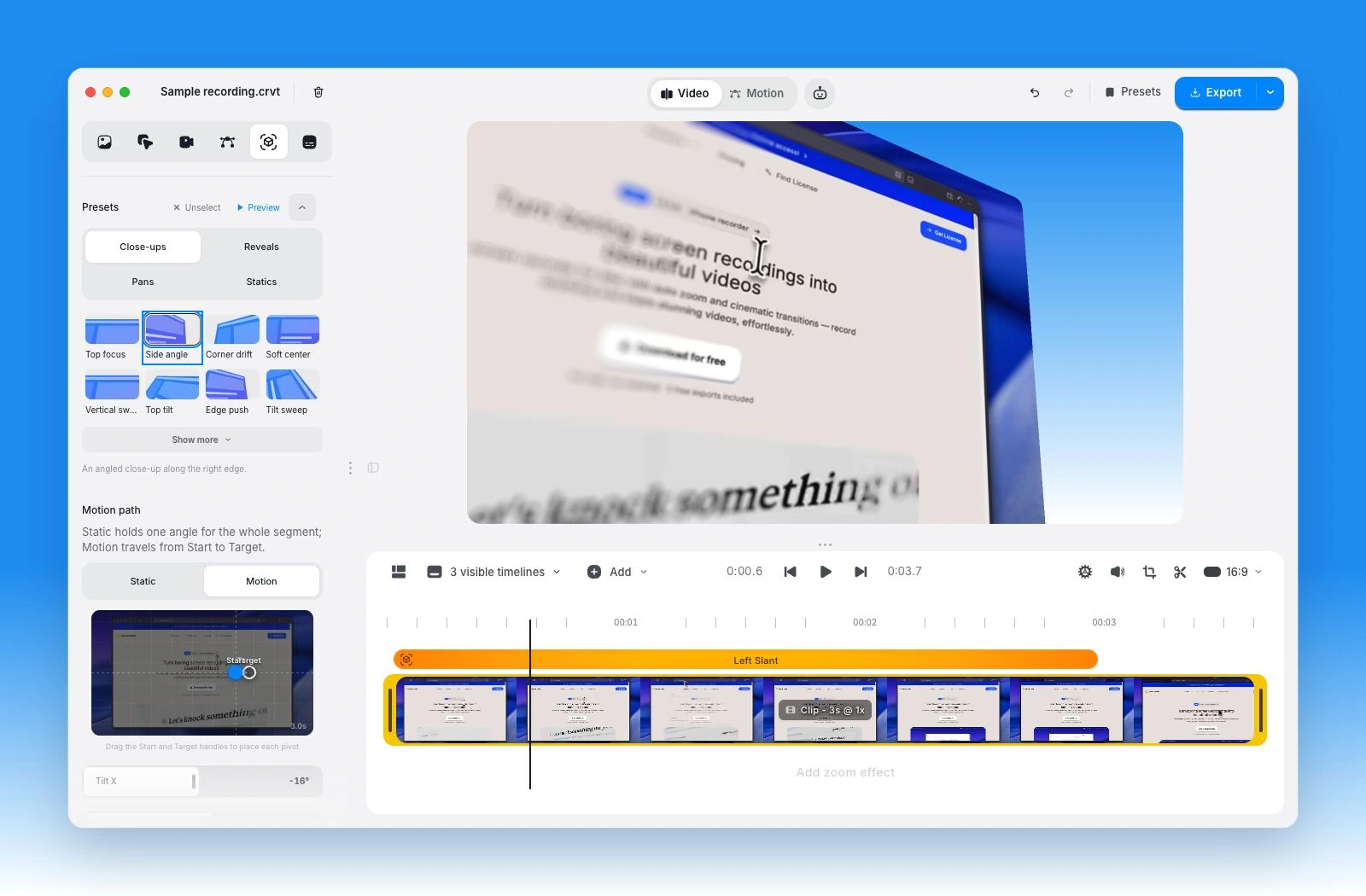
Use automatic or manual zoom for the key interaction. Add a Perspective preset for the reveal, then return to a readable view of the product.
Build titles in Motion Studio, add on-screen text or captions, and frame the composition for its destination. Export a finished video up to 4K or a short GIF.
Try this 45-second structure as a starting point, then adjust it to your product. The timings are an example, not a platform requirement. One clear workflow is usually easier to follow than a tour of every setting.
| Scene | What the viewer sees | Build it with |
|---|---|---|
| 0–5s · The result | A feedback message becoming an assigned task | A short screen clip and a plain-language title |
| 5–25s · The flow | Select the message, choose the owner, and create the task | Zoom, cursor emphasis, and cuts between meaningful actions |
| 25–35s · The detail | The task retaining the original context | A close-up or Perspective move with a text callout |
| 35–45s · The next step | The finished result and one invitation to try it | A Motion Studio title or closing text overlay |
For the recording fundamentals, see product demo recording. If you are preparing a launch on that platform specifically, use the Product Hunt video guide.
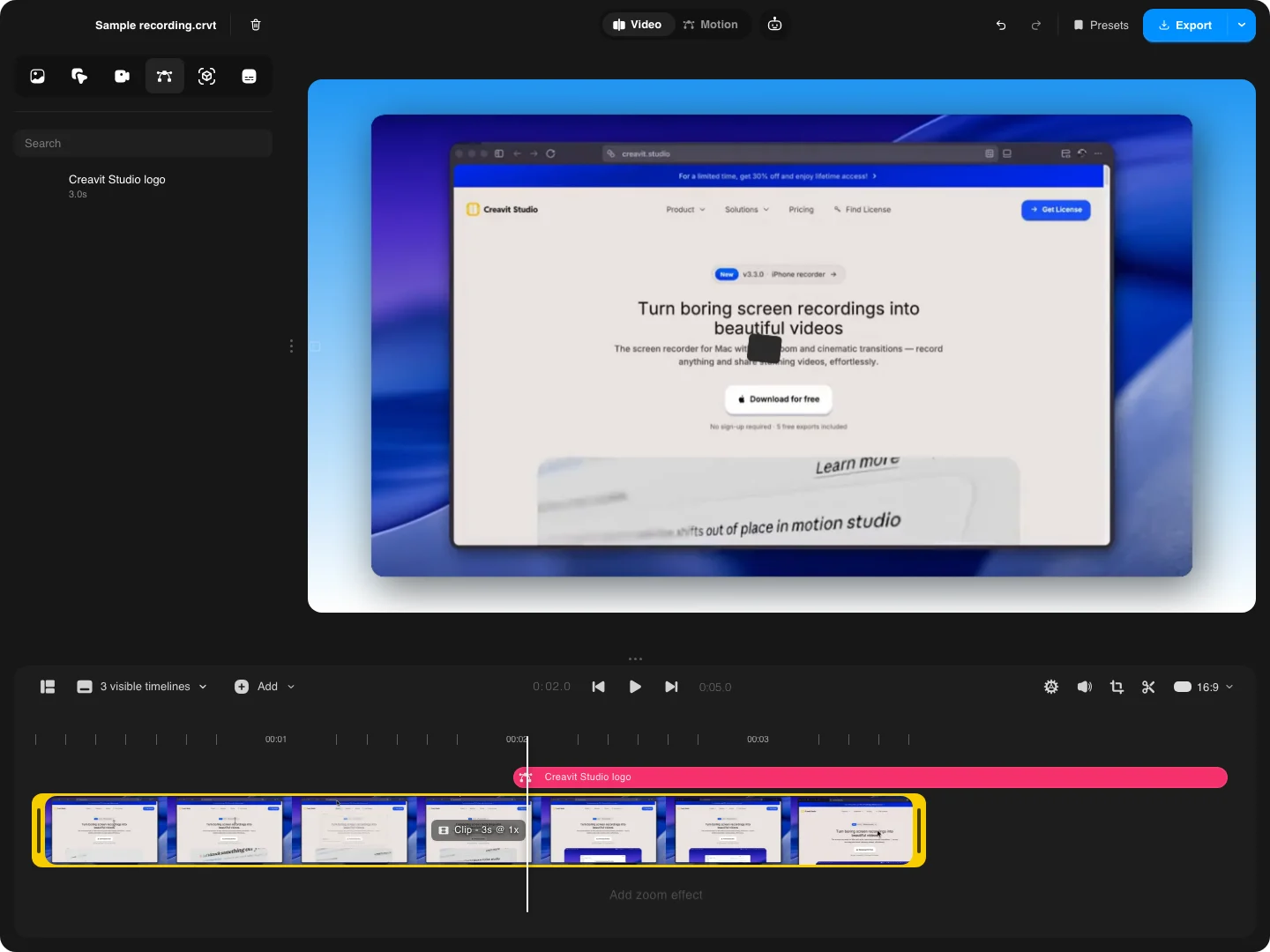
Animate titles, shapes, and scenes in Motion Studio, then reuse them in your recording. Give the opening a headline, label the important change, and make the final call to action easy to read.
Keep motion for transitions and emphasis. During the actual demonstration, let the interface settle so people can understand it. Camera layouts and background removal can bring you into the explanation without covering the important control.
Use a finished MP4 with the intended background for your video host or social channel. Watch it at the size your audience will see, including on a phone.
Export a GIF when a brief, silent interaction says enough. Keep the frame simple and add a label if the benefit would otherwise depend on narration.
Need the clip to blend into a designed page? Use transparent video export and select an alpha format supported by the destination.
Save the editable project in Base so you can return when the interface changes. If you connect Google Drive, you can upload the finished export to your chosen folder while keeping a local copy. Uploading does not automatically make the file public.
Create your first product launch video with the recorder and editor in one app.
Start with a free downloadPlanning, recording, and exporting a product launch video on Mac.
Record one valuable product flow in Creavit Studio, trim pauses and repeated steps, add zoom or text to the important moments, and finish with a clear next step. You can add motion titles and captions before exporting the finished video.
Creavit Studio includes a screen recorder, timeline editor, and Motion Studio. You can record the product, edit the take, build animated titles, and export within the same app.
Yes. Connect an iPhone over USB and choose it as the recording source. In the editor, you can add 2D or 3D device mockups, an animated hand, zoom, and Perspective.
Start with enough time to show one benefit, the interaction that delivers it, and a next step. The 45-second outline on this page is an example. Use a longer walkthrough when your audience needs more context, and check the current limits of your publishing destination.
Yes. Use text overlays and Motion Studio titles to explain the sequence. Automatic captions transcribe recorded speech; for a silent recording, write the on-screen explanation yourself.
This workflow starts with your real screen recording or imported footage. You control the edit, motion, framing, and export. It does not depend on a website URL being converted into a finished video.