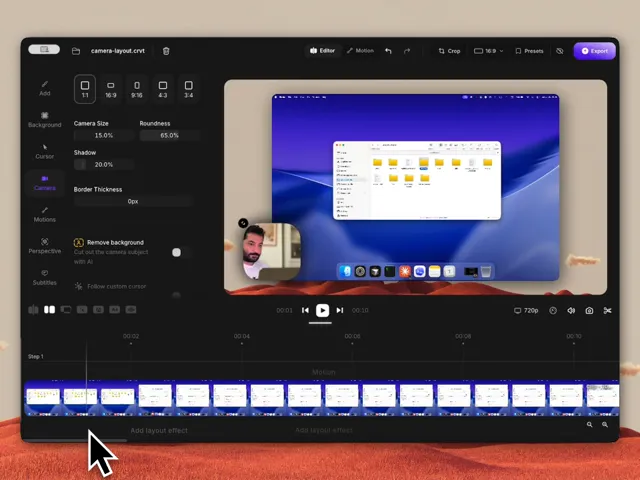
What is a webcam overlay?
A webcam overlay places your camera image over a screen recording. It can help viewers connect an explanation to the person giving it, but the useful part is being able to see the on-screen action clearly. Keep the camera away from menus, text, and the cursor's main path.
Record screen and webcam together on Mac
- Open Creavit Studio and select the screen, window, or area you want to record.
- Enable the camera and choose the built-in or connected webcam.
- Select a microphone. Enable system audio if the app or video you are demonstrating has sound that viewers need to hear.
- Record a brief test. Check camera framing, audio, and whether the overlay covers important screen details.
- Start the full recording. Creavit Studio keeps screen and camera as editable layers.
For audio capture choices, read how to record system audio on Mac.
Choose a camera layout that leaves room for the screen
For software tutorials, a small corner camera is usually easier to follow. A larger frame can work for an introduction or conclusion. If the lower-right corner contains a toolbar or subtitles, move the camera to another clear area. Check every screen you plan to show; a placement that works for the first scene may hide the next one.
After recording, adjust the camera layer's size and position in the editor. You can use a rounded or rectangular frame depending on the look you need. Preview the finished video at a smaller playback size so text remains legible.
Remove the room background when it helps
Creavit Studio's camera background removal is applied to the camera clip after recording in the editor. Record with even light, then enable the effect and inspect the result around hair and moving hands. If the cutout looks distracting, keep the original camera frame. See the step-by-step background removal guide.
Quick quality checklist
- Put the light in front of you rather than behind you.
- Keep your microphone close enough for clear speech and make a short audio test.
- Leave a little space around your head so the camera frame does not crop gestures.
- Move the camera overlay when it blocks a control or code line.
- Export a short sample and check the camera, screen text, and audio together.
For lesson-specific planning, see recording online courses on Mac. You can also explore the screen recorder with webcam feature.