Add Captions to Videos on iPhone
Turn your narration into captions without leaving the phone. Creavit Studio listens to the audio in your clips and camera, writes the captions, and lets you fix the transcript and style the words before you export.
- Free on the App Store
- Requires iOS 27 or later
- No account needed
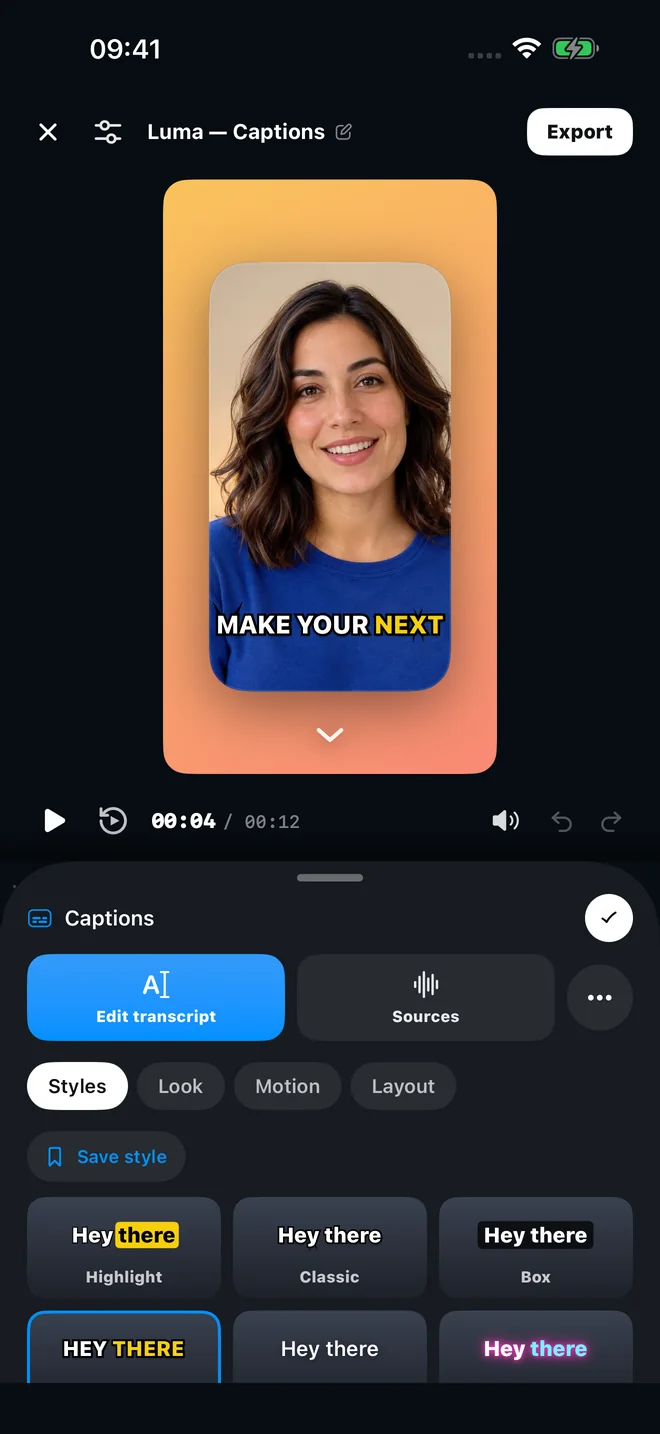
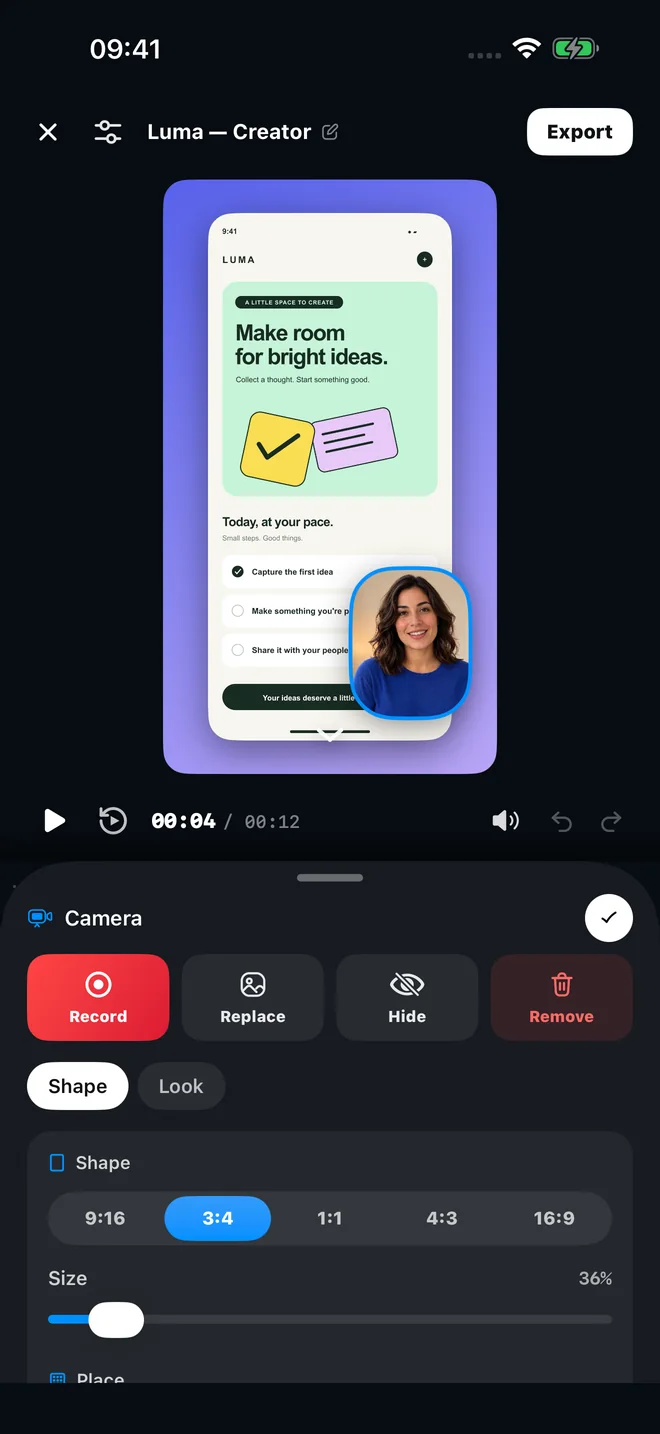
From spoken words to styled captions
Captions follow your edits: trim or split a clip and the captions move with it.
Generate captions from speech
Open Captions, choose the spoken language and a starting style, and Creavit Studio turns the audio in your clips and camera into timed captions. Speech is turned into text on your iPhone when the language supports it.
Edit the transcript
Fix a misheard word or a product name in Edit transcript. The captions on the canvas update with your corrections.
14 caption styles
Start from Highlight, Classic, Box, Pop, Minimal, Neon, Karaoke, Marker, Type on, Editorial, Mono, Bubble, Sunrise or Low key, then adjust the look, motion and layout.
Highlight the spoken word
Color the word being spoken, choose how each line enters, and set how many words appear at once.
Size and placement
Set the size and opacity, place captions at the top, middle or bottom, or drag them anywhere on the canvas so they never cover the part you are showing.
Translated captions
Show a translation below the original captions. Your device may need to download a language first, and translation is not available for every spoken language.
Generated captions vs typing text overlays
Checks before you export a captioned video
- Names and product terms. Speech recognition guesses unfamiliar words. Read the transcript once and correct app names, people and technical terms.
- Placement. Keep captions away from the part of the screen you are explaining. Move them to the top, middle or bottom, or drag them anywhere on the canvas.
- Line length. Fewer words per line read faster on a phone. Use the Length setting to keep lines short in vertical videos.
- Silent recordings. If there is no speech, there is nothing to transcribe. Add short text overlays that explain each step instead.
Creavit Studio for iPhone
Make every word a moment.
Download the free app, record any app with Apple's screen broadcast, and export a polished video to Photos.
- Free on the App Store
- Requires iOS 27 or later
- No account needed
Explore More
Frequently Asked Questions
Adding captions to videos on iPhone.
How do I add captions to a video on iPhone?
Open the video in Creavit Studio, either a new screen recording or a video imported from Photos. Open Captions, choose the spoken language and a starting style, and generate. Then correct the transcript, adjust the style and export to Photos.
Are captions generated on my iPhone?
Creavit Studio uses Apple's speech recognition and turns speech into text on the iPhone when on-device recognition is available for the language. You will be asked for speech recognition permission the first time.
Will the captions be part of the exported video?
Yes. Captions are drawn into the exported video, so they appear wherever you post it, including apps that do not support separate caption files.
Can I caption a video recorded with the Camera app?
Yes. Import any video from Photos. If it has speech, you can generate captions from it the same way as a screen recording.
What if my recording has no narration?
Automatic captions need speech. For a silent walkthrough, add text overlays that explain each step, or record a voiceover and caption that.