For a limited time, get 50% off and enjoy lifetime access!
NewNow on the App Store
Creavit Studio for iPhone
A screen recorder and video editor in one iPhone app. Record any app, and the take opens as a project you can finish on the phone: Liquid Zoom, captions, your camera, 3D iPhone mockups and backgrounds, exported straight to Photos.
On your computer?Scan with your iPhone camera to open Creavit Studio on the App Store.
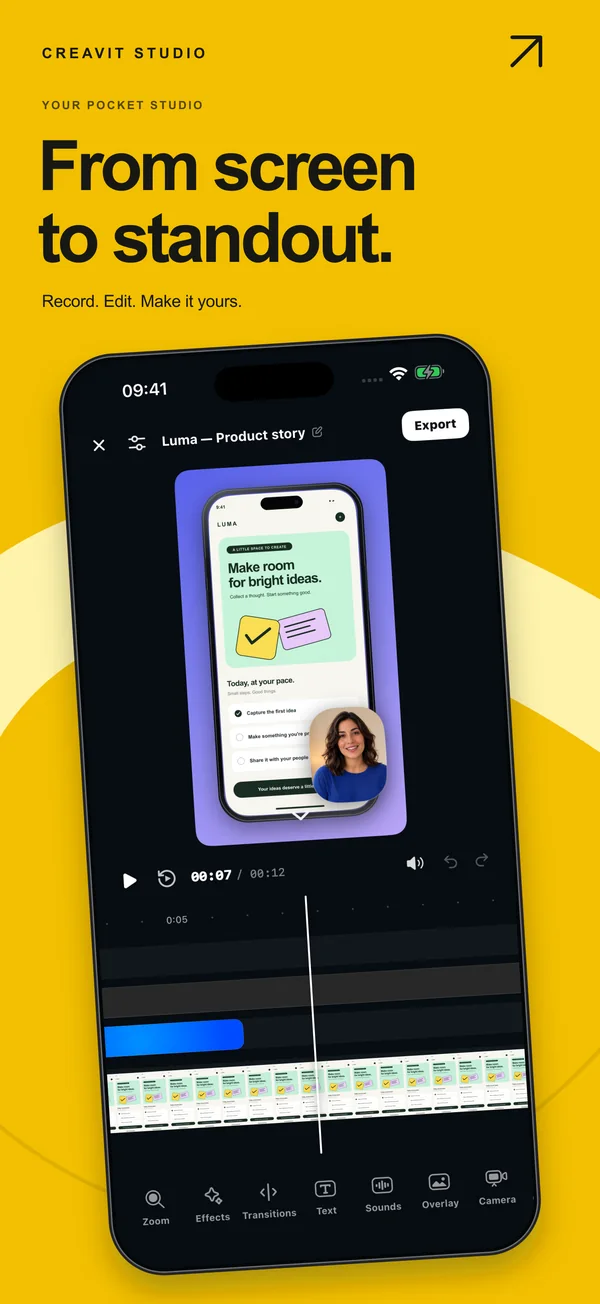
From screen to standout, on the phone you recorded with.
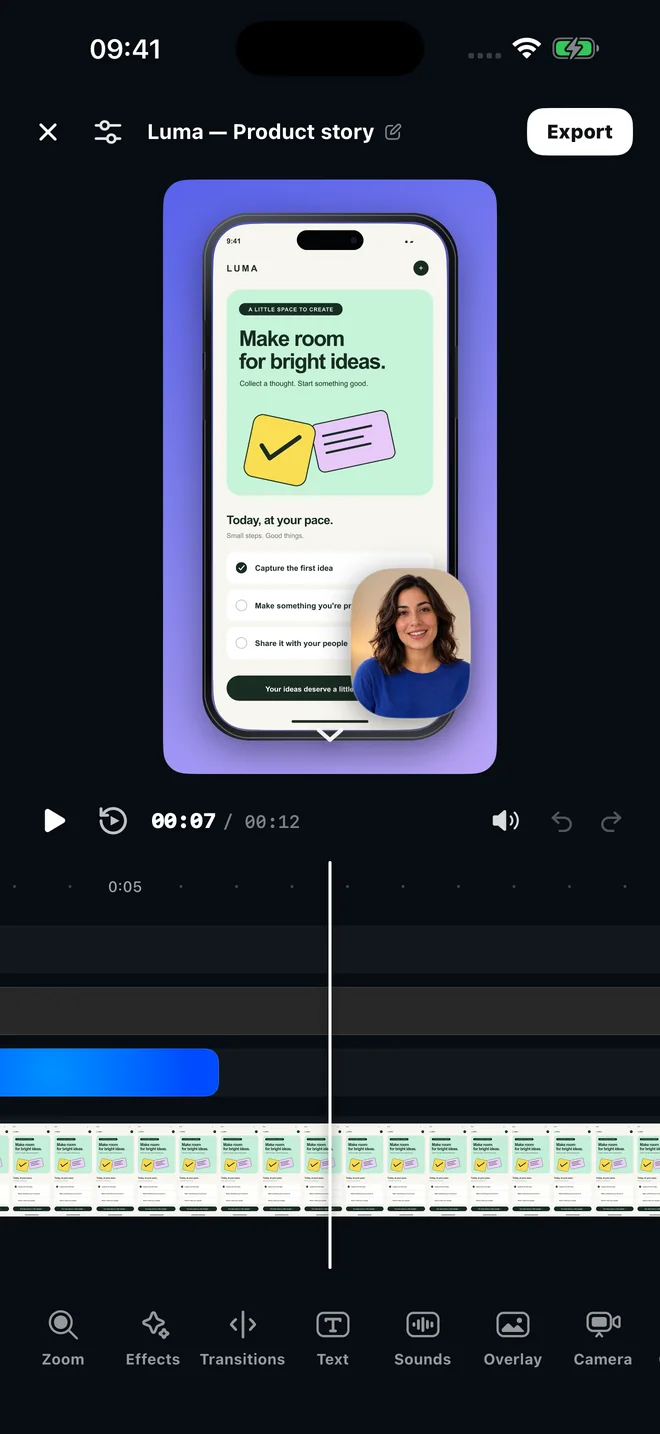
The same ideas as the Mac studio, rebuilt for touch: every tool lives on a timeline segment you can select, adjust and undo.
Record any app in five steps.
Creavit Studio uses Apple's screen broadcast, so it records the whole iPhone screen, not only its own window.
01
Tap Record
In the system sheet, make sure Creavit Studio is selected. Turn the microphone on if you want to narrate.
02
Start Broadcast
After the three-second countdown, go to any app. A red indicator shows that recording is on.
03
Stop
Tap the red indicator in the status bar, or the recording button in Control Center, and stop the broadcast.
04
Edit
Return to Creavit Studio. The recording is already waiting as a new project on the timeline.
05
Export
Tap Export to save the finished video to Photos or send it with the share sheet.
The editing tools behind a finished video.
Zoom
Bring the important moment closer.
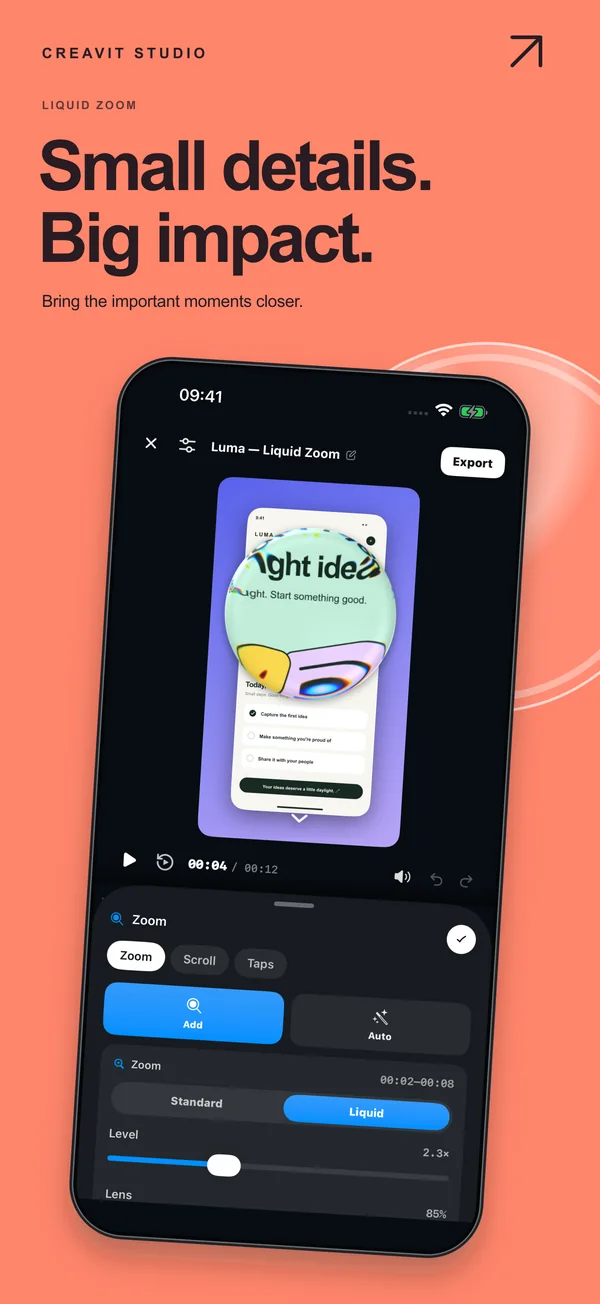
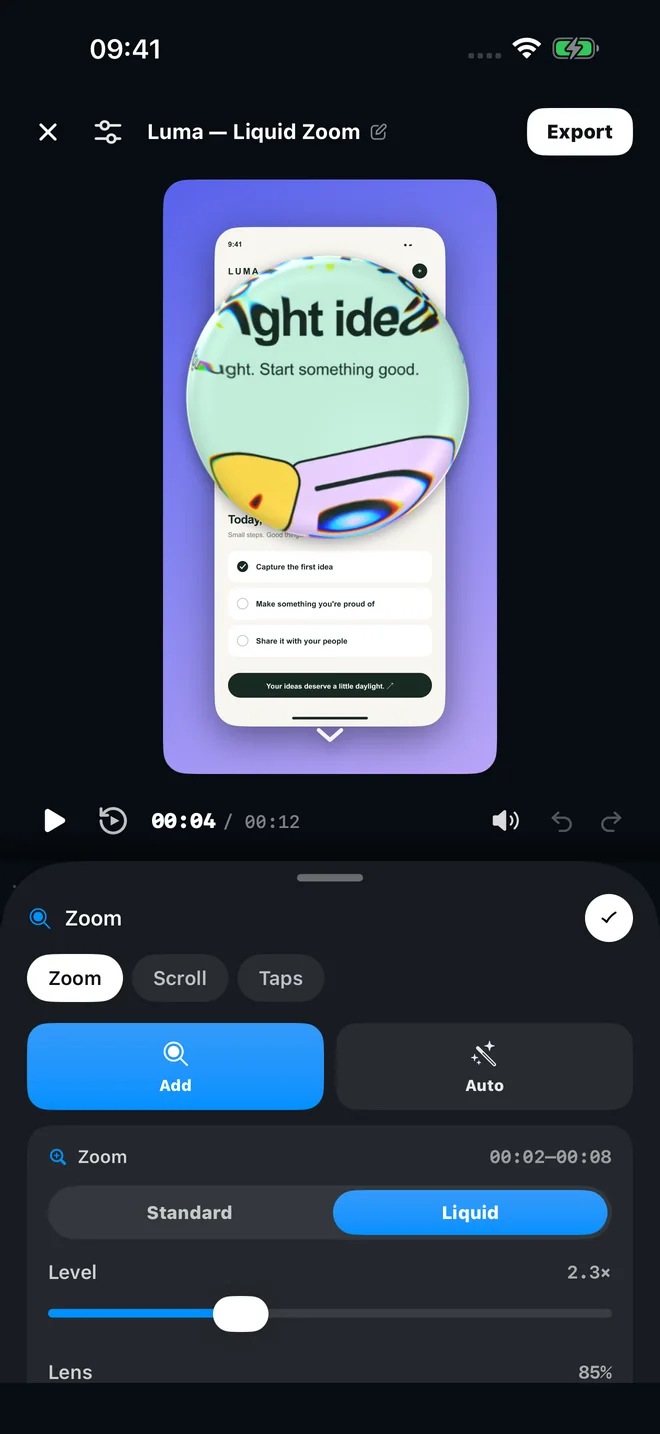
Add a zoom segment wherever a detail needs attention. Choose Standard to push the whole frame in, or Liquid for a glass lens that magnifies one area while the rest of the screen stays in place.
Set the zoom level and lens size per segment
Detect taps adds tap markers and zooms from device motion while you record
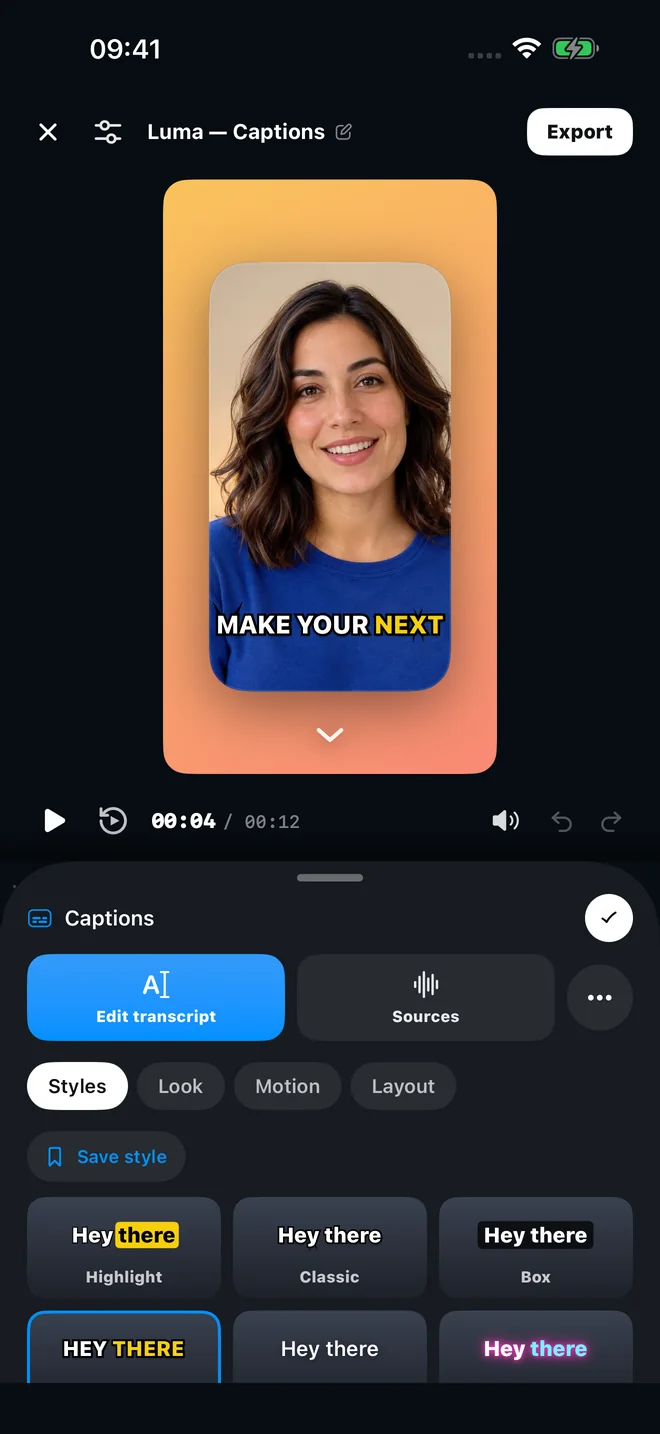
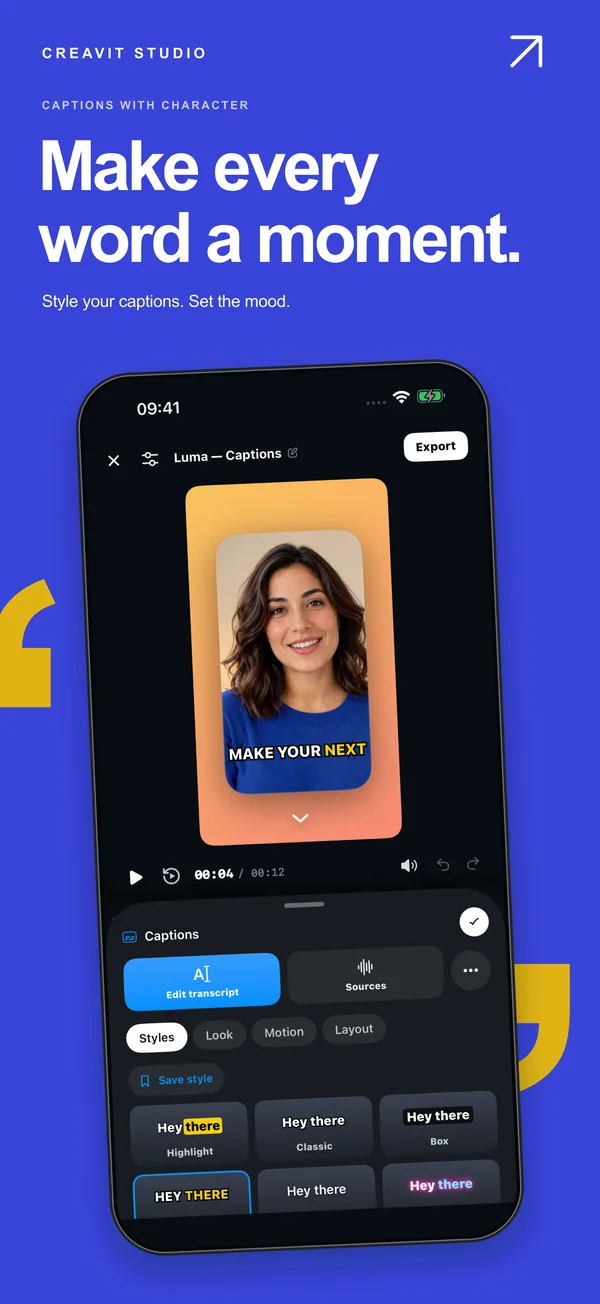
Generate captions from your narration, correct the transcript, then pick a style. Highlight, Classic, Box, Pop, Neon, Karaoke and more come with their own look, motion and layout controls.
14 caption styles you can fine-tune
Uses Apple's speech recognition, on the iPhone where the language supports it
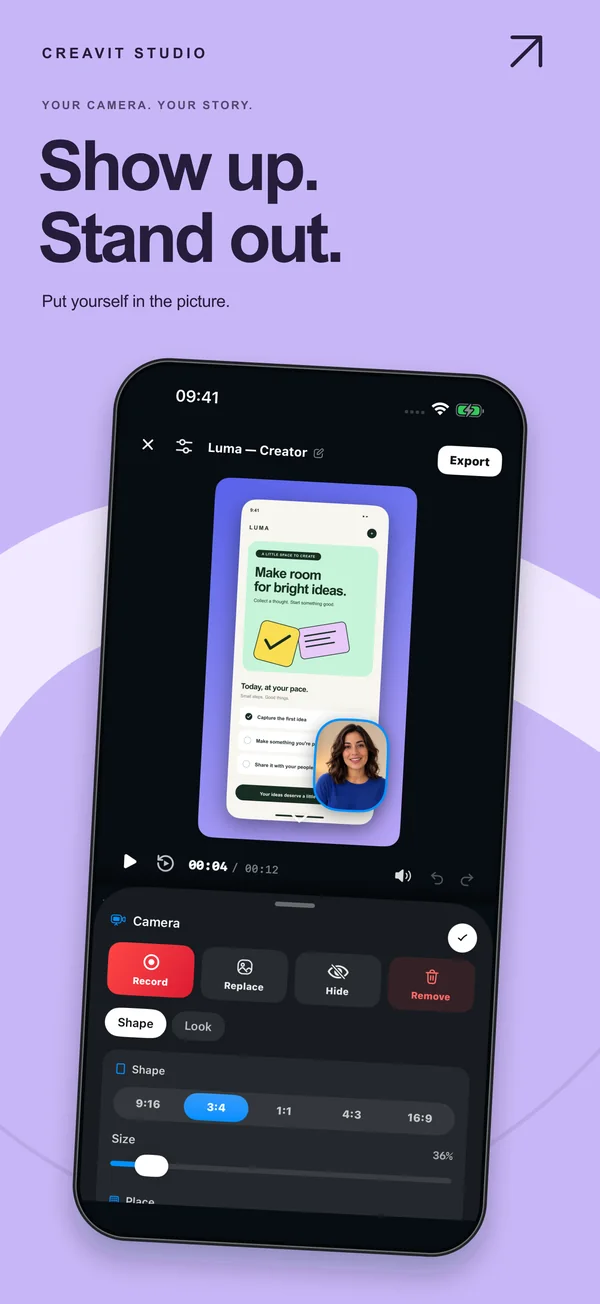
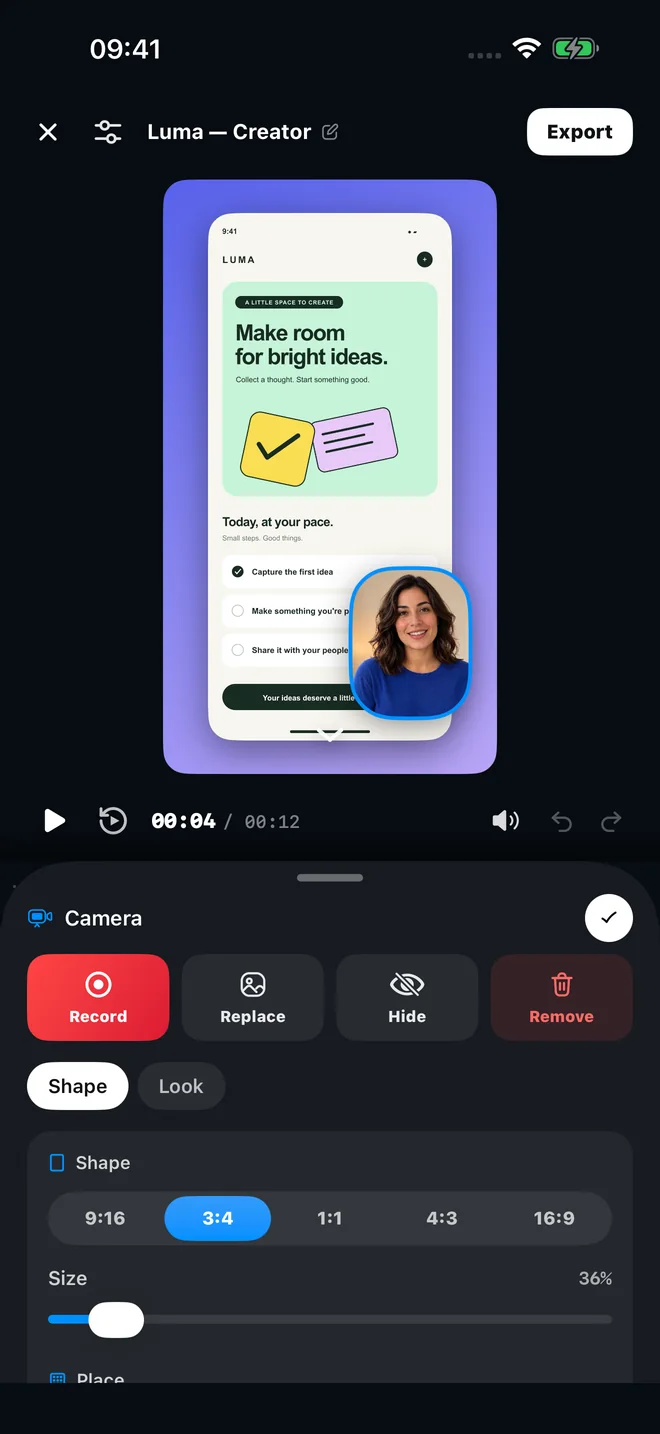
After recording, open Camera › Record camera: your video plays while the front camera records you in sync. You can also place a video or image from Photos, then change its shape and size.
Shapes from 9:16 to 16:9, plus size and position
Replace, hide or remove the camera at any time
Picture in Picture capture during a recording is also available
3D mockups
Give the screen a cinematic frame.
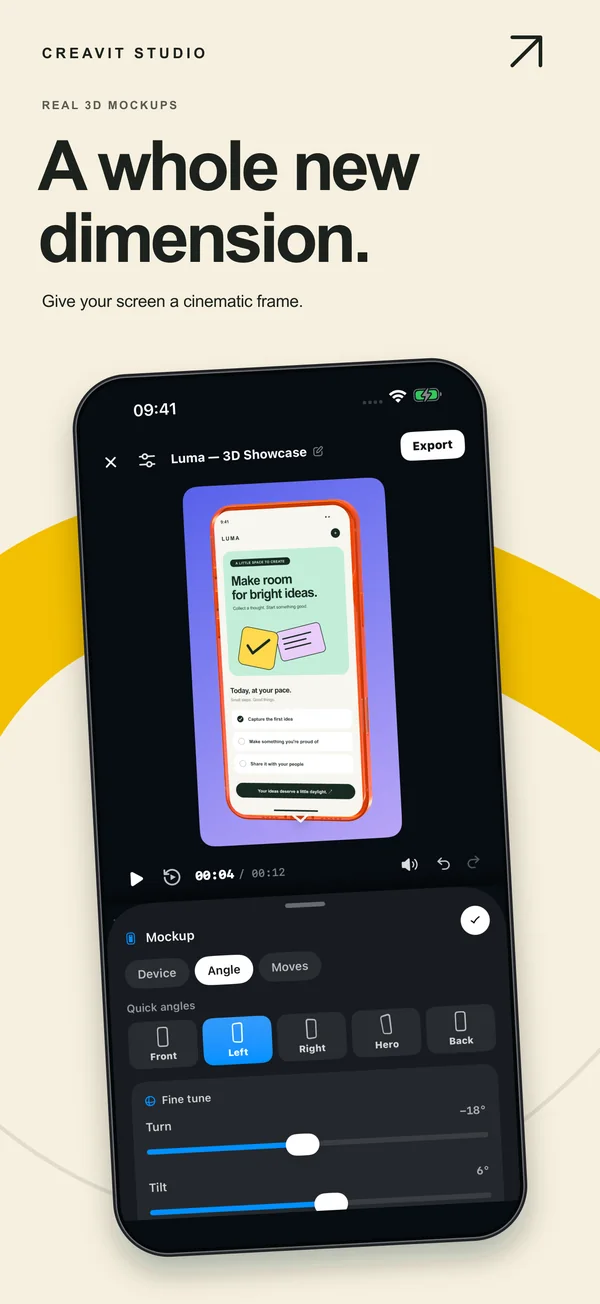
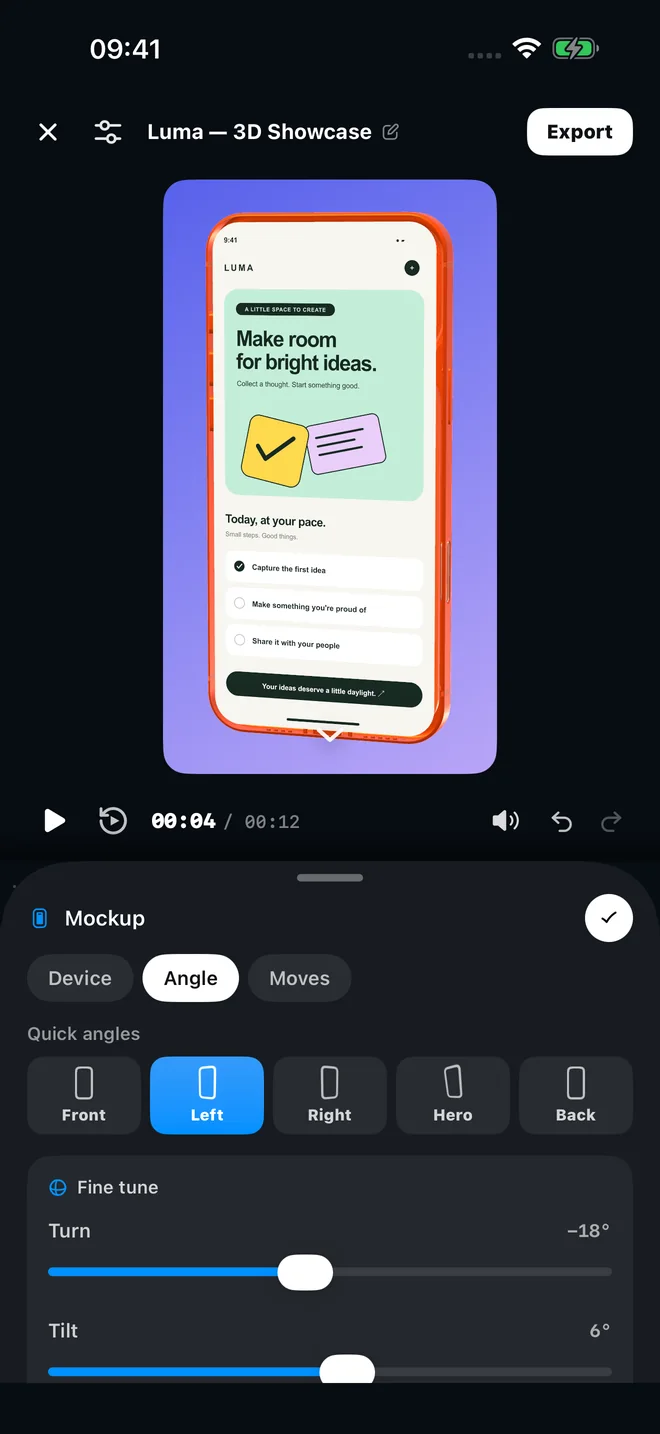
Place the recording inside a real 3D iPhone model and pick an angle: Front, Left, Right, Hero or Back. Moves animate between angles, and fine-tune sliders set the turn and tilt.
3D models from iPhone 11 Pro to iPhone 17 Pro Max
Flat device frames for a cleaner look
Angles and moves stay editable on the timeline
Canvas
Your video, your style.
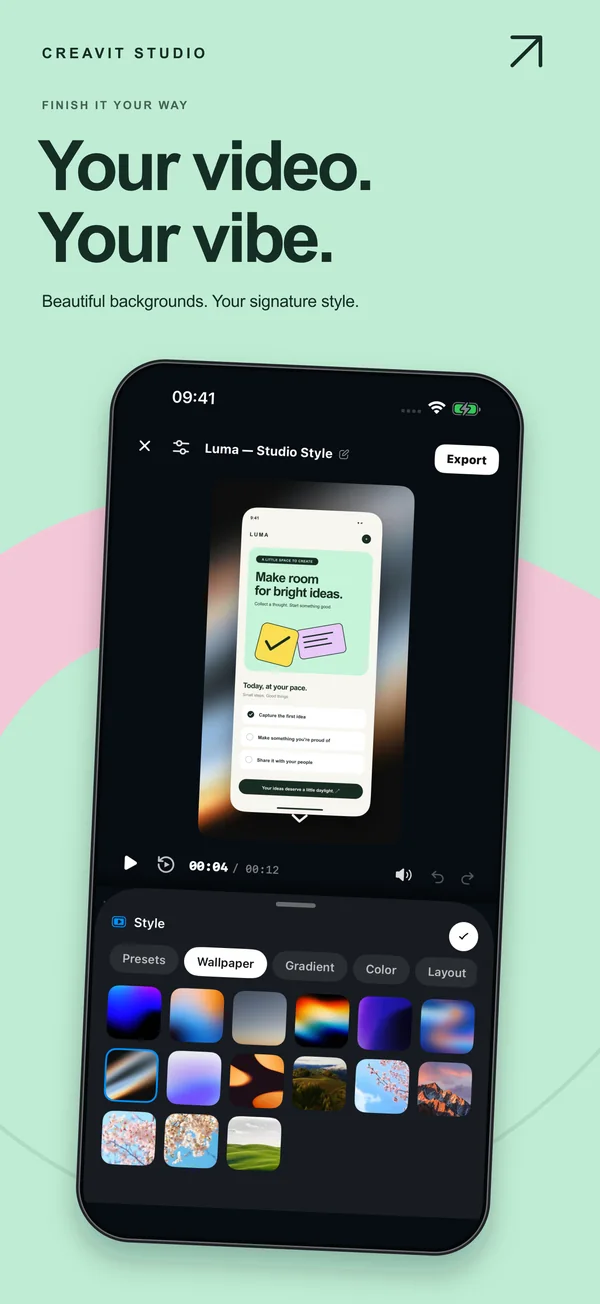
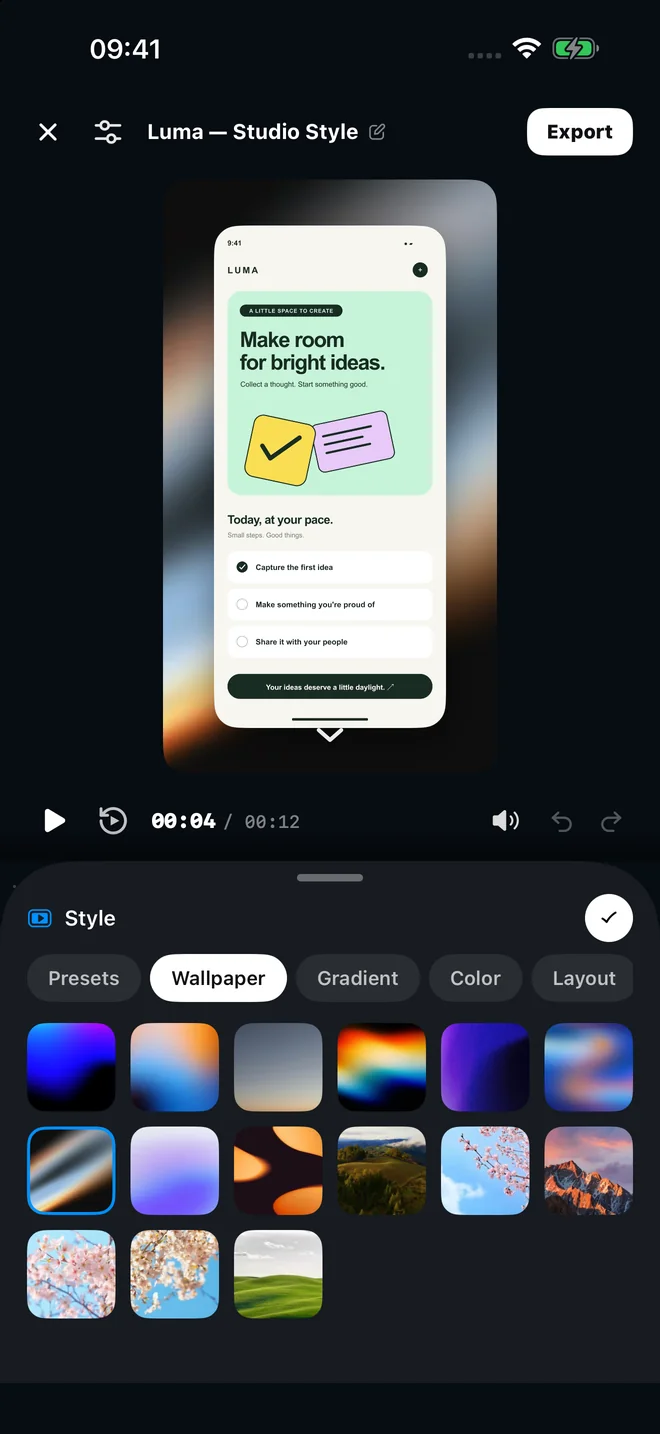
Put wallpapers, gradients or solid colors behind the recording, then add padding, rounded corners and a shadow. Change the canvas ratio for the place you are posting.
Auto, 16:9, 9:16, 1:1, 4:3 and 3:4 canvases
Style presets for a consistent look
Text, overlays, sound effects, transitions and masks on the same timeline
Every editing tool is available on the free plan. Creavit Pro changes the export quality and removes the watermark.
Free
Free
Record, edit and export with every editing tool.
Unlimited projects
Exports at 720p · 30 fps
Small watermark on exports
Creavit Pro
$9.99 / month
Monthly in-app subscription. The App Store shows the price in your currency.
Exports up to 4K
24, 30 or 60 fps
No watermark
Creavit Pro renews monthly through your Apple Account until you cancel it in Settings. You can restore a purchase from the app's settings. The US price is shown; the App Store displays the local price in your country.
Using Creavit Studio on Mac too?
The iPhone app and the Mac app are separate apps. Creavit Pro on iPhone is an App Store subscription managed by your Apple Account; Mac licenses are sold on creavit.studio.
Record on the phone when the whole video can be made on the iPhone: a quick app demo, a social clip, a bug report.
Record an iPhone on your Mac over USB when you want desktop editing, motion design and AI tools. See iPhone recording on Mac.
Mac Motion Link is optional: while the Mac records your iPhone over USB, the iPhone app can send only its motion-sensor track over your local network to animate the perspective.
Creavit Studio for iPhone
Record it on your iPhone. Finish it there too.
Download the free app, record any app with Apple's screen broadcast, and export a polished video to Photos.
Yes. The app is a free download, and you can record, edit and export with every editing tool. Free exports are 720p at 30 fps with a small watermark. Creavit Pro, a monthly in-app subscription ($9.99 in the US), unlocks exports up to 4K at 24, 30 or 60 fps without the watermark.
Which iPhones can run it?+
The App Store listing requires iOS 27.0 or later. If your iPhone runs iOS 27, you can install Creavit Studio.
How does it record other apps?+
It uses Apple's screen broadcast. Tap Record, keep Creavit Studio selected in the system sheet, and tap Start Broadcast. Use any app, stop from the red status indicator or Control Center, and the recording opens in Creavit Studio as a new project.
Can I record my voice while recording the screen?+
Yes. Turn the microphone on in the system broadcast sheet before you start. Some apps may block audio or video capture, as with any iPhone screen recording.
Can I edit a video I already recorded?+
Yes. Import any video from Photos, or create an empty project and add media to it.
Do I need an account?+
No. You can record and edit without creating an account. Projects are stored on your iPhone, and exported videos are saved to Photos or shared where you choose.
Is it the same as Creavit Studio for Mac?+
They are separate apps that share the same editing ideas. Creavit Pro on iPhone is an App Store subscription managed by your Apple Account; Mac licenses are sold on creavit.studio. The Mac app can also record a USB-connected iPhone for desktop editing.
We use cookies to enhance your experience and analyze site usage. By continuing to use our site, you consent to our use of cookies. Privacy