Edit iPhone Screen Recordings on Your iPhone
Creavit Studio opens every iPhone screen recording as an editable project. Trim the setup, split and reorder clips, frame the screen on a background, add zoom, captions and your camera, then export the finished video to Photos — no computer needed.
- Free on the App Store
- Requires iOS 27 or later
- No account needed
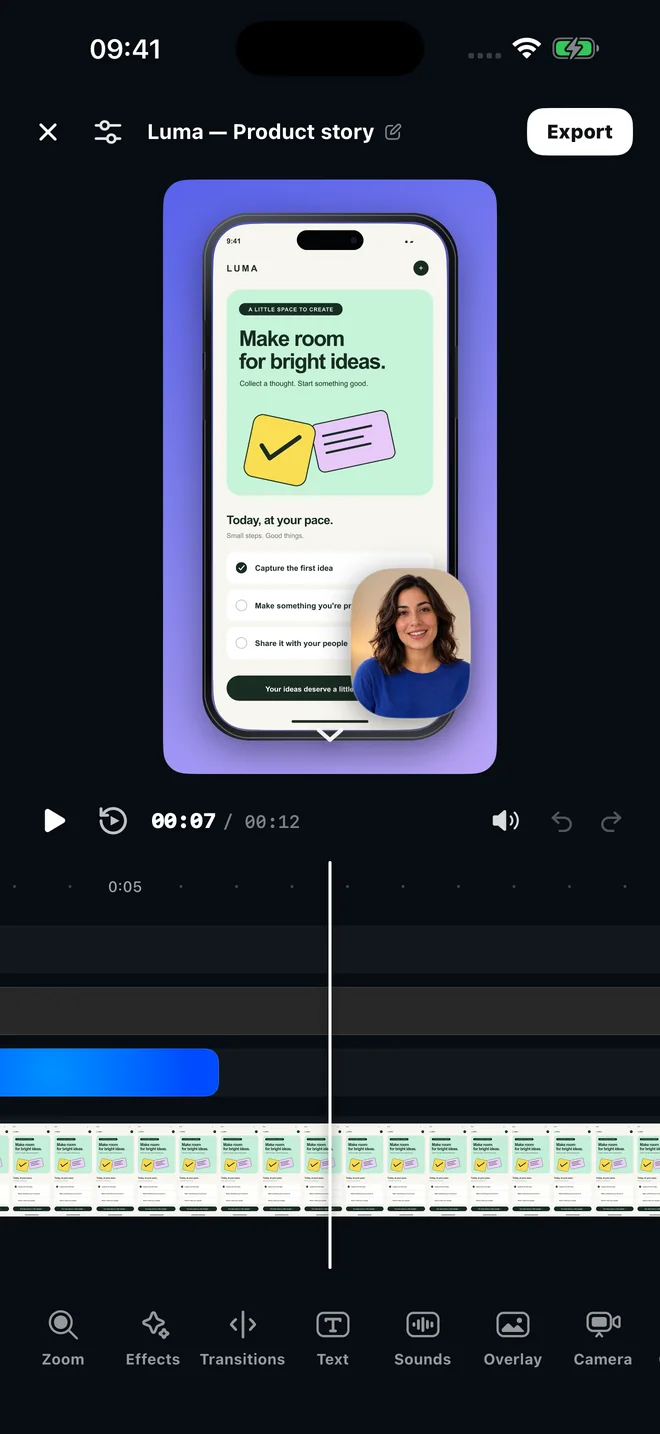
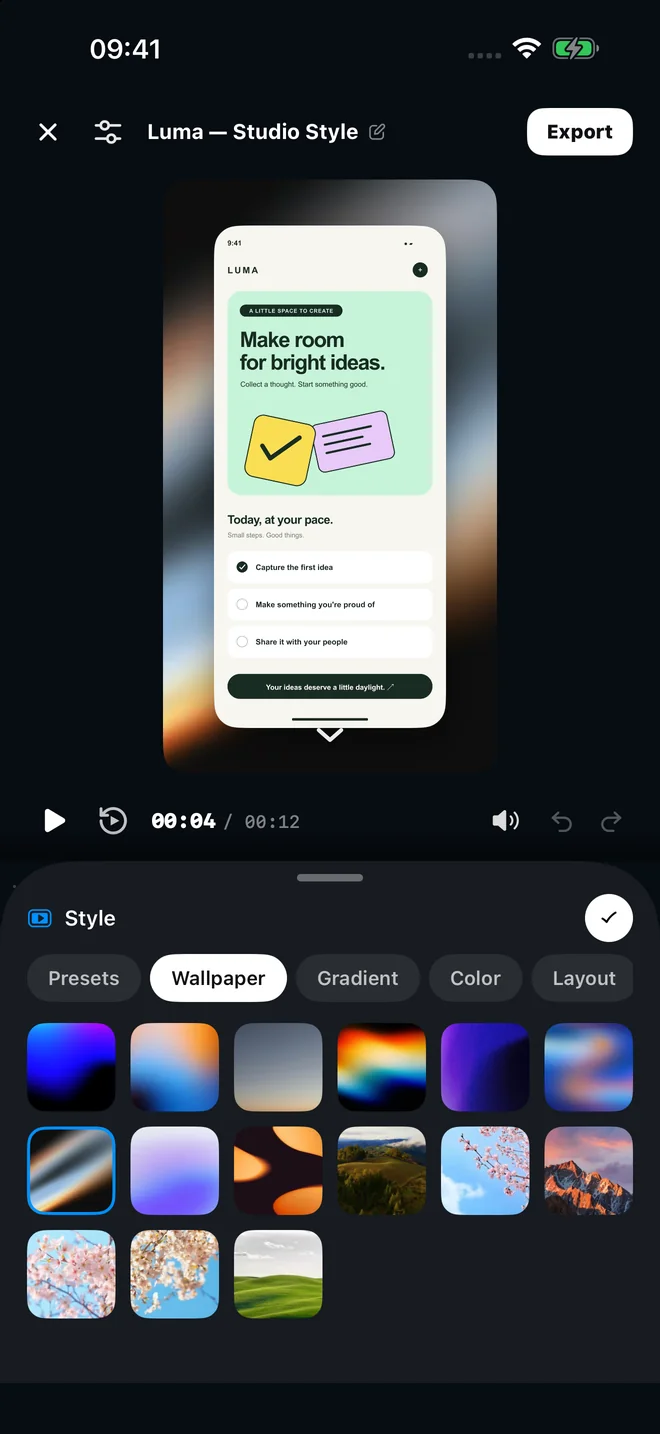
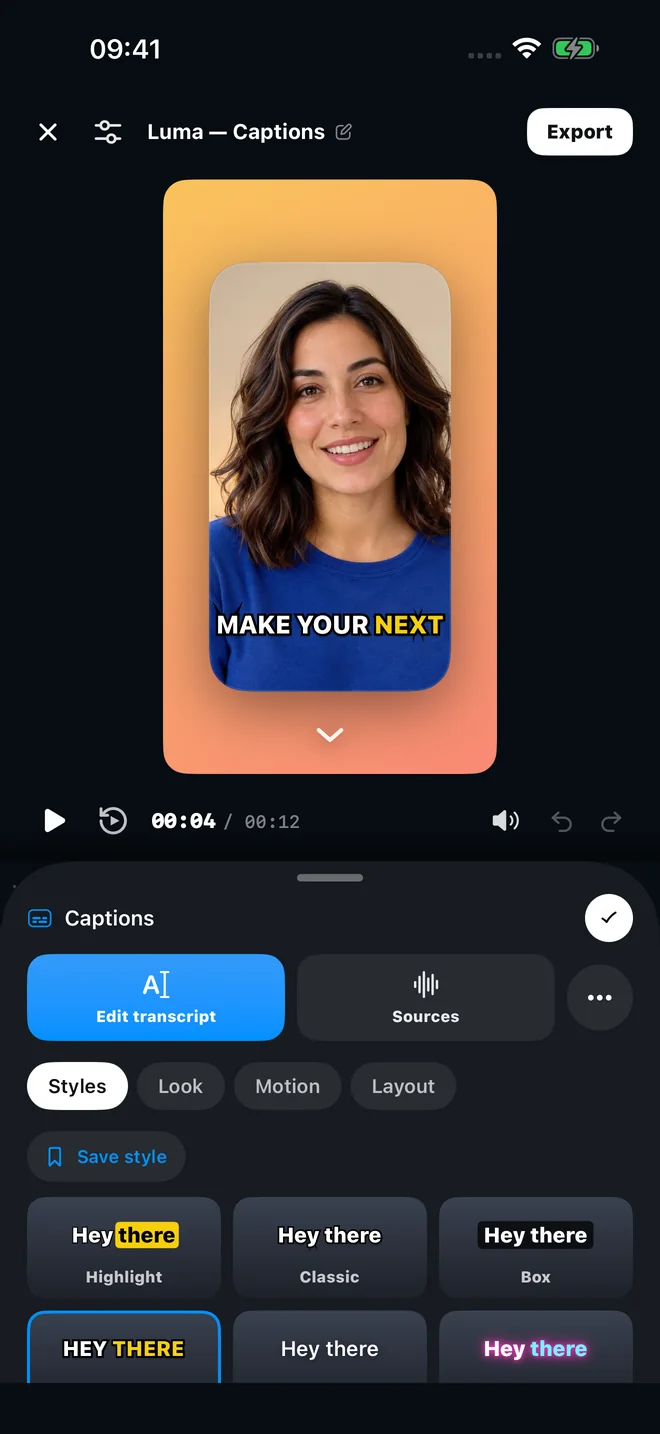
From raw take to finished video
The recording stays untouched underneath. Every change is a segment on the timeline, so you can adjust it again later.
Record any app, or import from Photos
Tap Record and Creavit Studio captures the whole screen with Apple's screen broadcast. When you stop, the take is already a project. Older recordings and any other video can be imported from Photos.
Trim, split and reorder
Drag the ends of a clip to trim it, split at the playhead to remove a pause, and reorder clips when the story works better in another sequence. Transitions go on the cut between two touching clips.
Frame the screen on a canvas
Choose Auto, 16:9, 9:16, 1:1, 4:3 or 3:4, then add a wallpaper, gradient or solid color with padding, rounded corners and a shadow. Flat device frames and real 3D iPhone models are one tap away.
Zoom, taps and smooth scrolling
Add zoom segments, show tap highlights, and smooth shaky scrolls: Creavit keeps your pauses but removes jerks and small accidental back-scrolls, while fixed headers stay in place.
Captions, text, sounds and overlays
Generate captions from your narration, place text and pictures on the canvas, add sound effects, and shape clips, camera, text or pictures with the mask tool.
Export to Photos or share
Save the finished video to Photos or send it with the share sheet. Projects stay on your iPhone until you delete them; exported videos stay in Photos.
Creavit Studio vs editing in the Photos app
A practical editing pass for a screen recording
- Cut the setup and the ending. Trim the first seconds where you open Control Center and the last ones where you stop the broadcast. Split around long waits, such as loading screens, and delete the middle part.
- Choose the canvas before styling. Pick 9:16 for Reels, Shorts or TikTok, 16:9 for YouTube or a website, and 1:1, 4:3 or 3:4 for feeds. Backgrounds, padding and corner radius then fit that frame.
- Add attention, not decoration. One zoom per idea is usually enough. Use tap highlights when viewers need to see where you touched, and captions when people watch without sound.
- Export and watch it once. Free exports are 720p at 30 fps with a small watermark. Creavit Pro exports 1080p, 2K or 4K at 24, 30 or 60 fps without it.
Creavit Studio for iPhone
Record it on your iPhone. Finish it there too.
Download the free app, record any app with Apple's screen broadcast, and export a polished video to Photos.
- Free on the App Store
- Requires iOS 27 or later
- No account needed
Frequently Asked Questions
Editing iPhone screen recordings with Creavit Studio.
Can I edit a screen recording I made with Control Center?
Yes. Screen recordings made with the Control Center button are saved to Photos. Import one into Creavit Studio and edit it like any other project.
Does editing change my original recording?
No. Creavit Studio keeps the recording as the source of the project. Trims, zooms, captions and styles are edits on top of it, so you can change them again before exporting.
Which export settings are available?
The free plan exports 720p at 30 fps with a small watermark. With Creavit Pro you can export 1080p, 2K or 4K at 24, 30 or 60 fps without the watermark.
Can I make a vertical video from a recording?
Yes. Choose the 9:16 canvas and the recording is framed for Reels, Shorts and TikTok. You can switch to 16:9, 1:1, 4:3 or 3:4 later without starting over.
Do I need a Mac to edit iPhone screen recordings?
No. Recording, editing and export all happen in the iPhone app. If you prefer to edit on a computer, the Mac app can record a USB-connected iPhone instead.