Zoom In on an iPhone Screen Recording
Add zoom after you record, exactly where the detail is. Creavit Studio gives iPhone recordings timed zoom segments, automatic zooms from your taps, and Liquid Zoom: a glass lens that magnifies one area while the rest of the screen stays in view.
- Free on the App Store
- Requires iOS 27 or later
- No account needed
Three ways to bring a detail closer
Every zoom is a segment with a start, an end, a level and a focus point. Change any of them until the timing matches what you say.
Add a zoom segment
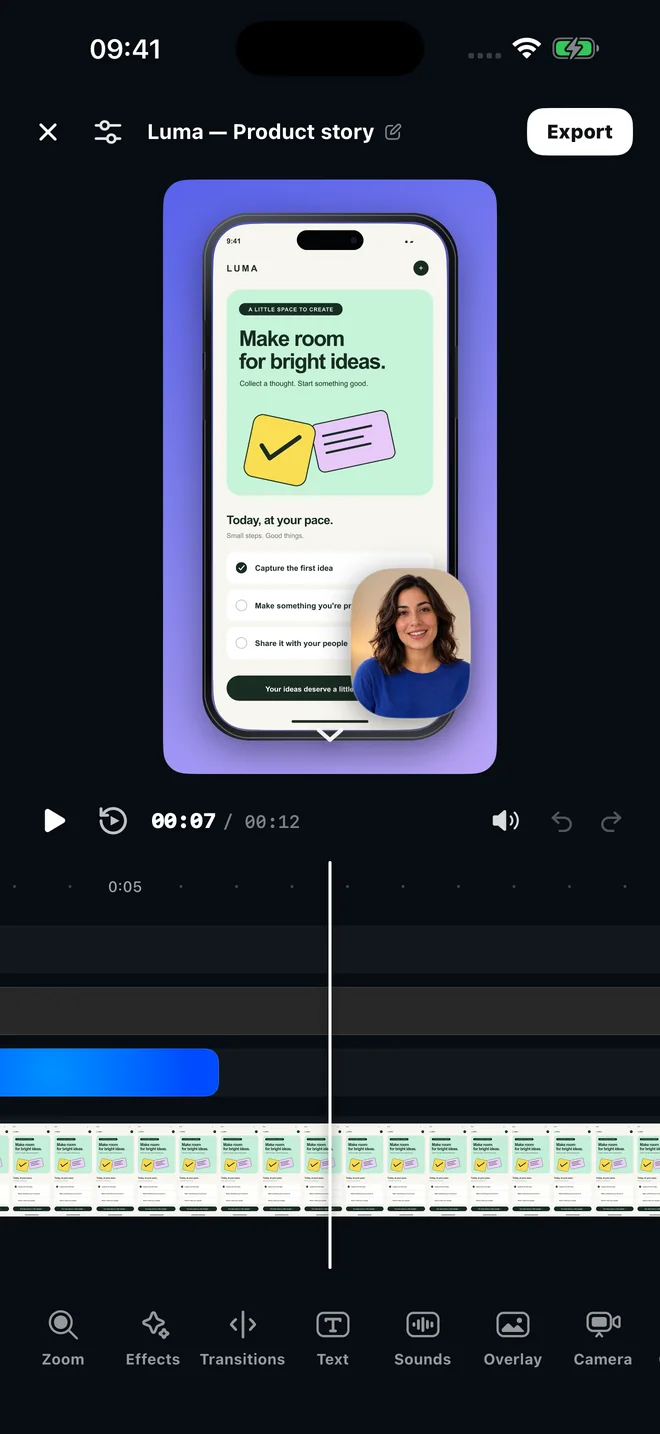
Open the Zoom tool and tap Add. A zoom segment appears on the timeline at the playhead; drag its edges to set when it starts and ends, and set the level from a gentle push to a close-up.
Automatic zooms from your taps
Turn on Detect taps in the recording settings. While you record, Creavit Studio detects tap moments from device motion and adds tap markers and zooms. Run the one-time calibration for reliable detection.
Liquid Zoom lens
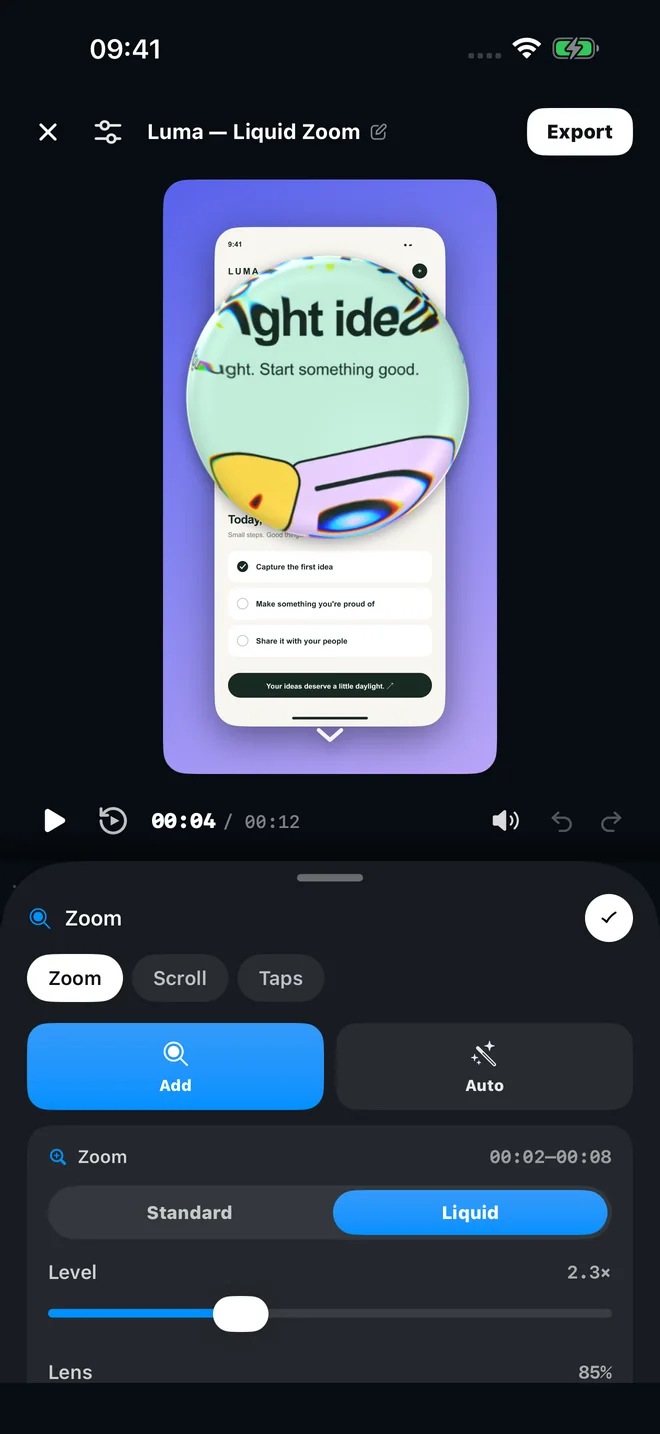
Switch a zoom to Liquid and a glass lens magnifies the area under it while the rest of the screen stays visible. Set the lens size and the zoom level for each segment.
Tap highlights
Show viewers where your finger touched. Tap markers stay editable, so you can move one, remove one, or add a tap that detection missed.
Smooth scrolling
Scroll recordings can look jerky at full speed. Smooth scroll keeps your pauses, removes jerks and small accidental back-scrolls, and holds fixed headers in place.
Zoom segments vs cropping in Photos
Standard zoom or Liquid Zoom?
Standard pushes the whole frame in, like a camera move. Use it when one part of the screen should fill the video for a while: a form you are filling in, a setting you are changing, or a short line of text.
Liquid keeps the full screen visible and places a glass lens over the detail. Viewers see both the context and the magnified area, which works well for small buttons, numbers and status changes. The lens size and the zoom level are set per segment.
A good rule for either style: one zoom for one idea. Let the move finish, hold it long enough to read, and release it before the next action starts.
Creavit Studio for iPhone
Bring the important moment closer.
Download the free app, record any app with Apple's screen broadcast, and export a polished video to Photos.
- Free on the App Store
- Requires iOS 27 or later
- No account needed
Explore More
Frequently Asked Questions
Zooming in on iPhone screen recordings.
Can I zoom in on a screen recording after I record it?
Yes. Zoom segments are added in the editor, so you can record normally and decide later where to zoom. You can also import an existing recording from Photos and add zooms to it.
How does Detect taps add zooms automatically?
With Detect taps on, Creavit Studio reads device motion while you record and finds the moments you tapped the screen. It adds tap markers and zooms at those moments. A short calibration with real touches measures your device and grip for reliable detection.
What is Liquid Zoom?
Liquid Zoom is a zoom style that shows a round glass lens over the detail instead of zooming the whole frame. The rest of the screen stays visible around it. You set the zoom level and the lens size for each segment.
Does zooming make the video blurry?
Zooming enlarges the pixels of your recording, so a strong zoom on a small area will look softer than the original. Moderate levels stay sharp. For the cleanest result, export at a higher resolution with Creavit Pro.
Can I zoom in a recording made with the Control Center button?
Yes. Import the recording from Photos and add zoom segments and tap highlights manually. Automatic zooms from Detect taps are available when you record with Creavit Studio.