Start with the lesson, then choose the recording setup
Decide what students must see and hear to complete one task. A screen-only walkthrough may be clearer than a permanent facecam; a short camera introduction can help when you need to explain context. Write a short outline and make each recording cover one learning goal.
Prepare your Mac for a course recording
- Increase text size until code, menus, and slide labels are readable at normal video playback size.
- Close private tabs and turn on Focus mode to prevent notifications from entering the recording.
- Use a quiet room and an external microphone if your Mac's microphone sounds distant.
- If you use a camera, place a light in front of you and leave space around your face.
Creavit Studio can capture a screen, window, or selected area along with a camera and microphone. Enable system audio only when the software demonstration needs it. The Mac system audio guide covers that setup.
Record a short technical test first
Capture 20 to 30 seconds with the same screen, camera, and audio sources you will use for the lesson. Play it back with headphones. Check whether the microphone is intelligible, system audio is balanced, text can be read, and the camera covers no important controls. Fix these before a long take.
For a facecam layout walkthrough, use the screen and webcam recording guide.
Record in sections you can revise
Pause briefly before important clicks and explain what changed after each step. If you make a mistake, stop and repeat that section. Recording separate topics makes it easier to trim or replace one part without repeating the entire lesson.
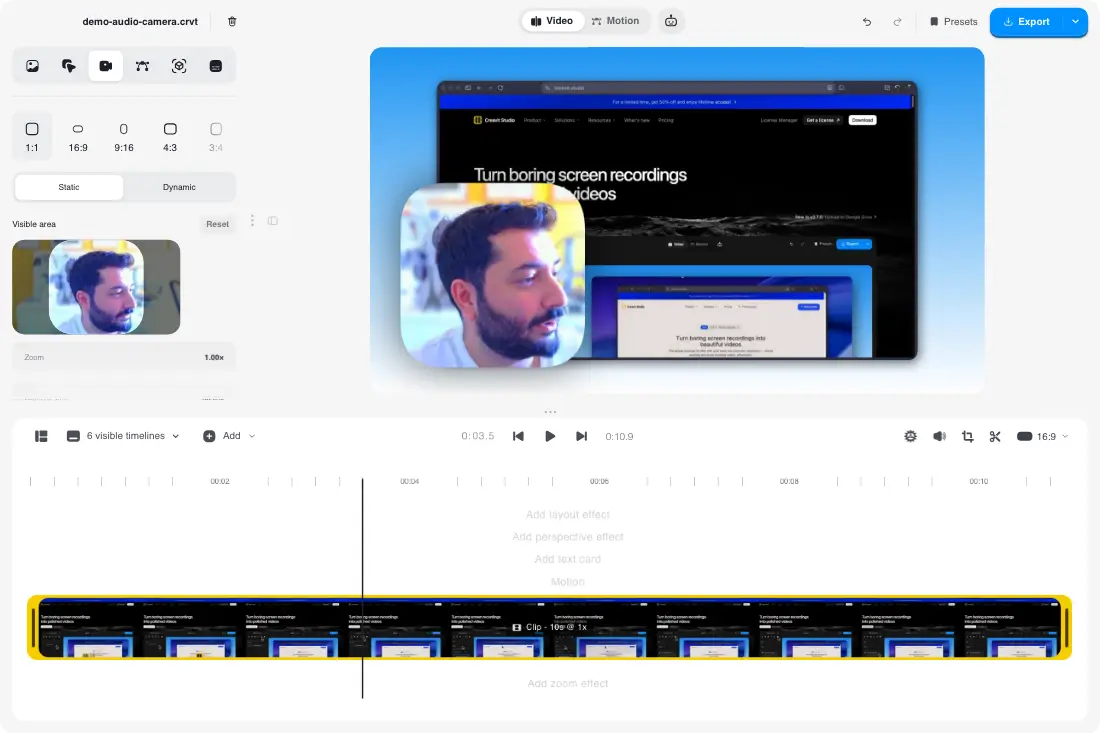
After recording, use Creavit Studio's editor to trim dead space and adjust the screen and camera layers. If your room distracts from the lesson, apply camera background removal after recording and inspect the cutout before exporting.
Export for the course platform
Check your course platform's current upload requirements before choosing resolution, frame rate, file format, and file size. They can change and may differ between lesson videos and promotional clips. Export one short sample, upload it as a draft, and watch it in the platform's player on both desktop and phone. Make sure text, voice, and any screen audio survive the platform's processing.
If you publish to more than one platform, keep the edited project so you can make each required export without repeating the recording.
Course video checklist
- The lesson has one clear outcome and a short outline.
- No private information or notifications appear on screen.
- Students can read the smallest important text.
- Voice and optional system audio are balanced.
- Camera placement leaves the task visible.
- The test export plays correctly on the target platform.
Explore tutorial recording software or download Creavit Studio for Mac to try the workflow.