The Short Answer
Mark the region as a sensitive area in the editor and it stays masked for the rest of the clip — you do not have to track it frame by frame. Then export and check the result before it leaves your machine.
That covers most cases. The rest of this guide is about the cases it does not cover, because the way screen recordings leak information is rarely the obvious way.
What Actually Leaks
If you record from a real account — and most useful recordings do — the recording carries more than what you meant to show:
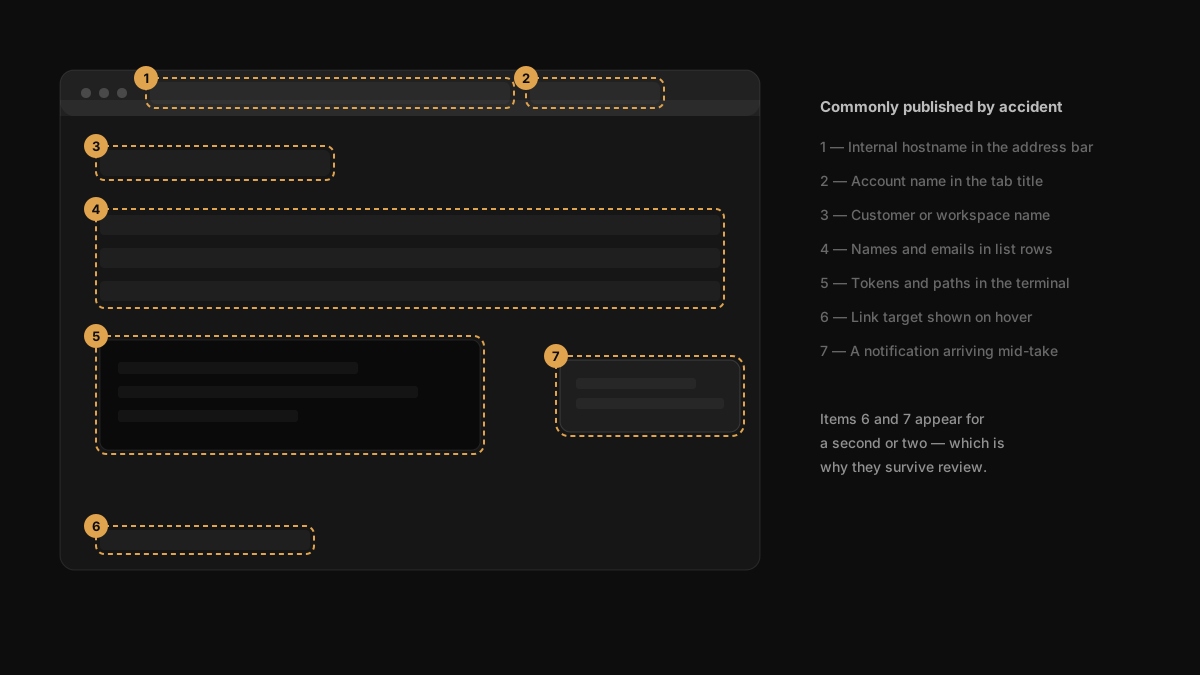
- Customer and account names in lists, tables, dropdowns and breadcrumbs
- Email addresses in headers, avatars, autocomplete suggestions
- API keys and tokens in terminals, network tabs, config screens
- Internal hostnames in the address bar and in link previews on hover
- Seat counts, revenue figures, plan names in admin panels
- Notifications that arrive mid-take from Slack, Mail or Messages
- Browser autofill dropping a list of previous entries when you click a field
- Tab titles and bookmarks in the browser chrome
The first three are the ones people remember. The last four are the ones that actually get published, because they appear for a second or two and nobody scrubs the timeline looking for them.
Prepare Before You Record
Masking is a repair. Prevention is cheaper.
Record a single window rather than the display. Window capture excludes your desktop, your other apps, and any notification that lands while you are recording. This one change removes most accidental exposure.
Turn on Do Not Disturb. A Slack preview from a customer channel is the classic leak, and it is the hardest to mask because you rarely notice it while talking.
Use a separate browser profile. A clean profile has no bookmarks bar, no autofill history, no logged-in personal accounts and no extension icons. It also stops the address bar from suggesting internal URLs as you type.
Seed a demo account with plausible fake data. Not "Test Test" and "asdf" — names and numbers that look real enough that viewers are not distracted. Anything you do not have to mask is one less thing to get wrong.
Rotate the key you are about to show. If you must show a token, show one that will be invalid an hour later. This is the only approach that survives a mistake.
Masking in the Editor
For everything that still slipped through, mask it after the take.
In Creavit Studio, mark the region as a sensitive area and it stays masked for the remainder of the clip. That behaviour matters more than it sounds: the alternative in a general video editor is a blur effect with keyframes that you have to re-position every time the layout shifts, and which silently stops covering the right area when a table row moves.
A practical order of work:
- Watch the recording once at normal speed without touching anything, and note the timestamps where something appears that should not.
- Mask from the earliest occurrence, not from where you noticed it. If the API key was visible from 00:04 and you only spotted it at 00:12, the mask needs to start at 00:04.
- Mask the region, not the text. Layouts move. A mask that covers the whole field survives a row shifting by a few pixels; one that covers exactly the characters does not.
- Scrub the timeline again at speed, watching only the masked areas, and confirm nothing peeks out at the edges during scrolling or animation.
The Mistakes That Still Leak
Blurring instead of covering. A light blur over short, predictable text is not always irreversible. If the underlying content is a six-digit code or a known-format identifier, a blur can be attacked. Use a solid mask for anything that would matter if recovered.
Masking the video but not the audio. You say the customer's name out loud while the name on screen is neatly covered. Listen back before publishing.
Forgetting the scroll. The field is masked where it sits, then the page scrolls and the same value appears three rows up, outside the mask. Check every scroll in the recording.
Leaving it in the project file, not just the export. The mask is applied on export; the original capture underneath still contains the data. That is the correct design — it is what lets you adjust a mask later — but it means the project file is as sensitive as the raw recording. Treat .crvt files accordingly and do not hand them to someone who should not see the source.
Hover previews. Hovering a link shows the target URL in the corner of the browser. Internal tools have internal hostnames. This appears for a fraction of a second and is easy to miss.
Re-recording without re-checking. You fixed the leak, recorded again, and shipped it without watching the new take. The second recording has its own accidents.
When Masking Is Not the Right Tool
If more than a quarter of the frame needs covering, you are not making a demo — you are making a video of rectangles. Re-record against a seeded demo account instead. The result is more convincing and takes less time than an editing pass that fights the footage.
The same applies when the sensitive thing is the workflow itself rather than the data on screen. No amount of masking hides the shape of an internal process, and that is sometimes the thing you are not allowed to publish.
A Quick Checklist Before You Publish
- Recorded a single window, not the whole display
- Do Not Disturb was on
- Every sensitive region masked from its first frame, not from where you noticed it
- Scrolls checked for the same value reappearing outside the mask
- Audio listened to for names and identifiers spoken out loud
- Solid masks, not light blur, on anything recoverable
- Any token shown has been rotated
- Exported file watched end to end at normal speed
Frequently Asked Questions
Can I mask something that moves around the screen?
Mark the region generously enough to cover the movement, or split it into segments and mask each range separately. For content that travels a long distance, cutting the segment is usually cleaner than chasing it.
Does masking reduce the video quality?
No. The mask is applied over the frame at export; the rest of the image is untouched.
Is the original data still in the exported file?
No — the export renders the masked result. The original remains in your project file on disk, which is why the project file should be treated as sensitive.
Can I check what is masked before exporting?
Yes. Toggle the visibility of sensitive areas in the editor to see the masked and unmasked versions, so you can confirm coverage without exporting first.
Where This Fits
Masking is the step that turns a recording made against a real account into something you can send outside the company. If that is the workflow you are in — recording demos from production data, or screencasts of internal tools — it is worth having the masking step in your process rather than remembering it case by case.
Related Reading
- How to Create Product Demo Videos on Mac — the workflow this step sits inside
- How to Screen Record on Mac — capture settings, including window-only recording
- Screen Recorders with Auto Zoom for Mac — why zoom makes masked regions easier to miss