The short version
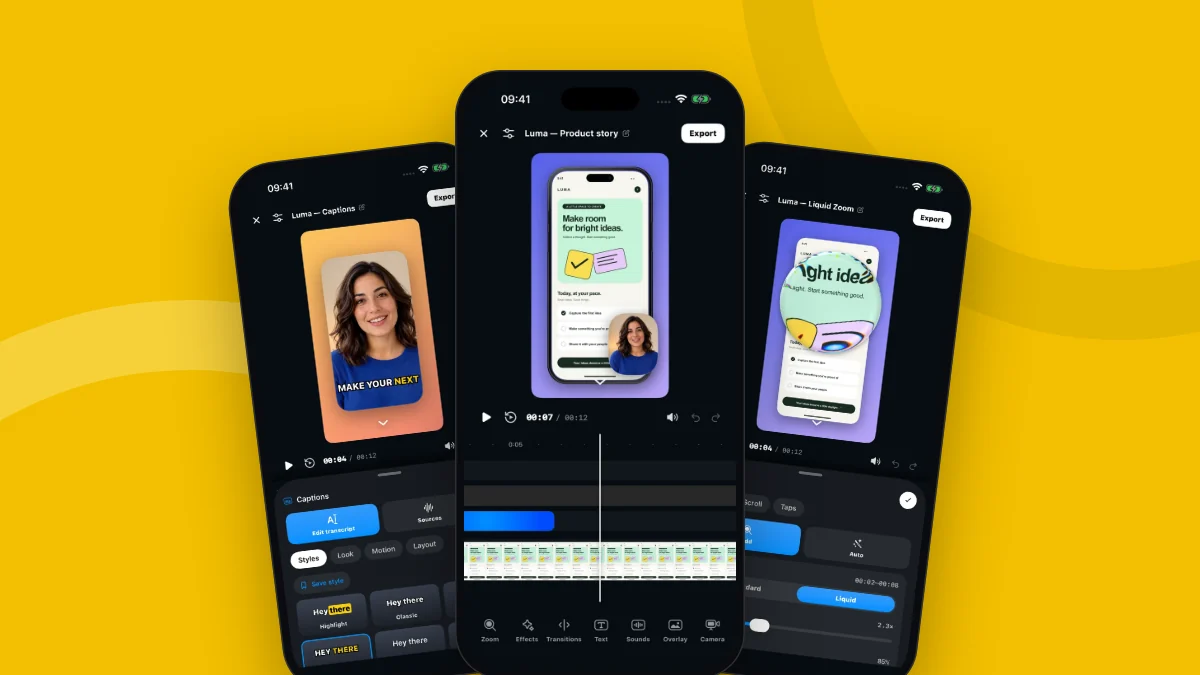
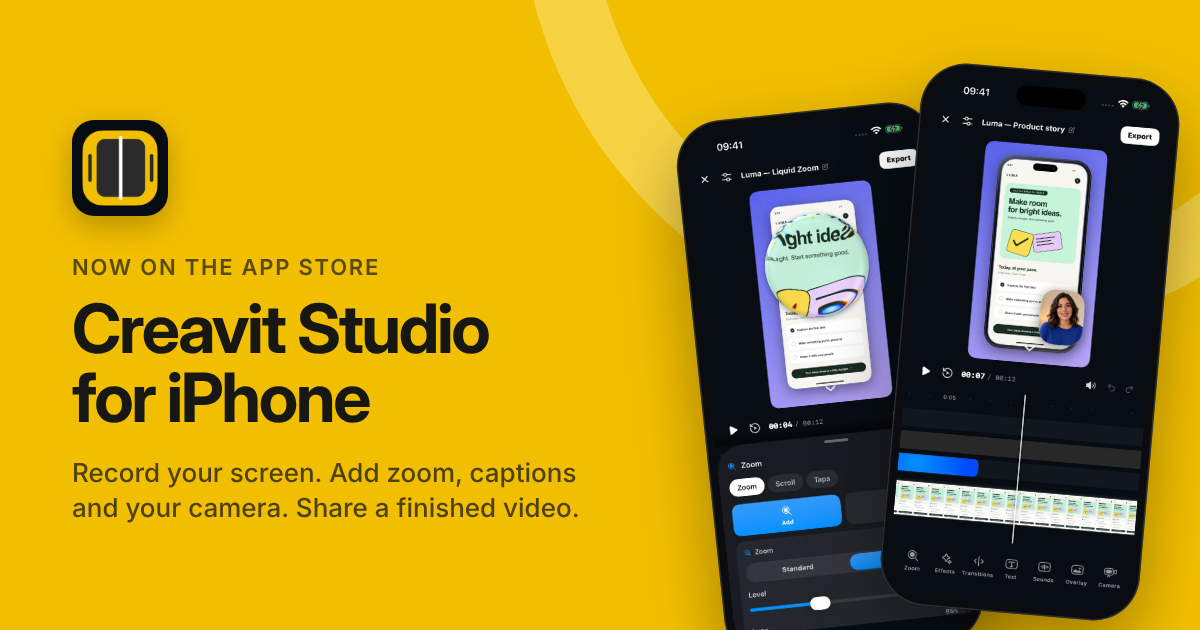
Creavit Studio is now available for iPhone. Record anything on your phone, and the recording opens as an editable project. Add zooms, captions, your camera, 3D iPhone mockups and backgrounds, then save the finished video to Photos or share it.
The app is a free download on the App Store. It requires iOS 27 or later, and you do not need an account to record and edit. If you want to see every tool first, the Creavit Studio for iPhone page walks through them with real screenshots.
Why an iPhone app
Many of the videos people make with Creavit Studio start on a phone: an app demo for a launch, a short tutorial for social media, a bug report for a teammate. Until now, the Mac app could record a USB-connected iPhone and edit it on the desktop. That is still the best route for long edits, motion design and AI workflows.
But a lot of these videos do not need a computer at all. The iPhone app keeps the whole loop on the phone: record, polish, post.
What you can do on iPhone
- Record any app. Creavit Studio uses Apple's screen broadcast, so it captures the whole iPhone screen, with your microphone if you turn it on.
- Edit existing videos. Import any video from Photos, including screen recordings made with the Control Center button.
- Zoom where it matters. Add zoom segments, or choose Liquid Zoom: a glass lens that magnifies one area while the rest of the screen stays visible. With Detect taps on, tap markers and zooms are added from device motion while you record.
- Caption your narration. Generate captions from speech, correct the transcript, and pick one of 14 styles such as Highlight, Karaoke or Neon.
- Put yourself in the picture. Record your camera in sync while the video plays, or place a video or image from Photos, then change its shape and size.
- Frame the screen. Use real 3D iPhone models with angle presets and moves, flat device frames, wallpapers, gradients, padding, rounded corners and shadows.
- Finish the edit. Trim, split and reorder clips, add transitions, text, pictures, sound effects and masks, then export for any canvas: 16:9, 9:16, 1:1, 4:3 or 3:4.
How recording works
- Tap Record in Creavit Studio. In the system sheet, make sure Creavit Studio is selected, and turn the microphone on if you want to narrate.
- Tap Start Broadcast. After the three-second countdown, go to the app you want to show.
- Stop from the red indicator in the status bar or from Control Center.
- Return to Creavit Studio. The recording is already there as a new project.
- Edit, then tap Export to save to Photos or share.
For a complete walkthrough, including the built-in Control Center method and an editing checklist, read how to screen record on iPhone and edit it into a polished video.
Free and Pro
| Free | Creavit Pro | |
| Recording and every editing tool | Yes | Yes |
| Export resolution | 720p | 1080p, 2K or 4K |
| Frame rate | 30 fps | 24, 30 or 60 fps |
| Watermark | Small watermark | None |
| Price | Free | $9.99 per month in the US |
Creavit Pro is a monthly in-app subscription managed by your Apple Account. The App Store shows the price in your local currency, and you can cancel any time in Settings.
iPhone and Mac
The iPhone app and the Mac app are separate apps that share the same editing ideas. Creavit Pro on iPhone is billed through the App Store; Mac licenses are sold on creavit.studio. Choose the iPhone app when the whole video can be made on the phone, and the Mac app's iPhone recording when you want desktop editing.
What is new in version 1.0.2
- A redesigned bottom toolbar: tools appear when you select a timeline segment.
- A new Mask tool that shapes clips, camera overlays, text and pictures.
- More caption styling options.
- More ways to work with sound effects.
Try it
Download Creavit Studio for iPhone and make your first recording. We would love to see what you create, and to hear what should come next.